
The Windows 11/10 operating system provides an easy way to repair Microsoft Store apps that are not functioning properly. If there is a problem with any app when you click on it to open, you may find that it simply crashes and closes, and you are returned to the start screen.
Microsoft Store apps not working or opening
The easiest way to repair Microsoft Store apps if they are not opening or working is by using the Reset option in Settings.
Windows 11
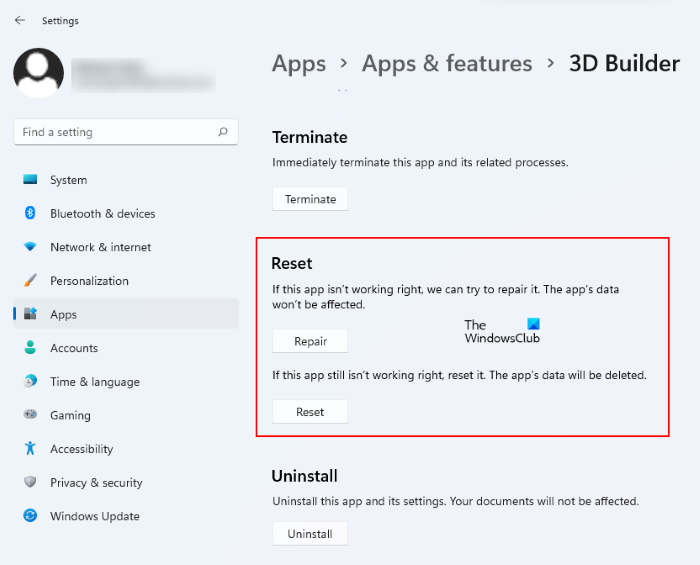
Windows 11 users have to follow the instructions listed below to repair or reset Windows Store apps on their system:
- Launch the Windows 11 Settings app.
- Go to “Apps > Apps & features.”
- Locate the app in the list that you want to reset or repair.
- Click Advanced options.
- Now, click on either Repair or Reset button.
Windows 10
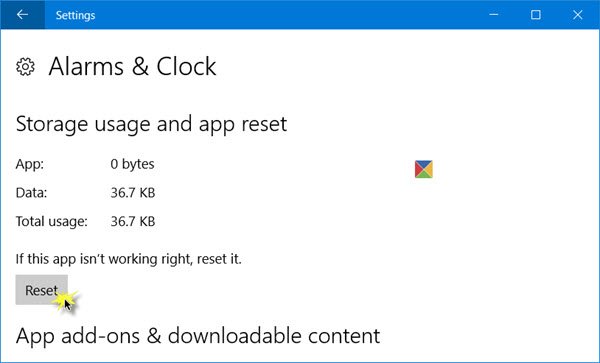
- Open Settings
- Select Apps > Apps and features
- Identify the app which is not working properly and click on it
- You will also see Advanced options. Click on it
- Click on the Reset button, to reset the app.
Check if everything is working properly now.
If all the apps are giving you problems, you may use 10Apps Manager or this PowerShell command to reinstall all the Microsoft Store apps.
Alternatively, you may Uninstall the app and then fresh-install it from the Microsoft Store.
TIP: Windows Store Apps fail to start? Check these Registry & File Permissions.
Windows Apps display small x sign

At times, you may see a small ‘x’ sign on the bottom right side of the Tile, indicating that something is wrong with this particular app. It could be for a built-in app or even a third-party app. If you see this, a problem or error likely occurred during the initial installation of an app package. Sometimes, just waiting on the start screen for 5-10 minutes is known to resolve the issue automatically. If this does not help, check for updates if any, and download and install them.
TIP: If your Microsoft Store apps keep crashing or freezing in Windows 11/10 computer, fix Operating System 5 errors and see if it helps.
This app can’t open & needs to be repaired
In Windows 10/8.1, you may see a message This app can’t open message. To exit, you may click on Close. To repair it, you should click the Go to the Store link.

You will now see a message stating that This app needs to be repaired.
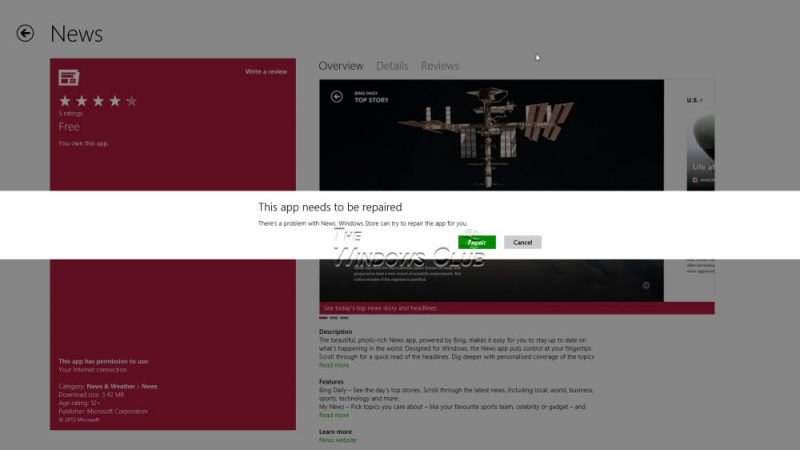
Clicking on Repair will repair the app. Effectively, the app is re-installed with all it defaults settings intact.
Once the app is repaired, you will see a notification in the top right side stating that the app was installed.
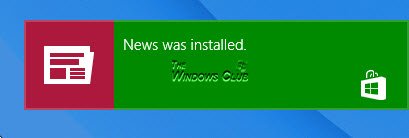
Now if you try to open the app, you will see that it opens properly.
Microsoft Apps will not open
If none of the Microsoft Store apps are opening then you may need to re-register all the Microsoft Store Apps.
If it still, doesn’t help, you may want to check these links:
