
Windows 11/10 is focused on Microsoft Store apps and comes with some pre-installed UWP Apps to get users started with Windows. However, some users may not need all the default pre-installed apps and might want to uninstall them completely.
While one can easily uninstall Windows Apps via Settings, in this article, we’ll share the way to remove all the Microsoft Store apps from a Windows PC completely.
Please note that, when you uninstall a Windows Store App using the usual options, the app is removed temporarily and goes to a staged condition discussed later in this article. Thus, when you create a new user account on Windows 11/10, it will again have all the pre-installed apps, since the default Windows Store Apps are not removed completely from the system.
To completely remove and erase all default pre-installed apps, you must be signed in as Administrator of your Windows Account – and you need to remove it in two places:
- Remove the provisioned package
- Remove the “installed” package from the administrator account.
Before you proceed, create a system restore point first.
Completely Uninstall Default Built-in Microsoft Store Apps in Windows 11/10
To completely uninstall default built-in Microsoft Store apps in Windows 11/10, follow these steps:
- Search for powershell in the Taskbar search box.
- Click on the individual search result.
- Click the Yes option.
- Enter this command:
Get-AppxPackage | Select Name, PackageFullName - Note the PackageFullName.
- Enter this command:
Get-AppxPackage PackageFullName | Remove-AppxPackage
To learn more about these steps, continue reading.
If you wish to uninstall individual apps in Windows 11/10, run the following command in an elevated PowerShell window:
Get-AppxPackage | Select Name, PackageFullName
You will be able to see the list of all installed apps and its PackageFullName information.
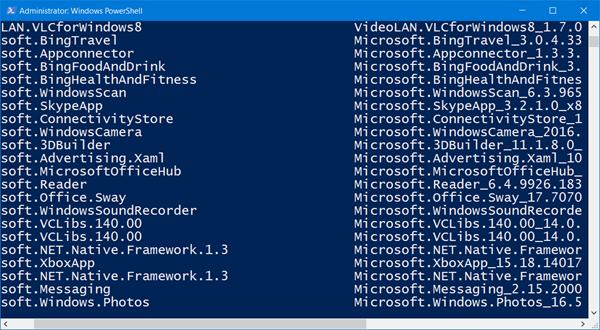
Note down the PackageFullName and replace it in the following command:
Get-AppxPackage PackageFullName | Remove-AppxPackage
So the command to remove some of the apps will look as follows:
Uninstall 3D Builder
Get-AppxPackage *3dbuilder* | Remove-AppxPackage
Uninstall Alarms & Clock
Get-AppxPackage *windowsalarms* | Remove-AppxPackage
Uninstall Calculator
Get-AppxPackage *windowscalculator* | Remove-AppxPackage
Uninstall Camera
Get-AppxPackage *windowscamera* | Remove-AppxPackage
Uninstall Calendar & Mail
Get-AppxPackage *windowscommunicationsapps* | Remove-AppxPackage
Uninstall Get Office app
Get-AppxPackage *officehub* | Remove-AppxPackage
Uninstall Get Started app
Get-AppxPackage *getstarted* | Remove-AppxPackage
Uninstall Solitaire Collection
Get-AppxPackage *solit* | Remove-AppxPackage
Uninstall Get Skype app
Get-AppxPackage *skypeapp* | Remove-AppxPackage
Uninstall Groove Music
Get-AppxPackage *zunemusic* | Remove-AppxPackage
Uninstall Microsoft Solitaire Collection
Get-AppxPackage *solitairecollection* | Remove-AppxPackage
Uninstall Maps
Get-AppxPackage *windowsmaps* | Remove-AppxPackage
Uninstall Money
Get-AppxPackage *bingfinance* | Remove-AppxPackage
Uninstall Movies & TV
Get-AppxPackage *zunevideo* | Remove-AppxPackage
Uninstall OneNote
Get-AppxPackage *onenote* | Remove-AppxPackage
Uninstall News
Get-AppxPackage *bingnews* | Remove-AppxPackage
Uninstall People app
Get-AppxPackage *people* | Remove-AppxPackage
Uninstall Phone Companion
Get-AppxPackage *windowsphone* | Remove-AppxPackage
Uninstall Photos
Get-AppxPackage *photos* | Remove-AppxPackage
Uninstall Store
Get-AppxPackage *windowsstore* | Remove-AppxPackage
Uninstall Sports
Get-AppxPackage *bingsports* | Remove-AppxPackage
Uninstall Voice Recorder
Get-AppxPackage *soundrecorder* | Remove-AppxPackage
Uninstall Weather
Get-AppxPackage *bingweather* | Remove-AppxPackage
Uninstall Xbox
Get-AppxPackage *xboxapp* | Remove-AppxPackage
Run the command to uninstall the particular pre-installed default Windows 10 Store app and restart your computer.
If you want to uninstall the particular pre-installed app from all user accounts, use the following command format:
Get-AppxPackage -allusers PackageFullName | Remove-AppxPackage
If you wish to remove a pre-installed app from a particular user account, use the following command:
Get-AppxPackage -user username PackageFullName | Remove-AppxPackage
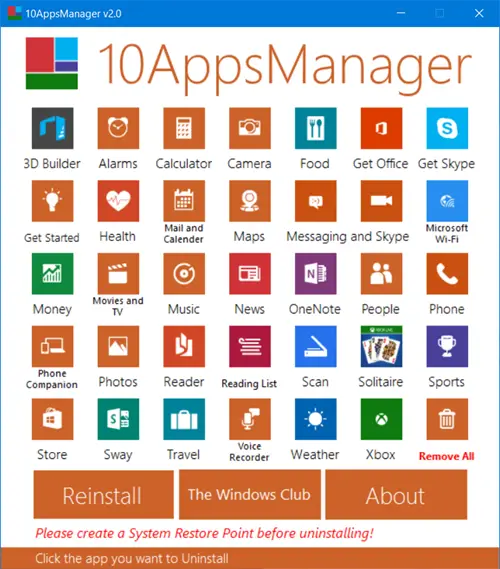
But as I said earlier, if you are a Windows 11/10 user and do not want to go through this process, use our 10AppsManager. It will let you easily uninstall and reinstall Windows Store apps, with a click! You can also uninstall preinstalled Apps & Games via Windows Settings.
TIP: You can also remove default Microsoft Store app packages using Group Policy.
Completely Remove all Microsoft Store apps using PowerShell script
Note: I am not familiar with PowerShell, having used it for the first time now. But when I found my Windows Phone app constantly crashing in spite of having reinstalled it and trying other troubleshooting steps, I decided to use this script. This was the first time that I had opened PowerShell! It was only after some trial and error that I was able to get the script to work. Based on what I read at the TechNet Script Center post, this is the way I went about it. It worked for me and I hope it does for you too.
First, I recommend you create a system restore point.
Having done that you will have to allow active scripting on your Windows 8 computer. Because, by default, for security reasons, PowerShell’s execution policy is set to Restricted. This means that scripts won’t run. In such a scenario, if you try to run a script, you will get an error:
Running scripts is disabled on this system
Open Powershell as an administrator. To do so, while on the start screen, type powershell, and on the result, right-click and select Run as administrator.
Type Set-ExecutionPolicy -ExecutionPolicy Unrestricted and hit Enter.
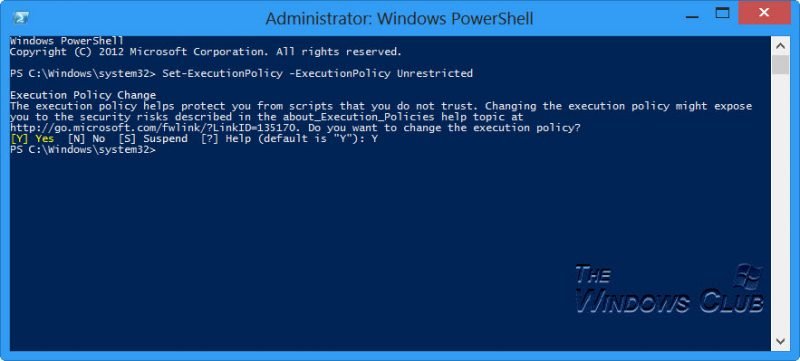
Type Y again as confirmation and hit Enter again. This will change the Execution Policy.
Now, download this script from Microsoft and extract the contents of the zipped file.
Open RemoveWindowsStoreApp with a Notepad. Scroll down to the end of the script file, and then add the command that you want to run – in this case, Remove-OSCAppxPackage. Save the script.
Next, run the script using PowerShell. Check the path. Change the directory if need be, Type cd C:\ and hit Enter. Then place the RemoveWindowsStoreApp on your C drive if need be.
When you run the script, it will first list all the installed apps along with the app IDs.
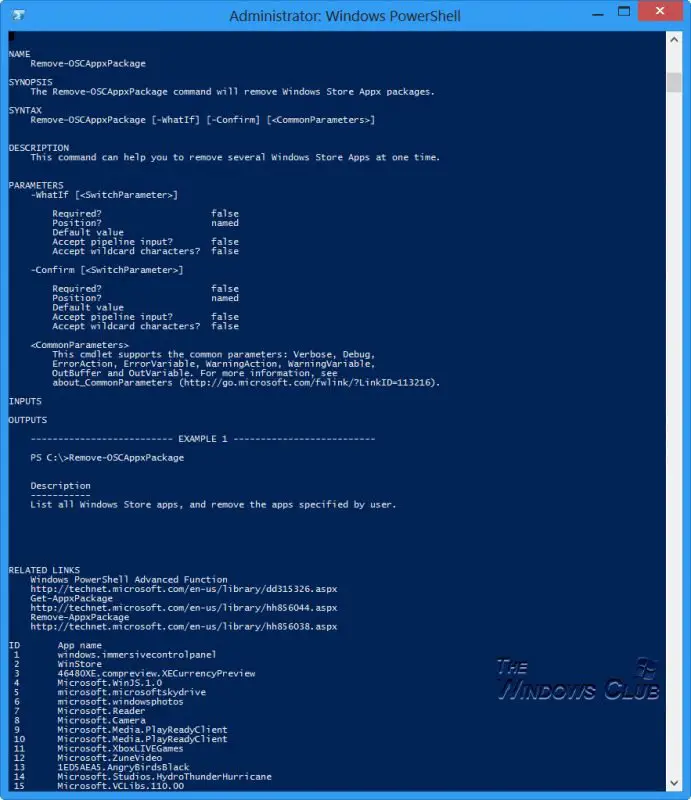
In my case, The Windows Phone app had the ID “34”.
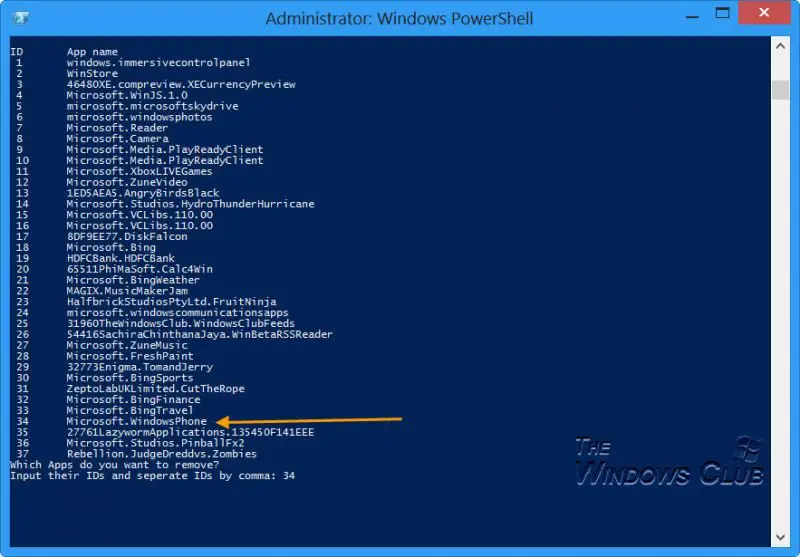
You will be asked Which Apps do you want to remove. Enter the ID or IDs and hit Enter. I entered 34 and hit Enter.
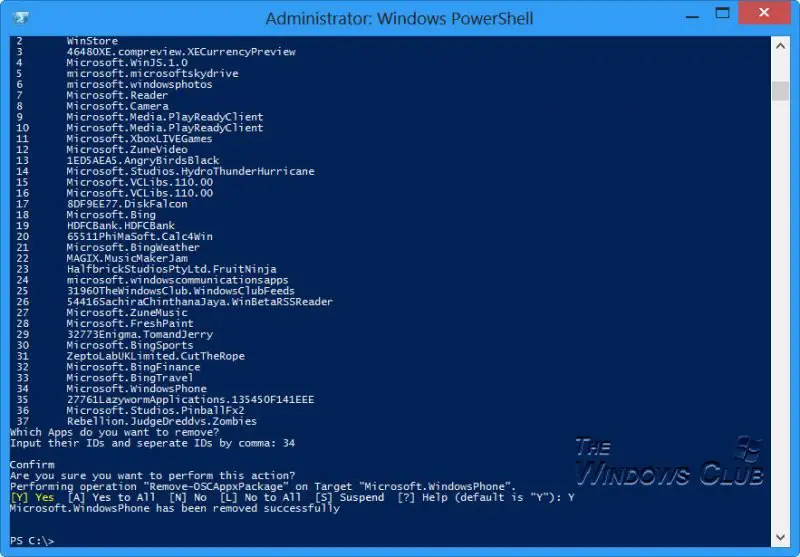
A Clean Uninstall will be performed and the app will be completely removed from your system.
Now restart the computer and reinstall the app. The app should hopefully work and not crash now.
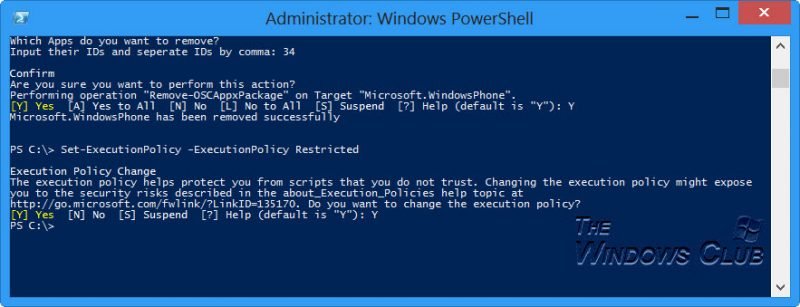
Once your work is done, remember to change back the PowerShell Execution policy to Restricted using: Set-ExecutionPolicy -ExecutionPolicy Restricted.
I hope it helps!
Also read: Completely Uninstall Pre-Installed Microsoft Store Apps in Windows 11
BONUS TIP:
You can uninstall multiple Microsoft Store apps at once in Windows using 10AppsManager.
To uninstall Microsoft Store apps in Windows, you can also use a good freeware like , CCleaner, Store Applications Manager, or AppBuster.
If you are facing other kinds of problems with your Microsoft Store apps, you may want to check these links:
Also read: How to uninstall Microsoft Store apps from your User Account using PowerShell in Windows 11
Microsoft Store apps crashing in Windows 11
If your Microsoft Store app is crashing every time you run it, you may want to check out these posts before you proceed:
- How to Repair Microsoft Store Apps
- Troubleshoot and Fix Apps problems with Windows Apps Troubleshooter
- Fix Random Microsoft App Crashes
If none of these solutions work, the final option is to completely uninstall and remove the app from your Windows device. To do so, you can use PowerShell and scripting to perform a Clean Uninstall of the Microsoft Store app.
How do I permanently delete Windows Store apps?
To permanently delete Windows Store apps in Windows 11/10, you need to use Windows PowerShell. Alternatively, you can use Windows Terminal to delete or remove all Microsoft Store apps from your computer.
How do I Uninstall preinstalled apps on Windows 11?
To uninstall preinstalled apps on Windows 11/10, you can enter the get-AppsPackage command to note down the PackageFullName. Following that, you can use the Remove parameter to remove them from your computer. For your information, you need to repeat the same steps multiple times.
Read: Completely Remove all Microsoft Store apps using PowerShell script
How do I completely Uninstall a Microsoft Store game?
To completely uninstall a Microsoft Store game, you can use either Windows Settings or Windows PowerShell. In Windows Settings, go to Apps > Apps & feature to find the app you want to uninstall. In Windows PowerShell, follow the steps mentioned above.
See this if you need to re-register your Microsoft Store Apps.
Uninstall pre-installed Windows Store Apps in Windows 8.1
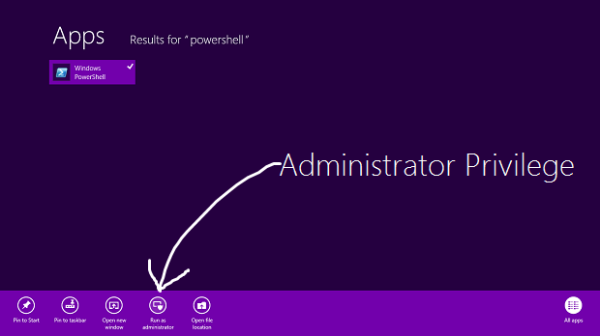
1. Firstly, you will have to open an elevated PowerShell prompt. Press Windows Key + Q, and in the search box, type powershell. From results, pick the Windows PowerShell. Right-click on it, select Run as administrator from bottom options.
2. In the Windows PowerShell window, type following command to enlist all the apps pre-installed on your Windows 8.
Get-AppxPackage -AllUsers
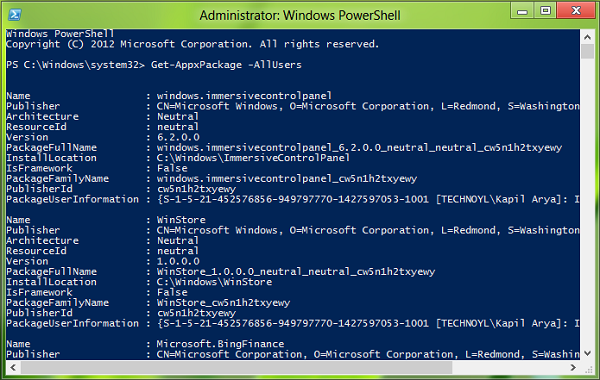
Command to remove all the UWP Apps from your system account
3. Run the following command to remove all Windows Store Apps:
Get-AppXProvisionedPackage -online | Remove-AppxProvisionedPackage -online
That’s it! Now whenever you create a new user account on your Windows 8, there will no be no pre-installed Modern apps on that account as well.
Whenever we uninstall a Windows Store App, its status in the PowerShell window is displayed as Staged. That means, the app still lies in Windows. In other words, the application is prepared to get automatic installation when a new user account is created.
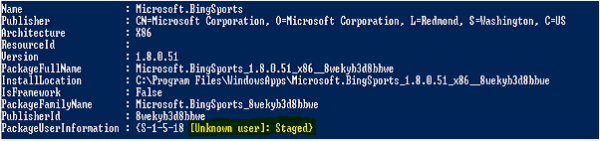
4. If you’d like to remove all Modern Apps for the current account only, use the following command:
Get-AppXPackage | Remove-AppxPackage
5. In case you want to remove all Modern Apps for a specific user then add the -User part in the above command, so it is:
Get-AppXPackage -User | Remove-AppxPackage
6. Finally, let us know the command to remove all Modern Apps from all the account on your Windows 8:
Get-AppxPackage -AllUsers | Remove-AppxPackage
That’s it! The apps will now be completely uninstalled and erased from your Windows 8 system!
