
Windows Store Apps Troubleshooter for Windows 11/10 from Microsoft will troubleshoot and fix all issues and problems you may be facing after having upgraded your operating system. Microsoft has released several automated solutions to fix Windows problems, and this is just one of the recently released ones, which has been updated to address Windows UWP apps problems.
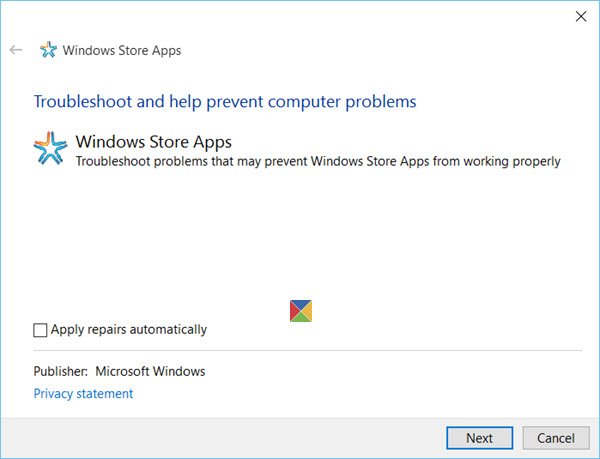
Windows Store Apps Troubleshooter
The problems being faced are varied. For some Windows Store apps are not opening. Some are unable to download, install, uninstall or update them. And then there are others for whom the Microsoft Store itself is not opening or is even missing. Microsoft has even released an automated online tool to fix Windows Store is not working issues.
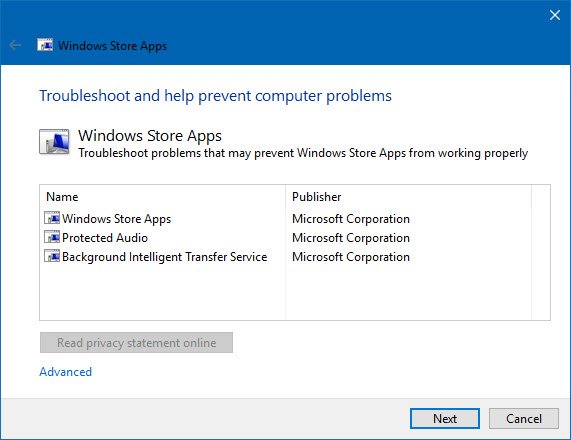
While resetting the Windows Store cache or re-registering the Windows Store apps solves most of the problems, if such manual troubleshooting steps do not help you, you may want to run this troubleshooter.
How to run Windows Store Apps troubleshooter in Windows 11
Microsoft was aware of the importance of troubleshooters. While Troubleshooters are still a part of a sub-menu with Windows 11, they are easily accessible.The procedure to run the Windows Store Apps troubleshooter in Windows 11 is as follows:
- Open Windows 11 Settings
- Click System
- Select Troubleshoot
- Click on the Other Troubleshooters
- You will see the Windows Store Apps there.
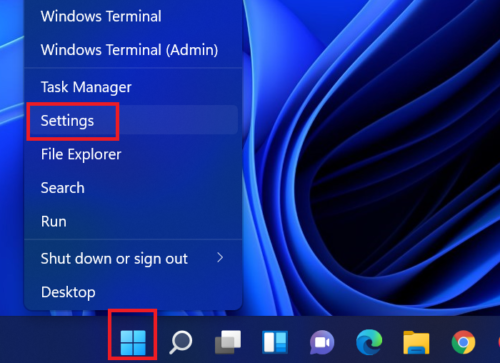
Right-click on the Start button and select Settings.
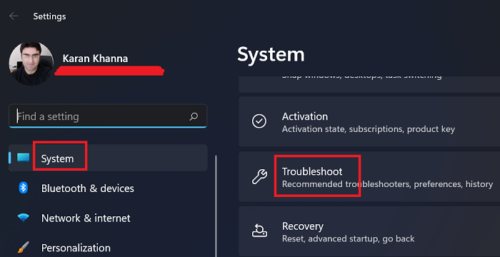
In the Settings menu, select System from the tabs on the left-hand side.
In the right-pane, scroll down to Troubleshoot and click on it.
Now select Other troubleshooters.

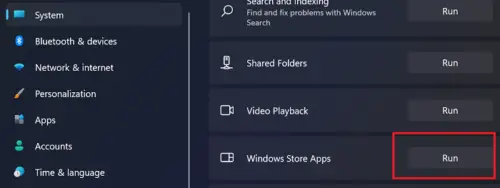
In the list of troubleshooters, scroll down to the absolute bottom and click on Run corresponding to the Windows Store Apps troubleshooter.This will invoke the Windows Store Apps troubleshooter.
How to run Windows Store Apps troubleshooter in Windows 10
To access the Windows Store Apps Troubleshooter in Windows 10:
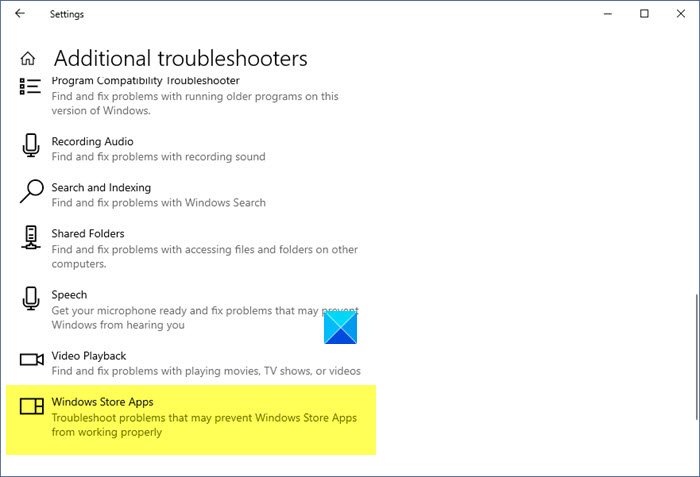
- Open Settings
- Click Update and Recovery
- Select Troubleshoot
- Click on the Additional Troubleshooters link
- You will see the Windows Store Apps there.
This Windows Store Apps Troubleshooter for Windows 10 scans your computer, identifies problems, and attempts to fix issues automatically.
See this post if you receive a Windows Store Cache may be damaged error after running Windows Store Apps Troubleshooter.
While Windows 11/10 has been working fine for many, some have been facing several problems and issues.
Do let us know how the experience has been for you and if you faced any problems, how you managed to resolve them.
Read: Microsoft Store error codes, descriptions, resolution.
Why do Windows Store apps get stuck?
At times, Microsoft Store apps may become stuck while working or fail to open due to a corrupt Windows Store cache. This can be reset by entering the wsreset command in the Run window. This is a simple procedure and thus most issues with the Windows Store are easy to resolve.
Read: Microsoft Store is not opening after reset
Why does Microsoft Store have less apps?
Initially, Microsoft decided to keep UWP or Uniform Windows Platform, apps only. Thus, many desktop applications were excluded. A minor exception was noted with Windows 10, but most users still prefer to download applications directly from the website itself. However, it is highly advisable to download apps for your Windows system directly from the Microsoft Store to ensure that the apps are safe.
Are Windows Store apps free?
Obviously not! But here’s the catch. There are still many hidden gems in the Microsoft Store that are available for free, and since most users don’t frequently use the Microsoft Store, they often overlook these applications. But we advise you to check the list of best free Windows apps in the Microsoft Store to make your life easier.
