
Rufus stands for Reliable USB Formatting Utility with Source. It is a tiny and lightweight utility for Windows PC that helps you easily format and create bootable USB drives, such as USB keys, memory sticks, and USB pendrives. It has advanced and standard options to suit all skill levels.

While most of us may have reserved a copy of the free Windows upgrade for our computers, some may want to do a clean install using a Windows 11/10 ISO image. In this post, we will see how to download the ISO image, burn it to a USB drive, and create bootable USB media from the ISO for Windows 11 or Windows 10 installation.
First of all, you will have to download the Windows ISO from the official link at Microsoft. We will update this link once the final version is released.
You can create a bootable USB or Flash Drive with the help of some software like Windows USB/DVD Download Tool, Rufus, ABUSB, ESET SysRescue Live, WinToFlash, Windows USB Installer Maker, or Windows Installation Media Creation Tool. In this post we are talking about Rufus.
How to create bootable USB drive in Windows 11 using Rufus
You can create a bootable Windows 11 pen drive using Rufus. For that, you must download Rufus from the official website and the Windows 11 ISO on your computer. If you have already installed Rufus and downloaded the Windows 11 disk image, you can follow the following steps. To create a Windows 11 bootable USB drive using Rufus, follow these steps:
- Open Rufus on your computer.
- Plug in the USB drive.
- Select it in the Device list.
- Choose Disk or ISO image from the Boot selection menu.
- Click the SELECT button and select the Windows 11 ISO file.
- Click the START button.
- Let is finish the process.
Let’s check out these steps in detail.
Open Rufus on your computer and plug in the pen drive. Following that, make sure it is visible in the Device list. If not, expand it and choose the pen drive.
Then, expand the Boot selection menu and select the Disk or ISO image option. Following that, click the SELECT button and choose the Windows 11 ISO file you downloaded earlier.
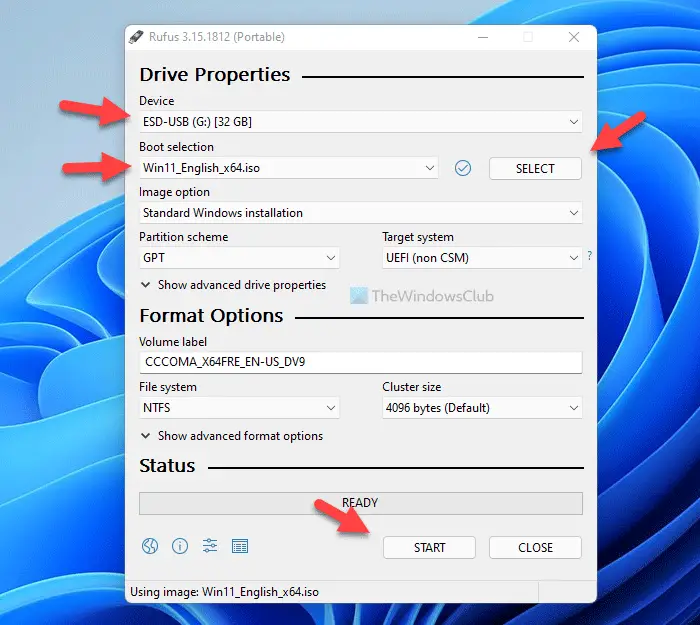
Next, click the START button.
Once done, you can restart your computer and follow the usual steps to start the Windows 11 installation.
You may leave at their default values. When you use MBR partition scheme for BIOS or UEFI, under Partition scheme and target system type, the bootable USB will be suitable for devices using BIOS as well as UEFI.
Once you have done this, simply click on Start and wait for the process to get over.
This tool has a user-friendly interface that looks like the built-in format panel of Windows. We can choose a partition scheme, devices, cluster size, target system type, new volume label, and file system types – like NTFS, FAT32, exFAT, and UDF.
Using this tool you can create an extendable label, quick format mode, and icon files. There are a few basic formatting options available. The tool also lets us select the algorithms (from type 1 to type 4). A bootable disk is created using the ISO image. Rufus records all the activities and saves them as a log file.
This multifaceted tool is useful when:
- USB installation media need to be created from bootable ISOs (Linux, Windows, and UEFI)
- A person wants to work on a computer in which an OS is not installed
- For the purpose of flashing a BIOS or any other DOS, the firmware is required
- A person wishes to run a low-level utility.
Rufus for Windows free download
Rufus is arguably the finest solution for creating and formatting a bootable USB drive. Download your copy of Rufus from the official website here.
If you feel the need, you may check if the USB is bootable.
PS: You can now also download Windows ISO using Rufus.
Related reads:
How to burn an ISO file to a USB drive?
To burn an ISO file to a USB drive, use software like Rufus or Win32 Disk Imager. Insert your USB drive, open the software, select the ISO file, choose your USB drive as the destination, and start the process. This creates a bootable USB from your ISO file easily and efficiently.
How do I copy a Windows ISO to a bootable USB?
Use the Windows Media Creation Tool to copy a Windows 11/10 ISO to a bootable USB. Download and run the tool, select “Create installation media,” and follow the instructions. This process will format the USB and make it bootable with the Windows ISO. No additional software like Rufus is needed.
