
When running the HP PC Hardware Diagnostics UEFI, you may encounter an error that says Your current version of diagnostics is not up to date, please go to www.hp.com to update your diagnostics. This error typically means the tool’s internal component database is outdated or the tool itself is an old version. The solutions below are ordered from easiest and most specific to more comprehensive.
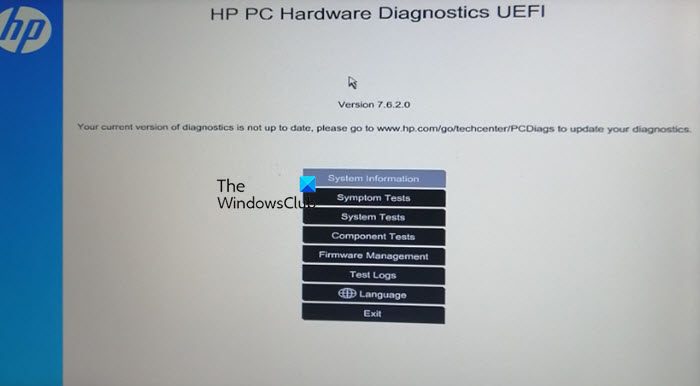
Your current version of diagnostics is not up to date
If you encounter the ‘Your current version of diagnostics is not up to date’ error message, go to the URL mentioned in the error message and try downloading the latest version of diagnostics. But if that doesn’t work or you can’t do it, execute the solution below.
- Manually reinstall the diagnostic app
- Run the software’s built-in updater
- Update BIOS/UEFI system
- Reset core Windows updates and diagnostic services
- Update all system drivers
- Run SFC and DISM check
Let’s get started with the troubleshooting guide.
1] Update from within HP PC Hardware Diagnostics UEFI (If Available)
Some versions of the UEFI diagnostic tool have a built-in network test that can check for updates directly. You can use the HP PC Hardware Diagnostics to look for system or firmware updates. Additionally, use HP Support Assistant to update drivers and firmware.
2] Download and Create the Latest HP Hardware Diagnostics USB Key
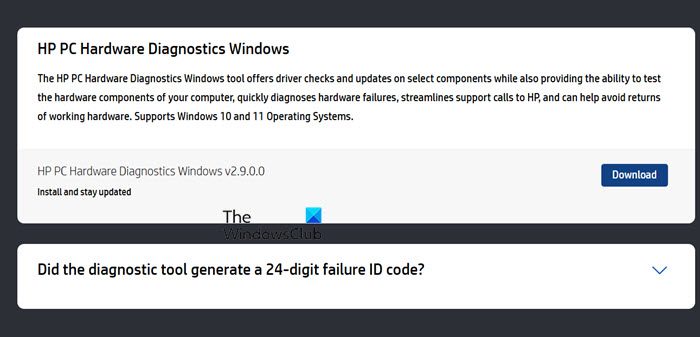
This is the most direct and reliable method, as it completely replaces the old diagnostic tool on your hardware with the latest version from HP. You can follow the steps mentioned below to do the same.
- First of all, go to support.hp.com to access the HP PC Hardware Diagnostics UEFI download page.
- Download the HP Hardware Diagnostics UEFI file for your computer model or the generic version.
- Run the downloaded file and follow the instructions to create a bootable USB drive.
- Insert the USB drive into your problematic HP PC, restart, and press F9 for the Boot Menu. Select the USB drive to boot from.
- This will load the latest, most comprehensive diagnostics. Running this will resolve the error.
Finally, check if your issue is resolved.
3] Update BIOS/UEFI system
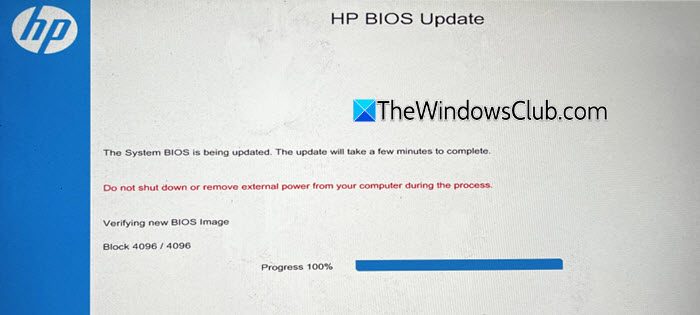
An outdated BIOS version can contain bugs that prevent modern diagnostic tools from identifying or testing components. It is recommended to run the latest BIOS version for the hardware diagnostic to operate. To update BIOS/UEFI firmware, follow the steps given below.
- Open the Run dialogue box by clicking Win + R, type msinfo32, and press Enter to open System Information.
- Search for BIOS Version/Date to note the manufacturer and version, and then navigate to the manufacturer’s support website. There, enter the model number, go to the BIOS or Driver and Utility section, and download the latest BIOS/UEFI firmware file.
- Once the executable file is downloaded, close all other programs and run the file as an administrator. The system will restart and update the BIOS automatically.
Make sure not to turn off or reboot the device during the ongoing process. Once Windows loads, test the diagnostic tool. If the issue remains as it is, see the next solution.
4] Reset core Windows updates and diagnostic services
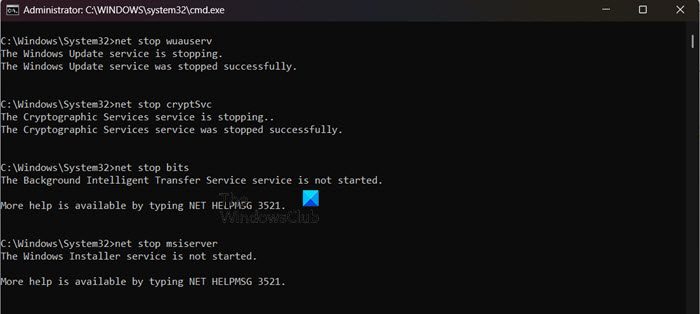
The diagnostic tool relies on Windows services to download its updates. If these services get corrupted or are stuck, the tool cannot fetch the new files, which results in issues. Therefore, we are going to restore core Windows updates and diagnostic services to clear the cache and reset them to a fresh start.
- Click the Windows key, type cmd, and select Run as administrator.
- Execute the following commands one by one and press the Enter button after each one.
net stop wuauserv

net stop cryptSvc

net stop bits

net stop msiserver
- Now, restart them by executing the following commands:
net start wuauserv

net start cryptSvc

net start bits

net start msiserver
After all the commands are executed, close the window and restart the device. Check if the issue is resolved. If it still fails, proceed with the next solution.
5] Update all system drivers
Outdated or corrupt drivers, especially for the chipset and storage controllers, can create a layer of instability between the driver and any software that is trying to inspect it. The diagnostic tool may see this incompatibility and flag itself as outdated. To ensure clean communication between the OS, hardware, and the diagnostic tool, running the latest drivers is essential. The user can use any one of the following methods to update critical hardware drivers.
- Download the drivers from the manufacturer’s website
- Get a driver update software
- Install Driver and optional updates
If the problem is solved, good for you. If not, slide to the next solution.
6] Run SFC and DISM check
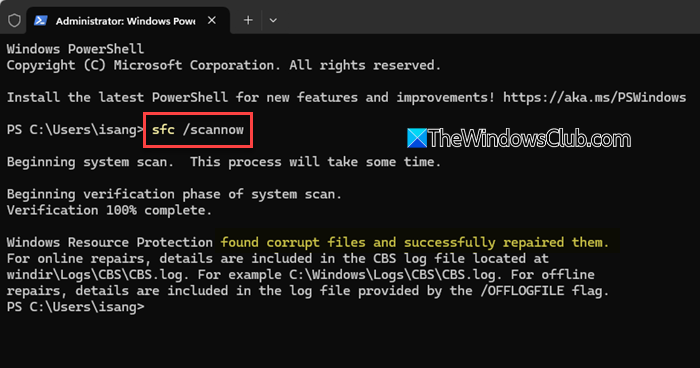
If critical system files are corrupted, the tool will cause issues, and users will be faced with outdated issues. SFC and DISM are the built-in features that automatically scan and repair underlying system corruption. Follow the steps given below to run SFC and DISM Check.
- Click Win + R to open the Run dialogue box, type cmd, and hit Ctrl+Shift+Enter to open Command Prompt with admin rights.
- To run SFC, execute the command given below.
sfc/scannow
- Wait for the process to complete, and then execute the following command to run DISM.
DISM /Online /Cleanup-Image /RestoreHealth
Once both scans are complete, restart the device; hopefully, the issue will be resolved.
That’s it!
Read: How to run System Diagnostics on Windows 11
How do I update my HP Diagnostics?
Users can update HP Diagnostics through the HP Support Assistant app. It automatically scans for newer diagnostic tools, driver updates, and health check components. Check out the solutions above for the full steps.
Read: Hardware problems were detected error in Memory Diagnostics
How to solve Diagnositc policy service is not running?
When the Diagnostic policy service is not running, Windows can’t detect or fix network issues. The easiest way to solve it is to restart the service from the service panel and ensure it is set to Automatic. The next step is to repair any missing files, and if it still won’t start, run SFC and DISM to restore the system files that are preventing the service from working.
Also Read: Use HP System Event Utility in Windows 11.
