
If your browser keeps opening HP Support tabs on your Windows computer, this post will help you fix the issue. Several users have reported a recurring issue with their HP laptop running Windows 11, where the browser automatically opens new tabs without user input.
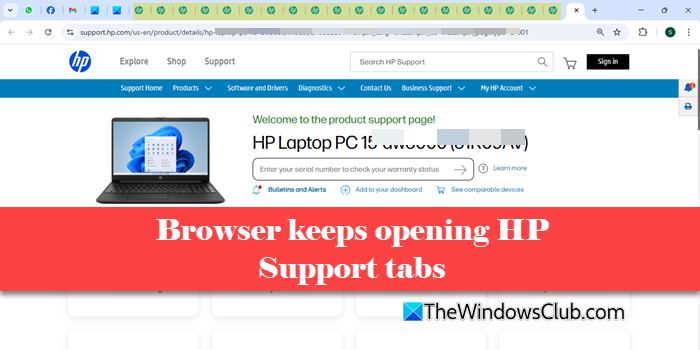
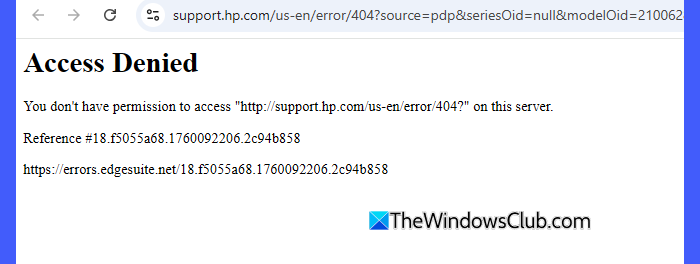
It begins by opening the HP Support page that identifies their laptop model, then continues to open additional tabs until it eventually displays the following error:
Access Denied
You don’t have permission to access “http://support.hp.com/us-en/error/404?” on this server.
The tabs usually open in Microsoft Edge or Google Chrome. This behavior occurs randomly, causing frustration among users and disrupting their workflow.
Fix Browser keeps opening HP Support tabs
To fix your browser if it keeps opening HP Support tabs on Windows 11, use these solutions:
- Disable browser preloading
- Uninstall HP PC Hardware Diagnostics
- Check for a stuck or faulty F1 key
- Check for unwanted or background processes
Let us see this in detail.
1] Disable browser preloading
Chrome and Edge sometimes preload pages in the background to speed up browsing. However, this feature can occasionally trigger HP’s support URLs automatically. Try disabling browser preloading to see if it resolves the issue.
Microsoft Edge
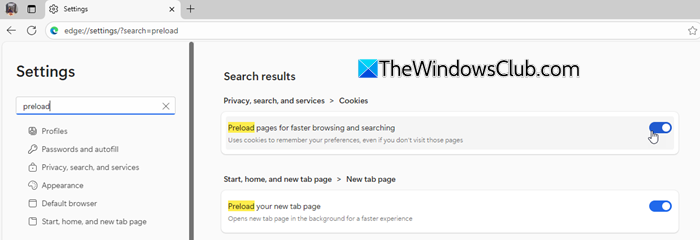
Open Edge and click the three dots (⋯) icon in the top-right corner. Scroll to the bottom of the menu and select Settings.
Use the search bar to find Preload Pages. Turn off the toggle for “Preload pages for faster browsing and searching“. Restart Edge to apply the changes.
Google Chrome
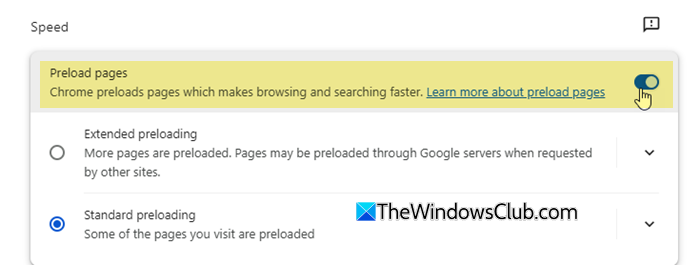
Open Chrome and click the three dots in the top-right corner. Navigate to Settings > Performance. Scroll down to the bottom and turn off the toggle for “Preload pages” under Speed.
Restart Chrome and check if the issue is resolved.
2] Uninstall HP PC Hardware Diagnostics
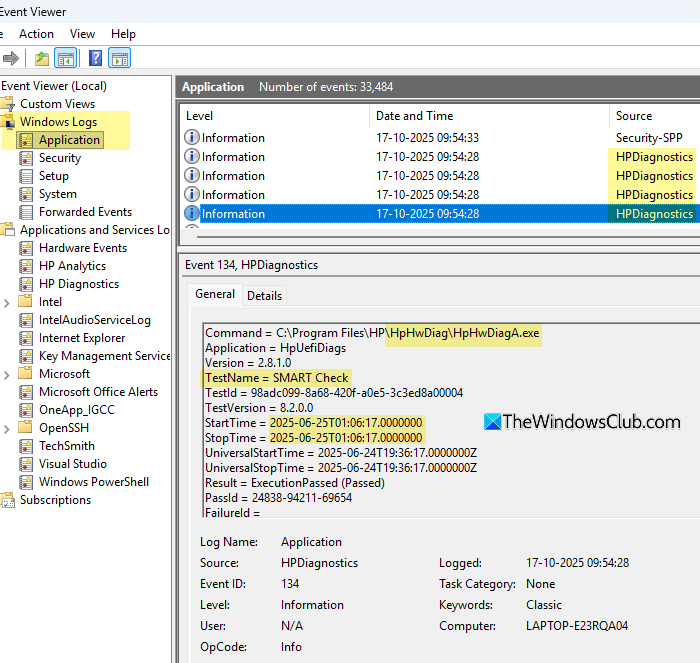
I was personally experiencing this issue on my HP laptop. After digging through Event Viewer and Task Manager, I discovered that the HP PC Hardware Diagnostics tool running in the background was the main culprit. It was performing a short SMART test on my storage drive when the browser tab issue occurred. Uninstalling it stopped the unwanted browser pop-ups that kept opening without any input from me.
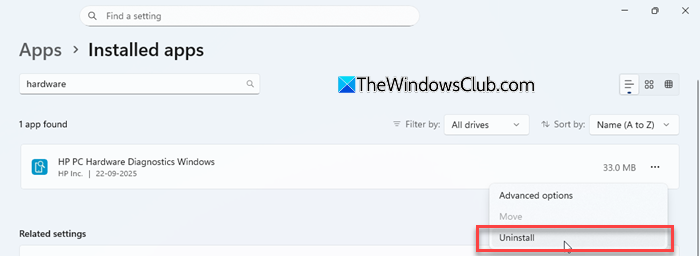
HP PC Hardware Diagnostics is a background tool that periodically runs hardware health checks on HP laptops and desktops. These tests are usually triggered by HP Support Assistant. When these diagnostics finish or fail to report correctly, they attempt to open the HP Support page in the default browser to display results. If the process glitches, it can repeatedly launch browser tabs (exactly what I was experiencing). I confirmed this by checking the Event Viewer (Windows Logs > Application) and seeing a few HpHwDiagA.exe entries.
To fix the issue, you may try uninstalling HP PC Hardware Diagnostics.
Press Win + I to open Settings. Navigate to Apps > Installed apps. Search for HP PC Hardware Diagnostics Windows. Click the three-dots (⋯) menu next to it and select Uninstall. Then reboot your PC.
Note:
- This won’t affect your ability to run diagnostics from the BIOS — the UEFI version of HP Hardware Diagnostics will remain available if you ever need to test your system manually.
- After uninstalling diagnostics, check if the browser tab issue stops. If it persists, you can then uninstall and reinstall HP Support Assistant as a second step.
3] Check for a stuck or faulty F1 key
Several users have reported that a stuck or malfunctioning F1 key can cause the browser to open HP Support or Help pages repeatedly. On HP laptops, the F1 key is often mapped to launch online help, so if it’s pressed down or sending repeated input, it can trigger this behavior.
To rule this out, gently press and release the F1 key several times to ensure it isn’t physically stuck. Clean around the key with compressed air or a soft brush to remove any debris. If possible, connect an external keyboard to check whether the issue persists. If it stops, your laptop’s built-in F1 key is likely faulty.
4] Check for unwanted or background processes
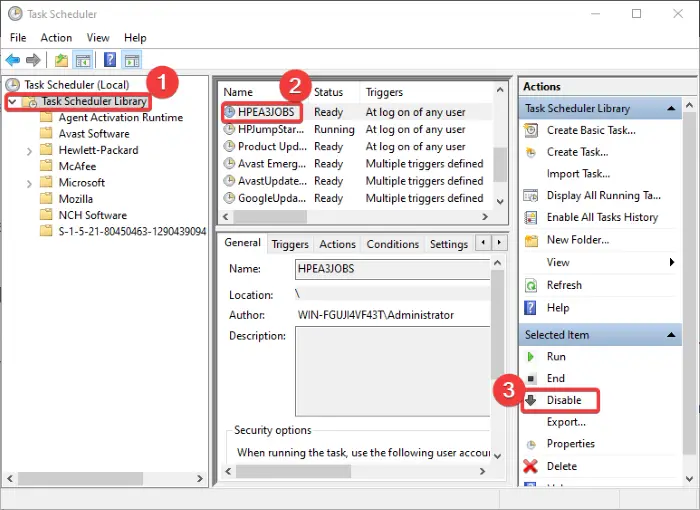
Although this issue is not typically caused by malware, it’s still a good idea to rule out any unwanted browser extensions or background apps that could trigger auto-loading pages.
- Review your startup apps and disable any unnecessary entries.
- Check installed browser extensions. Disable suspicious or unfamiliar ones.
- Optionally, run a quick scan with Windows Security or Malwarebytes Free to rule out adware or browser hijackers.
Note: One user reported that disabling Edge and Chrome from startup and installing AVG AntiTrack stopped the issue entirely. This suggests the cause is related to browser telemetry or preloading, not malware.
I hope this helps.
Read: Microsoft Edge keeps opening multiple tabs
How do I stop Chrome from opening new tabs?
If Chrome keeps opening new tabs on your system, check your browser extensions. Sometimes a faulty or unwanted extension can cause this issue. Disable any extension you don’t recognize, then reset Chrome settings to default. Also, make sure the F1 key on your keyboard isn’t stuck, as that can keep opening new help tabs.
Why does my laptop keep opening random tabs?
This usually occurs because the browser may try to preload pages it “thinks” you will open. A stuck key, unwanted extensions, or background apps running without your knowledge can also trigger this behavior. Run a quick malware scan, review your startup apps, and reset your browser settings to see if this resolves the issue.
HP Support Assistant keeps popping up on Taskbar
HP Support Assistant keeps popping up because it’s set to run automatically at startup; to stop it, open Task Manager > Startup tab, find HP Support Assistant, right‑click and choose Disable, then restart your PC to apply the change. You should also turn off its notifications. To do so, open HP Support Assistant, click the Settings gear icon on the left or top-right, find the Notifications section and turn off options like Show pop-up notifications, Show tray icon alerts, and message updates.
Read Next: What to do if you get logged out of everything when you restart your computer.
