
If you use Google Chrome or Microsoft Edge and multiple instances of the same passkeys or passwords show up when trying to sign into a website, here is how you can fix the problem. You can use the same set of solutions for both browsers on Windows 11.
Why does same passkey show up when trying to sign in?
If the same passkeys show up when trying to sign in, one of these could be the reason:
- You have created multiple entries from multiple devices but used the same account to save them.
- You are using Google Password Manager in Microsoft Edge, but Microsoft Edge doesn’t use Google Password Manager. They have saved the same password in both places.
- You haven’t removed your old credentials after changing the password.
- Some third-party password managers are creating the conflict.
Multiple same passkeys show up when trying to sign into a website
If multiple same passkeys or passwords show up when trying to sign into a website using Edge or Chrome, follow these solutions:
- Remove third-party password manager
- Use either Google Password Manager or Microsoft Password Manager
- Delete old credentials after changing password
- Disable password autofill
- Re-import passwords
- Disable password synchronization
- Check Windows Credential Manager
To learn more about these solutions, continue reading.
1] Remove third-party password manager
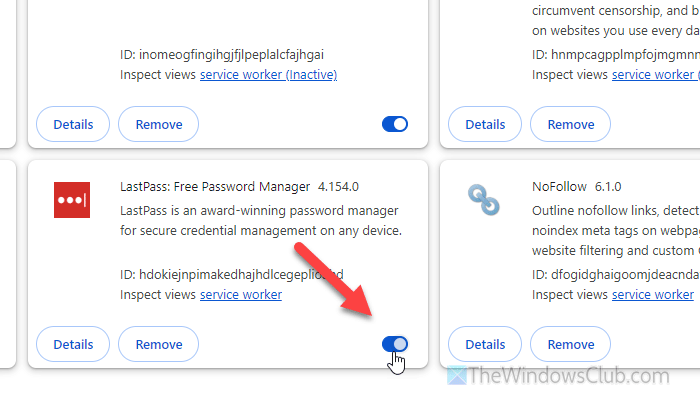
It is the very first thing you must check since the built-in password manager and third-party password manager often show the same password. Whether you use a browser-based password manager or a dedicated one, it is very easy to temporarily remove it.
If it is a browser extension, deactivate it from the Extensions manager. However, if it is a dedicated password manager, you will find the turn off option. Apart from that, you can use the Task Manager to disable it temporarily.
2] Use either Google Password Manager or Microsoft Password Manager
If you use Microsoft Edge, you will have to use Microsoft Password Manager. However, if you use Google Chrome, you will have to opt for the Google Password Manager. Many people use both browsers and often encounter problems between the two password managers. That is why it is suggested to use only one of them.
However, you might have problems while using Google Chrome since it doesn’t support Microsoft Password Manager. In that case, you will have to save passwords in Google Password Manager when you use Chrome and import them to Microsoft Password Manager when you use the Edge browser.
3] Delete old credentials after changing password
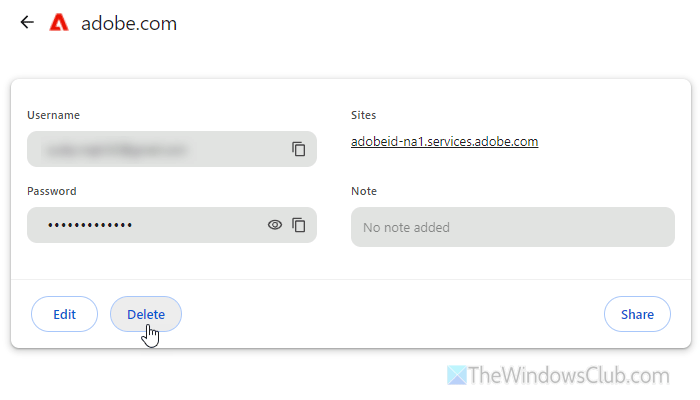
Many times, users forget to delete the old credential entry after creating a new one. If it is a password update, you won’t find any problem. However, if you need to create a new entry, you will see two separate credentials when signing in to your account.
That is why it is suggested to delete old credentials after changing the password. You can simply enter this URL in the address bar of Google Chrome: chrome://password-manager/passwords and this in the Edge browser: edge://settings/autofill/passwords.
Then search for duplicate entries and delete them.
Read: How to edit or delete all passwords in Google Password Manager
4] Disable password autofill
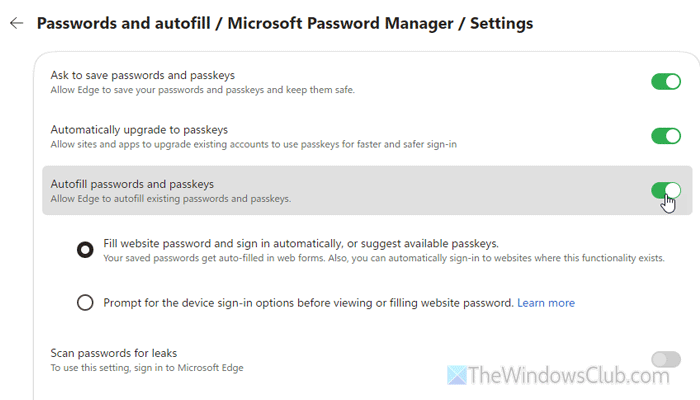
To disable password autofill in Google Chrome, open the Settings panel and go to Autofill and passwords. Then, click on the Google Password Manager. Open the Settings tab and find the Sign in automatically option. Toggle the corresponding button to turn it OFF.
To disable password autofill in Microsoft Edge, open the Settings panel and go to Passwords and autofill > Microsoft Password Manager > More settings. Toggle the Autofill passwords and passkeys button to turn it OFF.
Once done, you will be able to choose the credentials manually, and multiple entries won’t prompt.
Read: How to use Microsoft Autofill Password Manager on Chrome
5] Re-import passwords
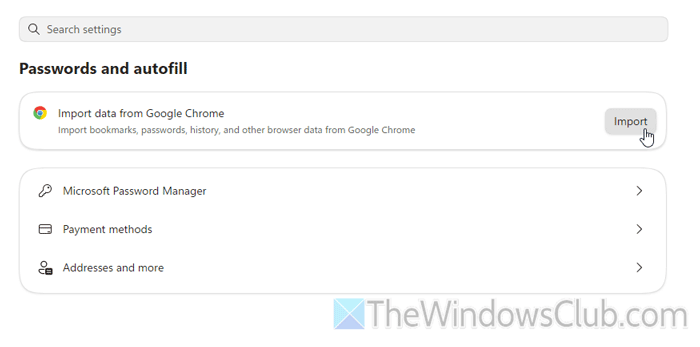
If you are getting this problem with Microsoft Password Manager, it is suggested to re-import passwords from Google Password Manager. At times, this problem might arise when the previous import was not finished, or it was interrupted.
To re-import passwords from Google Password Manager to Microsoft Password Manager, open the Settings panel and go to Passwords and autofill.
Next, find the Import data from Google Chrome option and click the Import button.
Then, choose Google Chrome from the Import from menu, select your profile, tick the Saved passwords checkbox, and click the Import button.
Once done, click on the Microsoft Password Manager to find all the imported passwords.
Read: Import Bookmarks, Passwords into Chrome from Edge or Firefox
6] Disable password synchronization
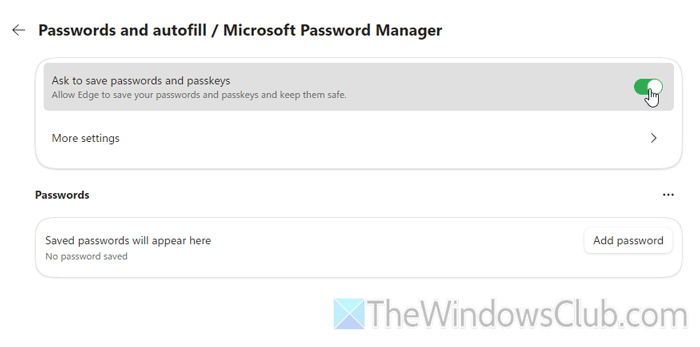
To disable password synchronization in Google Chrome, open the Settings panel and go to You and Google. Then, click on your profile picture and head to the In your Google Account section. Toggle the Passwords and passkeys option to turn it OFF.
To disable password synchronization in the Microsoft Edge browser, open the Settings and go to Passwords and autofill > Microsoft Password Manager. Then, toggle the Ask to save password and passkeys button to turn it OFF.
Read: Enable or Disable Automatic Password Change feature in Chrome
7] Check Windows Credential Manager
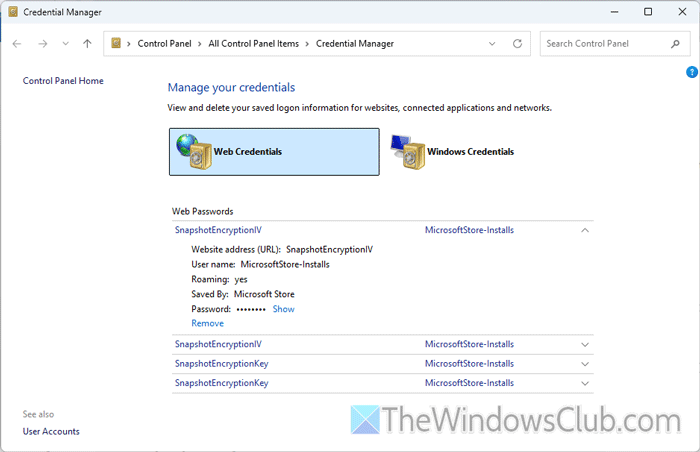
Microsoft Edge often saves credentials in the Windows Credential Manager. That is why it is suggested to check for duplicate passwords in the Credential Manager. To verify it, search for “credential manager” in the Taskbar search box and click on the individual search result.
Then, select Web Credentials and head to the Web Passwords section. Here you can find all the saved passwords. Check for them, find duplicates, and remove them accordingly.
Read: Manage or Delete Credentials from Credential Manager using CMD
Can you have multiple Passkeys for one account?
If you talk about a Windows 11 account, you can set different types of credentials, but you cannot set multiple PINs or Passwords for one account. For example, you can set a Picture password, PIN, and password for your account.
How to get Chrome to stop asking about Passkeys?
To stop Chrome from filling in passwords automatically, go to Settings > Autofill and passwords. Then, you need to remove the websites from the list.
Read: How to use Microsoft Autofill Password Manager on Chrome.
