
If you save passwords in Google Password Manager and want to change them automatically when they are breached, here is how you can do that in Google Chrome. Google has introduced a feature allowing users to automatically change the saved passwords, and here is how you can enable or disable it in Chrome.
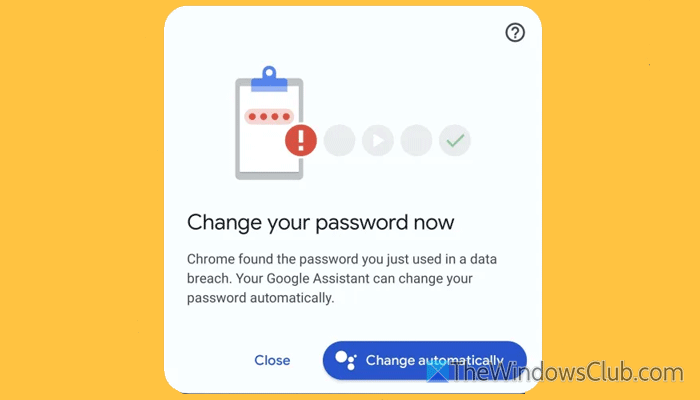
How does Google Chrome detect a breached password?
Google Chrome uses a password manager called Google Password Manager, where you can save passwords and forget the hassle of remembering them. It automatically fetches the website and fills in the credentials.
On the other hand, Google can check for breached passwords automatically as long as they are saved in the Google Password Manager. Once it finds a common password in the database, it suggests you change the password automatically.
Once changed, the new password will be saved in Google Password Manager, and this process continues unless or until you change the setting manually.
There are two things you need to know:
- You can find a Change it for me or Change automatically option when Chrome detects a breached password.
- It uses only the US database to find the breached password.
Enable or Disable Automatic Password Change feature in Chrome using Chrome Flags
To enable the automatic password change feature in Chrome using Chrome Flags, follow these steps:
- Open the Google Chrome browser.
- Enter Chrome://flags in the address bar.
- Search for an Improved password change service.
- Open the drop-down menu and select the Enabled option.
- Restart your browser.
To learn more about these steps, continue reading.
First, you need to enable a Chrome Flag called Improved password change service. For that, open the Google Chrome browser and enter chrome://flags in the address bar.
Then, search for Improved password change service using the search box. Once the search result is visible on the screen, expand the respective drop-down menu and choose the Enabled option.
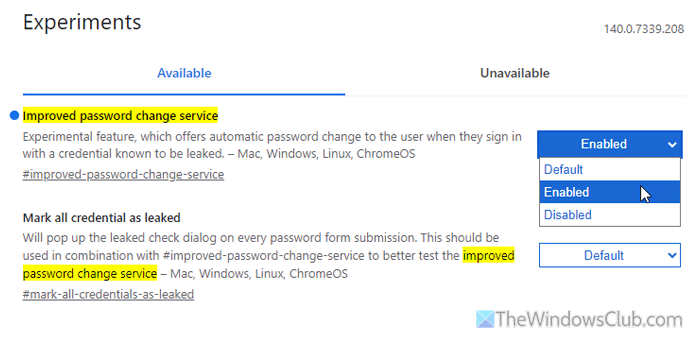
Finally, restart your browser.
To disable the automatic password change feature in Chrome using Chrome Flags, follow these steps:
First, you need to open the Experiments section by entering Chrome://flags in the address bar and search for Improved password change service.
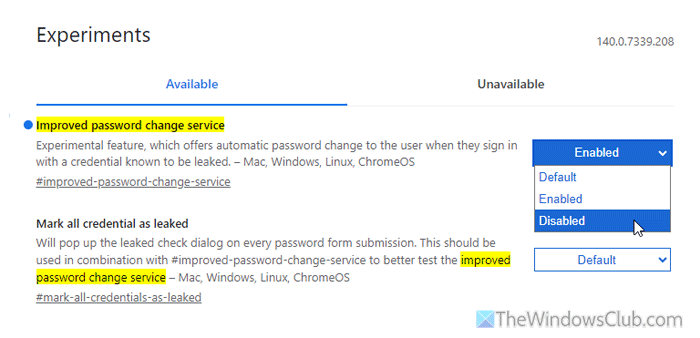
Open the drop-down menu, choose Disabled, and relaunch your browser.
Read: Most useful Google Chrome Flag settings for Windows users
Enable or Disable Automatic Password Change feature in Chrome using Registry Editor
To enable the automatic password change feature in Chrome using Registry Editor, follow these steps:
- Press Win+R, type regedit, and hit Enter.
- Click on the Yes button.
- Navigate to Chrome in HKCU.
- Right-click and select New > DWORD (32-bit) value.
- Name it as AutomatedPasswordChangeSettings.
- Double-click on it and set the Value data to 1.
- Click the OK button and restart your computer.
To know more about these steps, continue reading.
To get started, you need to open the Registry Editor. For that, press Win+R to open the Run prompt, type regedit, hit the Enter button, and click on the Yes button on the UAC prompt.
Next, navigate to this path:
HKEY_CURRENT_USER\Software\Policies\Google\Chrome
However, if you cannot find the Google\Chrome path, you need to create it manually in the Policies key.
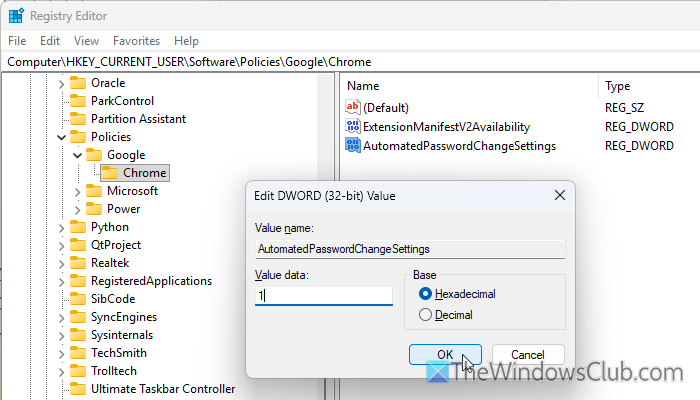
In the Chrome key, right-click, select New > DWORD (32-bit) Value, and name it AutomatedPasswordChangeSettings.
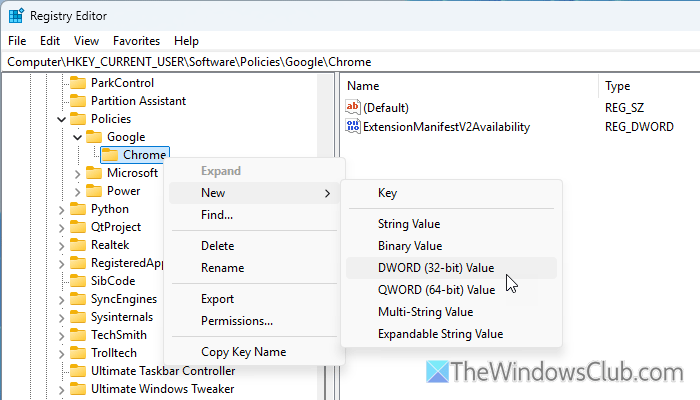
Next, double-click on it and set the Value data to 1 to enable this setting.
 Once done, close all the windows and restart your computer.
Note: If you want to apply this setting to all the users, you need to follow the same path in HKEY_LOCAL_MACHINE. However, if you want to apply this setting to the current user only, you can follow the path as mentioned above.
To disable the automatic password change feature in Chrome using Registry Editor, follow these steps:
First, you need to open the Registry Editor on your computer and navigate to the same path as above.
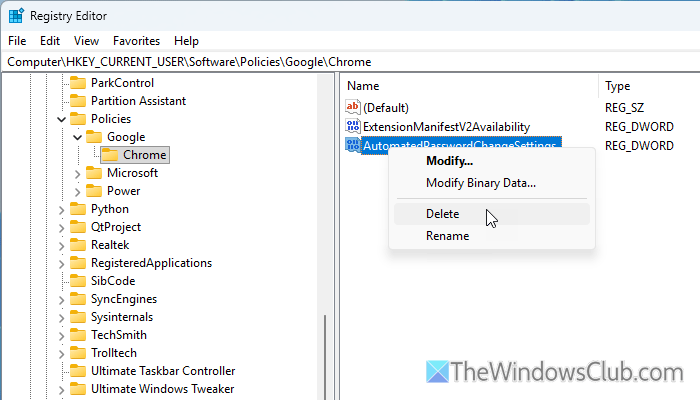
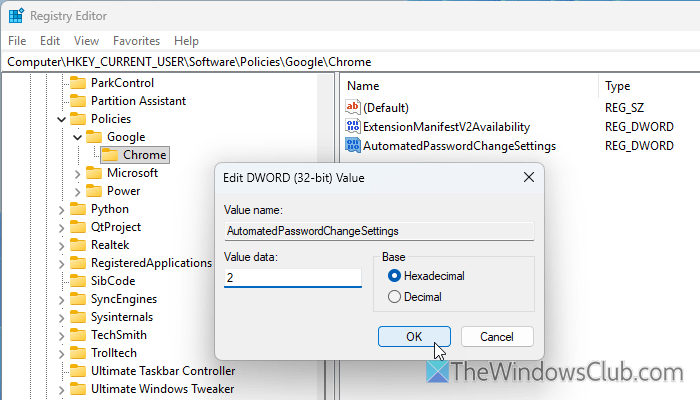
Then, double-click on the AutomatedPasswordChangeSettings REG_DWORD value and set the Value data to 2.
Alternatively, you can delete this REG_DWORD value as well. For that, right-click on it, select the Delete option, and click the Yes button to confirm.
Once done, close all windows and restart your computer.
Read: Turn On Leak Detection for entered Passwords in Chrome using GPEDIT or REGEDIT
How do I disable automatic password in Chrome?
To disable automatic password fill in Chrome, you need to open the Google Password Manager settings page by entering this URL: chrome://password-manager/settings. Then, toggle the Sign in automatically button to turn it OFF.
How do I turn on auto password in Chrome?
To turn on auto password creation in Google Chrome, open the Settings panel in the Google Password Manager first. Then, toggle the Automatically create a passkey to sign in faster button to turn it ON. Alternatively, if you want to disable this feature, toggle the same button to turn it OFF.
Read: ChromePass helps recover Forgotten Passwords from Chrome Browser
