
With Claude Cowork, you can use Anthropic’s autonomous AI agent on your Windows computer. Simply put, you let Claude work with files, documents and folders on your PC. So, if you need to work with a lot of files and folders on your PC, instead of you uploading them to Claude, you give Claude access to a folder, and then let Claude work the same way as it works in the app.
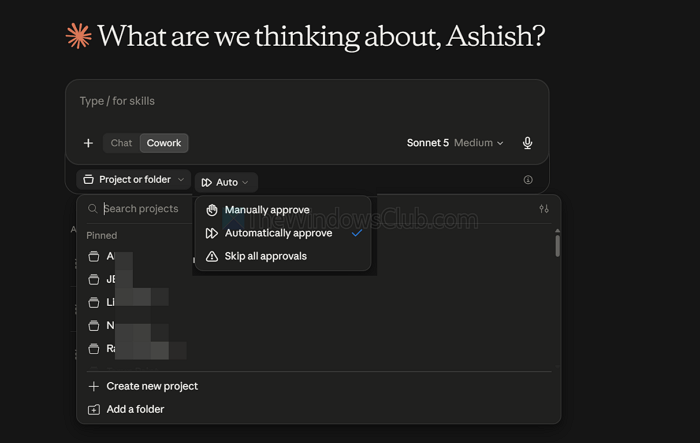
How to set up and use Claude Cowork on Windows 11
Before you move ahead, there are a few requirements to meet. Such as:
- Download and install the Claude desktop app on your Windows computer.
- A paid Claude plan (Cowork is available on Pro, Max, Team, and Enterprise. It is not available on the free tier.
On first run, Claude Cowork will download a 2 GB VM image using Hyper‑V virtualization and run tasks run inside this isolated VM, in order to protect system files.
1] Access Cowork
Cowork isn’t a separate feature. Instead, it is located right under where you enter your prompt. So open up the Claude app on your PC and switch to Cowork mode. Also, a good thing to know is that Cowork sessions run in the cloud. So even if you close the desktop app, the task would still continue to run.
2] Grant access as you move
The first time Cowork needs to work with a folder, an app or a connector, it will ask for permission. So read through what it is asking and approve it as per your needs. Also, from the settings, you can revoke any access given by you. Additionally, you could only keep Cowork operating in a specific folder rather than your entire directory.
Note: Claude CoWork can access files, apps, your browser, and run tools; however, it will ask for your permission before doing so.
You should know that Claude Code is different from Claude CoWork.
3] Run a test task
Before you trust Cowork with anything important, try something small and verifiable.
For instance, you could assign a folder and ask it to summarize each document into one overview file. See whether it can read the files and create a new file. But then you should also know that when you switch computers, the same path will not be available as you will have to choose a different folder or even a new Cowork session.
Once you’re comfortable with the basics, you can access other features, such as projects, that let you group related tasks into a dedicated workspace. Or you can try scheduled tasks to set up recurring jobs.
Three things you need to follow with Claude Cowork
- Delegation: Assign more detailed tasks and let it do the work you would have done manually. You can even ask to create sub-agents to handle that.
- Scheduled tasks: If you want something every few hours, you can ask it to do that or even every morning 9 AM
- Connectors: Using this, Claude CoWork can connect to multiple services and online world to get specific data. Use them.
Things to know:
- Claude Cowork supports Microsoft 365, Slack, Notion, Google Drive and over 20 other plugins
- You should use copies of files until you trust Cowork’s handling.
- Start Small: Try tasks like renaming files, summarizing PDFs, or building a spreadsheet.
- You should monitor the output, as errors or misfiling can occur
- System processes or restricted folders won’t be accessible.
- It needs at least 8 GB of RAM and 10 GB of free disk space to run smoothly.
So that was a quick rundown on how to use Claude Cowork on Windows. It’s extremely simple, and it all comes down to how you prompt. Now go ahead and try it out yourself and see if you encounter any errors.
