
If ChatGPT keeps logging you out automatically and you can’t use it until you sign in again, here is what you can do to fix it. Whether you use Microsoft Edge, Google Chrome, or another browser, you can try these solutions to troubleshoot the issue.

Why is ChatGPT automatically logged out?
If ChatGPT automatically logs out, these could be the reasons:
- Your browser automatically removes site data and other browsing data when you close it.
- You are using an extension that removes data when you close the browser.
- You have used the same browser profile on another computer and removed data from that second computer.
- You are using an extension that creates a demo network or reroutes traffic to use websites.
- You always use the “Log out all” option to sign out of your ChatGPT account.
- You frequently switch between internet sources.
ChatGPT automatically logged out
If ChatGPT keeps logging you out automatically, follow these solutions:
- Don’t delete browsing data on exit
- Disable extensions that create a dummy network to reroute traffic
- Do not use the Log out all option
- Do not switch servers if you use VPN
- Do not use Incognito mode
- Switch browser
- Add a new browser profile
ChatGPT keeps logging you out automatically
1] Don’t delete browsing data on exit
If you are using the Microsoft Edge browser, open Settings and go to Privacy, search, and services > Clear browsing data > Choose what to clear every time you close the browser.
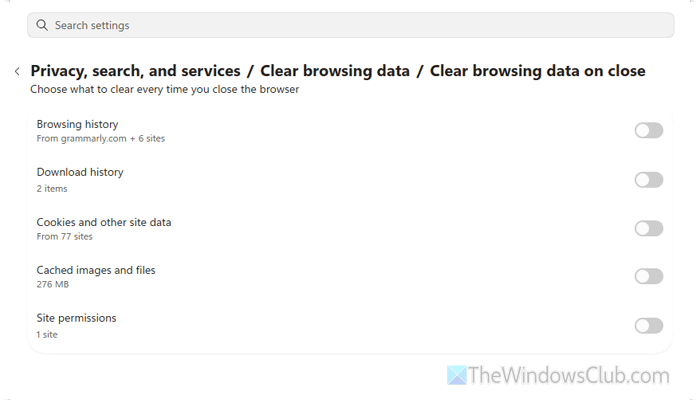
Make sure all the options are turned OFF. If not, toggle the enabled buttons to turn them OFF.
If you are using Google Chrome, follow these steps to block Chrome from deleting browsing data on exit:
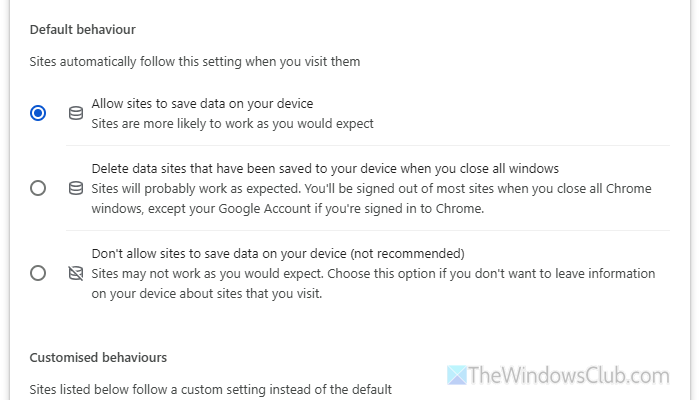
Open the Settings panel and go to Privacy & security > Site settings > Additional content settings > On-device site data.
Here you will find an option called Default behavior. Make sure the Allow sites to save data on your device option is selected. If not, choose this option.
However, if you do not want to save data for any reason, you must at least create an exception or custom rule. For that, select the Don’t allow sites to save data on your device option. Then go to the Allowed to save data on your device section and click Add. Enter chatgpt.com and save the change.
2] Disable extensions that create a dummy network to reroute traffic
There are so many extensions that help you create a dummy network and reroute traffic so that multiple users can access the same account on multiple computers. Various organizations use these extensions so they don’t need to create multiple accounts, and tracking is easier.
If you are using such an extension, we suggest disabling it.
- In Edge, enter in the address bar: edge://extensions/
- In Chrome, enter this in the address bar: chrome://extensions/
Press Enter to open the Extensions page, then toggle the corresponding buttons to turn them off.
3] Do not use the Log out all option
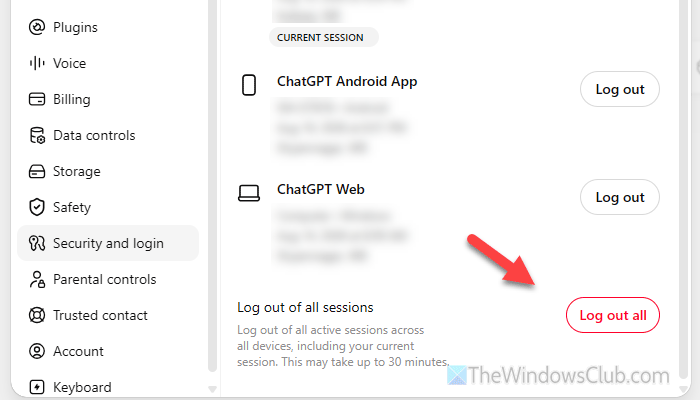
If you use the same account on multiple devices and use the Log out all option, you will be logged out on all devices at once. Whether you use it on 1, 2, or 10 devices, you will have to sign in again on all those devices.
For your information, the Log out all option is available in Settings > Security and login > Active sessions.
On mobile, you will find the same option as Log out of all devices.
4] Do not switch servers if you use VPN
If you use a VPN, don’t switch servers frequently. ChatGPT might not treat it as the same user, and you may be logged out of your ChatGPT account.
Whether you use a system-wide VPN app or browser extension, choose one server and use it as long as you are using ChatGPT.
If you need to change servers at a specific time, select the “Best server,” “Fastest server,” or “Auto connect” option in your VPN app.
Read: How to set up VPN in Windows 11
5] Do not use Incognito mode
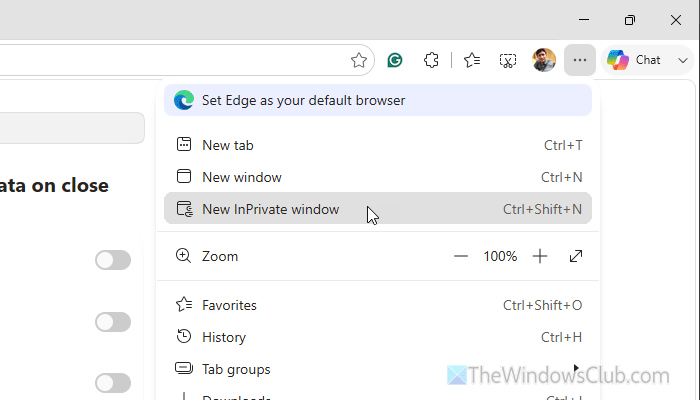
Incognito or InPrivate mode doesn’t save browsing history, and it is limited to the current window. In other words, if you close the current window, your data will be gone. Therefore, if you use Incognito or InPrivate mode, you have to ditch it.
6] Switch browser
ChatGPT is fully compatible with Google Chrome, Microsoft Edge, Apple Safari, Mozilla Firefox, etc. If you’re having a problem in Chrome, try Microsoft Edge. In other words, switch to another browser. It helps when your browser shows a Managed by your organization message and blocks you from doing certain things.
Read: Managed by your organization message in Google Chrome browser
7] Add a new browser profile
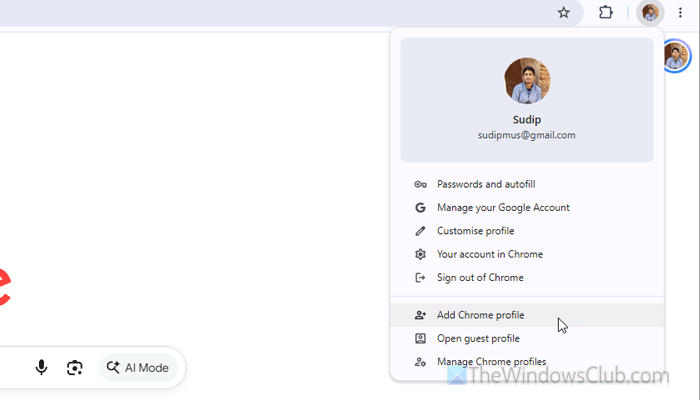
To add a new browser profile in Google Chrome, click on your current profile picture visible in the top-right corner and select the Add Chrome profile option.
Choose Stay signed out, give it a name, then click Done. Try using this problem to sign in to ChatGPT.
To add a new profile in the Microsoft Edge browser, click on your profile picture that is visible in the top-right corner and select Set up a new profile > Personal.
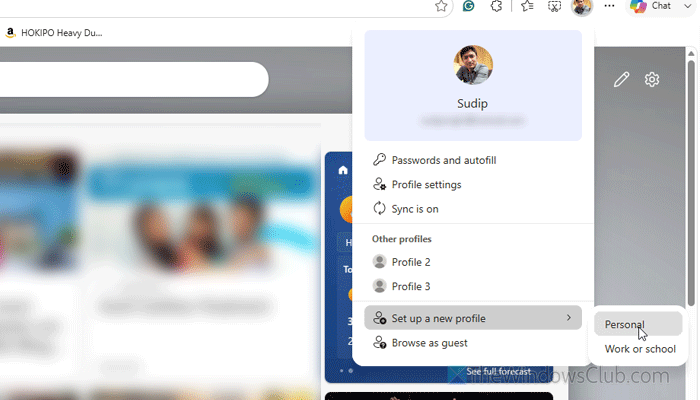
Choose Start without your data and click on the Confirm and start browsing option. You can remove the tick from the Make your Microsoft experience more useful to you checkbox.
Read: Sorry, You have been blocked on ChatGPT
Why did I randomly get logged out of my account?
If you delete browsing data or site data in your browser, you will be logged out of your account. Whether it is ChatGPT, Google, Facebook, or any other account, deleting browsing data will cause this issue.
Does ChatGPT save chats if you are not logged in?
Yes, by default, ChatGPT saves all the chats when you are logged in. However, you can delete all chats from Settings > Data controls. Use the Delete all option to delete all chats at once.
