
If you cannot install HP Support Assistant on your Windows 11/10 PC, the solutions in this guide will help you identify the cause and complete the installation successfully.
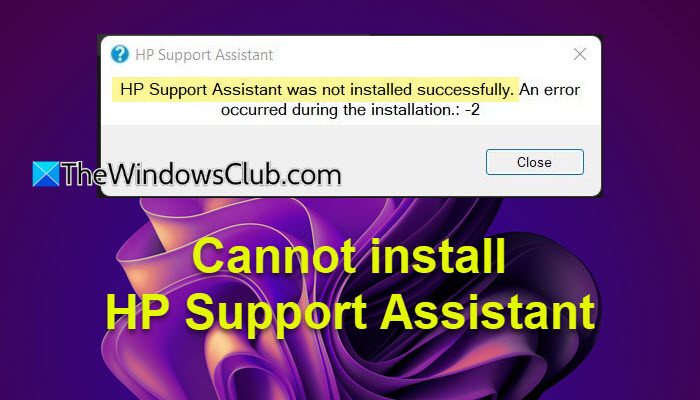
HP Support Assistant comes preinstalled on most HP computers. However, if you performed a clean installation of Windows, removed the application earlier, or own a device where it is not included by default, you may need to download and install it manually. While the installation process is usually straightforward, some users report that the setup fails or displays the following error message:
HP Support Assistant was not installed successfully. An error occurred during the installation: -2
In this post, we will show you how to fix the issue and successfully install HP Support Assistant.
Cannot install HP Support Assistant on Windows 11 PC
If you’re having trouble installing HP Support Assistant on your Windows 11/10 PC, and see the error message HP Support Assistant was not installed successfully, An error occurred during the installation, use these fixes:
- Remove the existing installation
- Download a fresh installer and run it as Administrator
- Temporarily disable your antivirus software
- Install HP Support Assistant in a Clean Boot state
Let us see this in detail.
1] Remove the existing installation
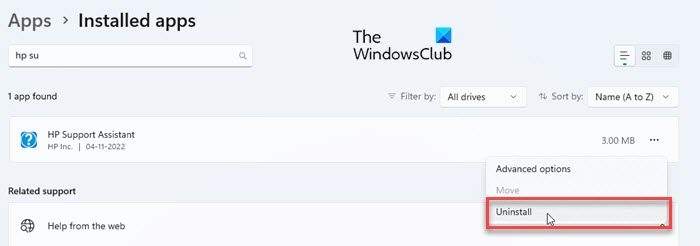
If HP Support Assistant was previously installed on your PC, a corrupted or incomplete installation may prevent the latest version from installing correctly. In such cases, removing the existing installation and then reinstalling the application can help resolve the issue.
Press Win + I to open the Settings app. Go to Apps > Installed Apps.
Find “HP Support Assistant” in the list of installed apps. Click the three dots next to it and select Uninstall. Click Uninstall again to confirm your action.
Next, remove any leftover files and registry entries associated with HP Support Assistant by following the instructions given in our detailed guide. You can also use a reputable software uninstaller, such as Revo Uninstaller or Geek Uninstaller, to scan for and remove remnants that may not have been removed by the standard uninstall process.
Once the process is complete, restart your computer, then try installing HP Support Assistant. Restarting ensures that any files or services that were in use during the uninstall process are properly removed.
2] Download a fresh installer and run it as Administrator
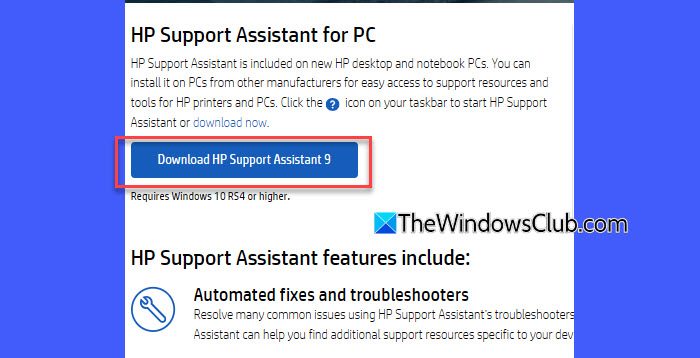
The issue may occur if the installation package you are using is corrupted, incomplete, or outdated. Downloading a fresh copy of the installer ensures that all installation files are intact and up to date.
Visit HP’s official website by clicking here and download the latest version of HP Support Assistant. Save the installer to your computer.
Next, right-click the downloaded installer and select Run as administrator. If prompted by User Account Control, click Yes. Follow the on-screen instructions and check whether HP Support Assistant installs successfully.
3] Temporarily disable your antivirus software
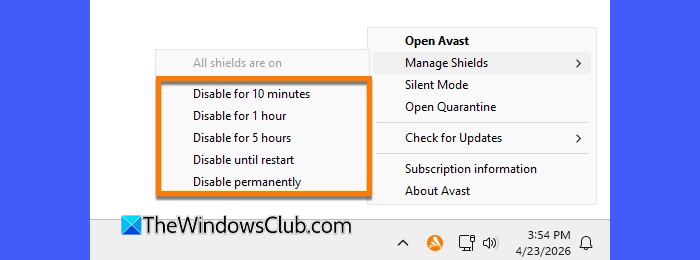
In some cases, third-party antivirus programs may interfere with software installation by blocking files, services, scripts, or registry changes required by the installer. This can cause the setup to fail unexpectedly or generate installation errors.
Temporarily disable your antivirus software and then run the HP Support Assistant installer again. The exact steps vary depending on the antivirus program you use, but most security applications allow you to temporarily disable protection via their system tray icon or settings page.
After disabling the antivirus, launch the installer with administrative privileges and complete the installation process. Once HP Support Assistant is installed successfully, immediately re-enable your antivirus protection to keep your system secure.
4] Install HP Support Assistant in a Clean Boot state
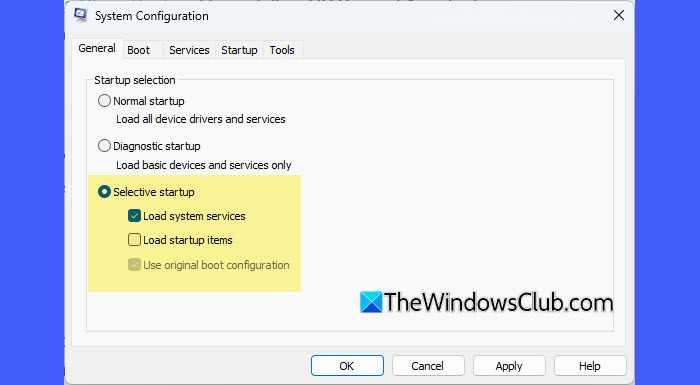
If the installation still fails, perform a Clean Boot and try installing HP Support Assistant again. This helps determine whether a third-party service or startup application is interfering with the installer.
To perform a Clean Boot, press Win + R, type msconfig, and press Enter.
In the General tab, select Selective startup. Clear the Load startup items checkbox. Ensure that Load system services and Use original boot configuration remain selected.
Switch to the Services tab. Select Hide all Microsoft services, and then click Disable all.
Next, switch to the Startup tab and click Open Task Manager. Disable all startup items one by one. Close Task Manager and click OK in the System Configuration window.
Restart your PC. After Windows starts in the Clean Boot state, run the HP Support Assistant installer as an administrator and check whether the installation completes successfully.
If the installation succeeds, one of the disabled services or startup applications was likely causing the conflict. You can then re-enable services and startup items gradually to identify the culprit.
Once troubleshooting is complete, restore Windows to its normal startup configuration.
I hope you find this useful.
Read: Fix HP Support Assistant Important action needed error.
How do I install HP Support Assistant?
To install HP Support Assistant, visit the HP Support Assistant download page and download the latest installer. If prompted by User Account Control, click Yes to allow the installer to make changes to your device. Follow the on-screen instructions, review and accept the license agreement, and continue the installation. Once the installation is complete, you can launch HP Support Assistant from the Start menu and begin using it.
Is HP Support Assistant necessary?
HP Support Assistant is not required for Windows to function properly. However, it can be useful for HP device owners as it helps keep drivers and firmware up to date, runs hardware diagnostics, and provides easy access to HP support resources. If you prefer not to use it, you can safely uninstall it and manually download drivers and updates from HP’s website whenever needed.
Read Next: How to use HP Support Assistant to update drivers and firmware.
