
It can be alarming when Windows is not launching and is stuck on the black screen after running Memory Diagnostic. This issue often arises unexpectedly, leaving users staring at a black screen with no indication of progress or resolution. In this article, we will examine the potential causes and explore ways to address them.
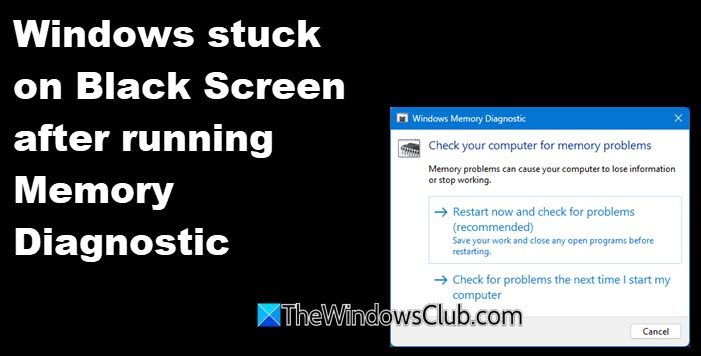
Windows not launching and stuck on Black Screen after running Memory Diagnostic
If Windows 11/10 is stuck on a black screen after running the Memory Diagnostic and fails to launch, try the solutions below.
- Check and reseat hardware components
- Boot into safe mode and run system repairs
- Reset BIOS/UEFI to default settings
- Repair install Windows
Let’s get started with the troubleshooting guide.
1] Check and reseat hardware components
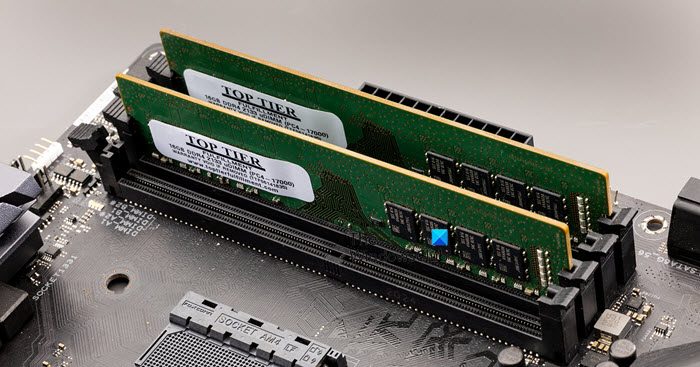
First, we need to verify that the hardware components are properly seated. Unbeknownst to us, some components may be missing, and this solution aims to rectify the issue. You can follow the steps outlined below to achieve the same result.
- First of all, power down your PC and unplug all the cables.
- Then, open the case and look for the RAM modules.
- Now, remove the RAM sticks and gently release the clips on both ends of each module.
- You need to use a soft eraser or isopropyl alcohol on gold connectors.
- Finally, reseat the RAM and ensure the sticks are firmly seated.
- Ensure the GPU, CPU, and power cables are secure.
- Disconnect non-essential peripherals (USB devices, external drives).
Once done, check if the issue is resolved.
2] Boot into safe mode and run system repairs
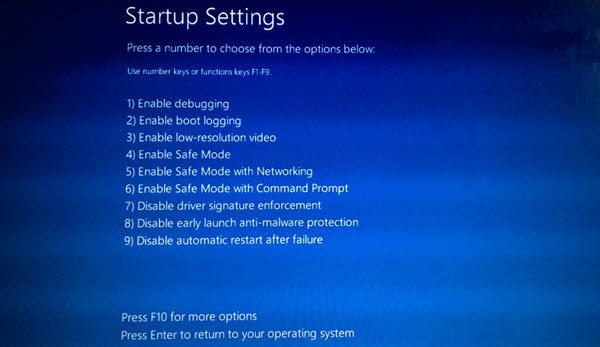
Since we are unable to log into Windows, let’s boot into safe mode and then run the system repairs. To do so, follow the steps mentioned below.
- Force-shutdown your PC 3 times during boot to trigger Automatic Repair.
- Select Troubleshoot > Advanced Options > Startup Settings > Restart.
- Press the ‘4’ key, and your computer will restart and enter Safe Mode. To reboot in Safe Mode with Networking, you need to press the ‘5’ key. To reboot in Safe Mode with Command Prompt, press the ‘6’ key.
- Regardless of the Safe Mode option you choose, open Command Prompt and run the following command.
sfc /scannow

dism /online /cleanup-image /restorehealth
chkdsk C: /f /r
- You should also try to uninstall recent updates.
Finally, check if the issue is resolved.
3] Reset BIOS/ UEFI to default settings
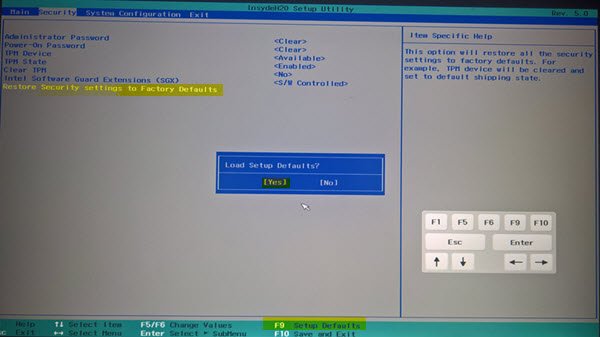
You may encounter this issue if there is a misconfiguration in the BIOS/UEFI firmware, and the best way to resolve it is to reset the firmware. You can pretty easily reset the BIOS and then check if that helps. Hopefully, it will do the trick for you.
4] Repair Windows
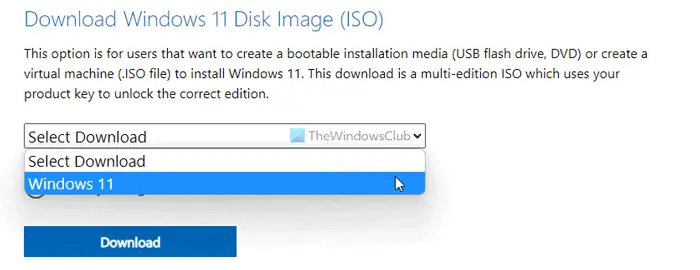
In this solution, we are going to reset Windows using Installation Media without deleting your personal files. For this, you would need a separate computer, so consider borrowing one from a friend. Once done, follow the steps mentioned below.
- Go to Microsoft’s official download page and click on the Download now option under Create Windows installation media.
- To create a bootable USB, run the downloaded MediaCreationTool.exe, follow the on-screen prompts, and wait for the process to complete.
- Boot from the USB, select Language, Time format, Keyboard, and then click on the Install Now button.
- Enter your Windows license key when prompted, choose the installation type, and then follow the on-screen instructions.
After completion, log in to your account and verify that the memory diagnostic issue is resolved. Alternatively, reset your PC if the repair install doesn’t work. For that, boot from USB, select Repair your Computer, and then click Troubleshoot. Next, select ‘Reset this PC’ and choose the ‘Keep my files’ option. Follow the prompts to complete the reset. If the issue persists, proceed to the next solution.
Hopefully, these solutions will resolve your Windows black screen problem.
Read: Windows Memory Diagnostic Tool stuck
An error is preventing Windows from checking for Memory problems during startup
If the Windows Memory Diagnostic fails to run during startup, restart your PC and manually launch the tool by running mdsched.exe in the Run dialog box. Now select the Restart now and check for problems option, and ensure that the issue is resolved. If it persists, run SFC (System File Checker) and DISM to repair system corruption. Moreover, check for Windows updates and ensure proper BIOS settings for RAM detection.
Read: How to run Windows Memory Diagnostics Tool in Windows
Why is my computer screen black after running Windows Memory Diagnostic?
A black screen after Windows Memory Diagnostic usually occurs when the test detects critical RAM errors, triggers BIOS/UEFI misconfigurations, or corrupts system files during the scan, causing your system to halt during boot. To resolve it, power down your PC, reseat your RAM sticks (clean connectors with isopropyl alcohol), reset BIOS/UEFI to defaults (or remove the CMOS battery for 5 minutes), then attempt booting into Safe Mode (by force-shutting down 3 times) to run sfc /scannow and dism commands for system repair. If these fail, use a Windows installation USB for a repair install or reset. Test RAM thoroughly with MemTest86 to confirm hardware failure; if issues persist, replace faulty RAM or seek professional repair.
Also Read: Windows Memory Diagnostic not working; Displaying no results.
