
There have been cases when users have found that their Windows laptop just will not hibernate. If you are facing this issue on your Windows 11/10 laptop, you may try these troubleshooting steps.
Windows laptop will not Hibernate
If your Windows 11/10 laptop does not Hibernate or work properly, follow these suggestions to resolve the issue:
- Update your device drivers
- Change Power Options setting
- Run Power Troubleshooter
- Check if Power-saving settings in BIOS
- Disable Fast Startup
- Uninstall VM Oracle Virtual Box
- Troubleshoot using PowerCFG command-line tool
- Reset Power plans.
Hibernate not working in Windows 11
1] Update your device drivers
The common reason could be outdated drivers. It is possible that a rogue device driver is preventing your laptop from entering hibernation mode. Hardware devices like USB flash drives and USB mice can actually keep your laptop awake! The recommended solution is to first check whether you are using the latest available drivers for your devices. If not, you may want to update your device drivers before you proceed. You may also need to update your Video Card drivers.
If updating your drivers resolves the issue, well and good, else you may try the next steps.
Read: Laptop screen goes black when charger plugged or unplugged
2] Change Power Options setting
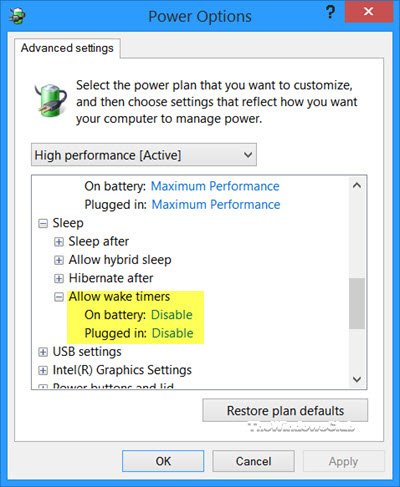
Open Advanced Power Options via Control Panel and confirm that Allow Wake Timer is enabled as shown in the image.
3] Run Power Troubleshooter
Use the built-in Power Troubleshooter and see if it can resolve the issue. It will also help you if Sleep mode is not working.
4] Check if Power-saving settings in BIOS
Enter your systems BIOS and check if Power-saving states like Sleep or Hibernation have been turned off. If so, turn Power-saving states on and restart your laptop. To enter BIOS, you have to press a specific key while the system is booting. This key depends on the manufacturer, so please find out which key to press during boot. You will also typically see this information during system boot.
Read: Laptop stuck on Hibernating screen
5] Disable Fast Startup
Disable Fast Startup and see if that works for you.
6] Uninstall VM Oracle Virtual Box
Richard suggests the following:
If you have VM Oracle Virtual Box or a network-related CISCO driver installed on your computer, uninstall it, restart your computers and see it that works for you.
7] Troubleshoot using PowerCFG command-line tool
If you need to troubleshoot or know more about the Power Plans in Windows 11/10 then you may need to use the PowerCFG command-line tool. This tool helps you diagnose power management issues. If you feel, you may change your Power Plan and see if that helps.
Read: Hibernate does not restore the previous state of the PC
8] Reset Power plans
To reset Power plans to default, open Command Prompt as administrator and execute the following command:
powercfg –restoredefaultschemes
Let us know if any of these or something else helped you resolve this issue.
If your problem is related but slightly different, maybe some of these links will help you:
