
There may be times when you may find that, try as you may, your Windows 11/10 computer does not wake up from Sleep Mode. Moving the mouse or pressing keyboard keys just does not help. If you are facing this issue, maybe some of the suggestions I have made here may help you.
Laptop crashes when put to Sleep

Sleep is a power-saving state that allows a computer to quickly resume full-power operation (typically within several seconds) when you want to start working again. Putting your computer into the sleep state is like pausing a DVD player; the computer immediately stops what it’s doing and is ready to start again when you want to resume working.
Windows computer will not wake up from Sleep Mode
If your Windows 11/10 computer does not wake up from Sleep normally, try the following suggestions.
Before you proceed, restart your PC and set it not to enter Sleep mode. This way, you will be able to carry out the suggestions.
1] Update drivers
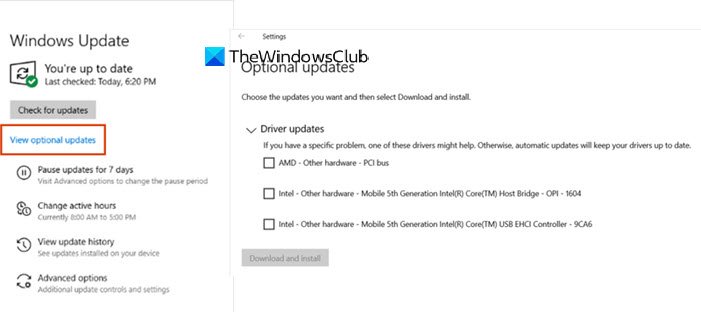
Make sure that all your device drivers are up-to-date. If not, then update your drivers.
2] Run Power Troubleshooter

Use Windows Power Troubleshooter and see if it can diagnose and fix your problem automatically.
3] Troubleshoot in Clean Boot State
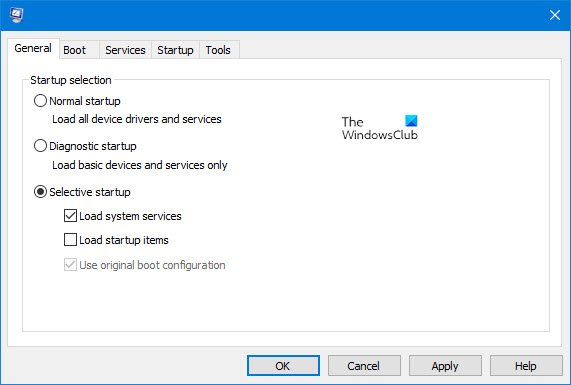
Start Windows in Clean Boot State and see if the problem disappears. If so, then some program or process is interfering with the resumption of Sleep. Try to identify the process.
4] Check this Keyboard and Mouse setting
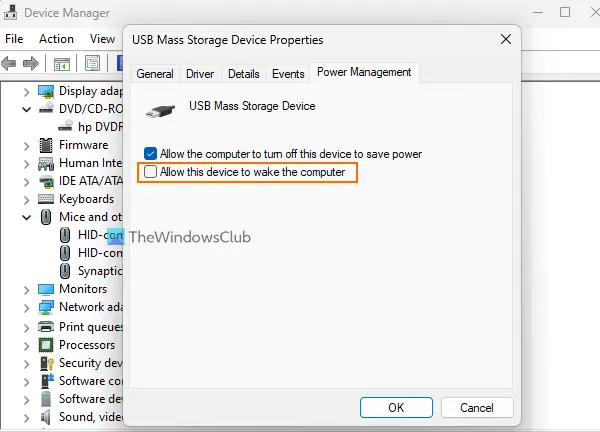
For your Keyboard and Mouse, ensure that the Allow this device to wake the computer setting is checked.
You will see this setting in the devices Properties box, under Power Management tab.
Read: Computer freezes after waking up from Sleep
5] Run the following command
Open an elevated command prompt window, type the following command and hit Enter:
powercfg -devicequery wake_armed
This will list devices that are currently configured to wake the computer from any sleep state.
Next run:
powercfg -lastwake
This will give you information about the event that woke the computer from the last sleep transition.
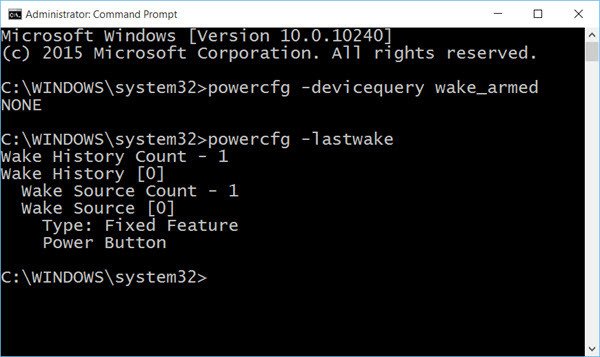
Well, my image may appear blank because I am facing no issues, but if your laptop is facing problems, you will find some useful information here.
Read: Laptop stuck on Hibernating screen
6] Disable Hybrid Sleep
If Hybrid Sleep is enabled, it is known to cause such problems. To disable it, open Control Panel\ All Control Panel Items\ Power Options\ Edit Plan Settings. Click on Change advanced power settings to open the following box:
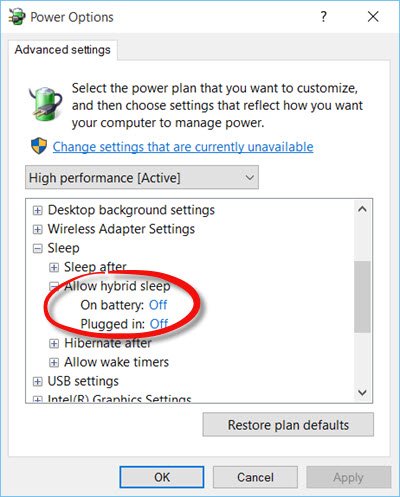
For your Power Plan, change the setting to Off.
I hope something helps!
A Windows computer can face several other Sleep-related issues. Maybe some of these posts will help you someday.
- Windows computer goes to Sleep too early
- Prevent Computer from waking up from Sleep
- Sleep Mode is not working
- Windows computer wakes from sleep automatically
- Wake up computer from Sleep, at a particular time
- Surface won’t turn on.
