
Some users have complained that Windows Click to Do is not working on their Windows 11 Copilot+ PCs. They can open the Click to Do feature, but receive an error that Click to Do couldn’t highlight anything. For some users, Click to Do stopped working in Recall. In other cases, when users try to launch the feature from the Search box, hotkey, or other ways, a Couldn’t open Click to Do error is displayed. For those who face such issues, the working fixes in this post will help. If the Click to Do has stopped working, you may receive the following messages or errors:
Click to Do couldn’t highlight anything. Try again.
Couldn’t open Click to Do. Click to Do is not available because of a setting from your organization.
Couldn’t open Click to Do. Click to Do is turned off in your settings. To turn it back on, go to Settings.

Before proceeding, restart File Explorer, install pending Windows Updates, and see if Click to Do is working again. Also, do note that Click to Do won’t work if there’s a blank desktop (no desktop icons) or a blank document opened in full-screen mode or distraction-free mode. If you try to do so, Click to Do couldn’t highlight anything error will appear. In short, Windows Click to Do won’t work if there’s no content to highlight.
Windows Click to Do not working
If Windows Click to Do not is not working or couldn’t highlight anything on Windows 11, use the following fixes:
- Turn on Click to Do in the Settings app
- Show Click to Do in Recall
- Enable Secure Boot
- Check the Group Policy setting
- Check the Registry Editor setting.
Let’s check these fixes one by one.
Windows Click to Do couldn’t highlight anything
1] Turn on Click to Do in the Settings app

Make sure that Click to Do is turned on in the Windows 11 Settings app. If not, the Click to Do hotkey (Win+Q or Win + Mouse Click) won’t work or do anything. Also, when you launch Click to Do from the Start menu, Search box, etc., a Couldn’t open Click to Do error will appear.
To turn it on, open Windows Settings > Privacy & security > Click to Do. Turn on the Click to Do option.
2] Show Click to Do in Recall
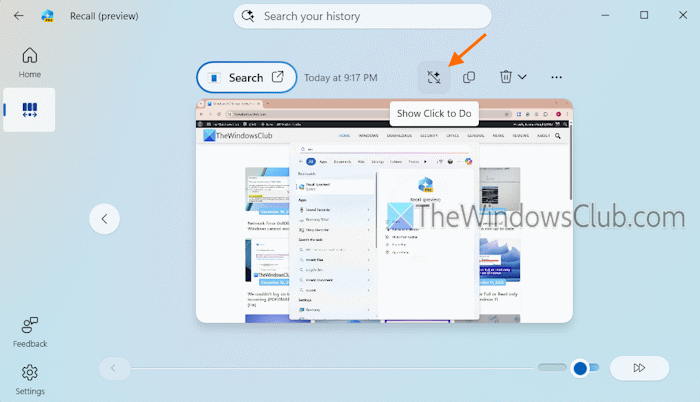
If you can’t open Click to Do in Recall for a snapshot, but it’s working individually, it is possible that Click to Do is hidden in Recall. In this case, Show Click to Do in Recall using the following steps:
- Open Recall
- Select the Recall Timeline from the left side
- Select a snapshot
- Click on the Show Click to Do icon on the top right part (available just before the Copy snapshot icon).
Read: Enable, Disable or Delete Recall Snapshots in Windows PC
3] Enable Secure Boot
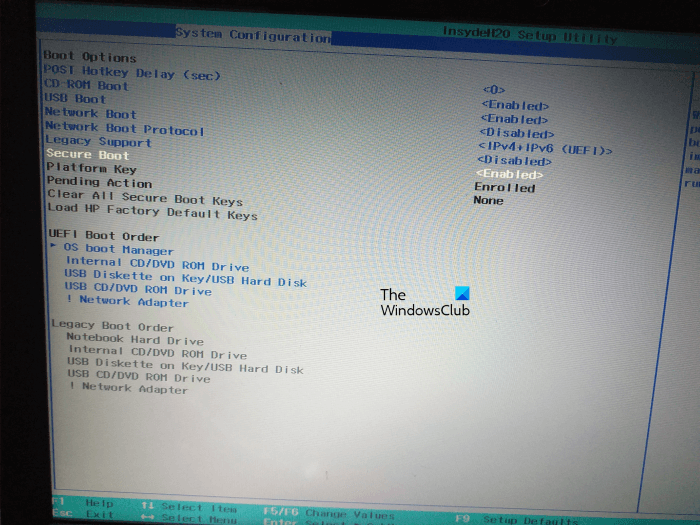
This fix worked for me. I was able to launch or open Click to Do on my laptop, but it showed me that Click to Do couldn’t highlight anything whenever I tried. Once I enabled Secure Boot on my laptop, the problem was gone. So, you should enable Secure Boot to fix this problem.
4] Check the Group Policy setting
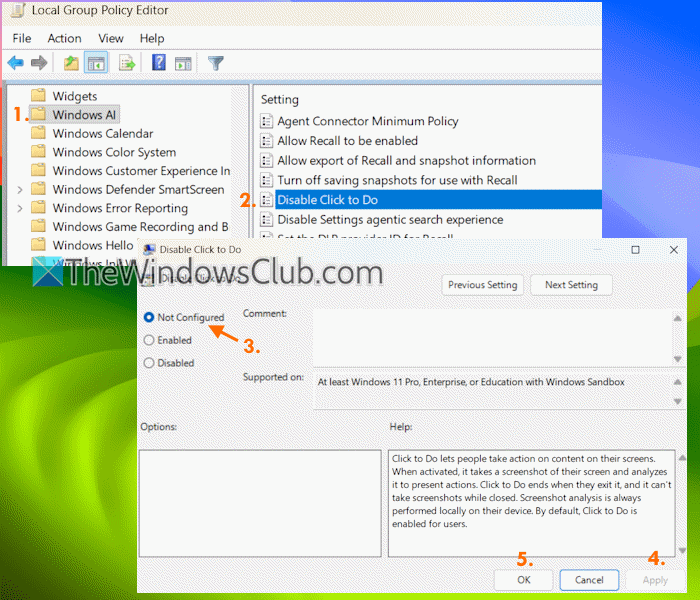
If Click to Do is working in Recall, but you can’t open it separately using its hotkey, Search box, Start menu, etc., a Group Policy may be configured to disable Click to Do. In that case, you have to check the Group Policy setting and take the necessary action. Here are the steps:
- Type gpedit.msc in the Search box and hit Enter. This will open the Group Policy Editor window
- Jump to the Windows AI folder using this path:
Computer Configuration > Administrative Templates > Windows Components > Windows AI
- Open the Disable Click to Do setting by double-clicking on it. A separate window will open
- Select the Not Configured option in that window
- Press the Apply and OK buttons
- Turn on the Click to Do option in the Settings app.
Restart File Explorer if needed.
5] Check the Registry Editor setting
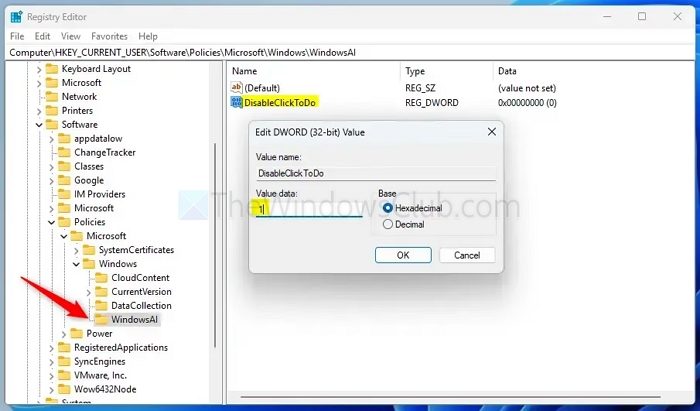
Like Group Policy, a Windows Registry setting to enable or disable Click to Do is present. If that setting is configured, this could be the reason that Click to Do is not working on your Windows 11 device. So, check the Registry Editor setting and change it. This setting doesn’t affect Click to Do in Recall. Here are the steps:
- Type regedit in the Search box and hit Enter to open the Registry Editor
- Navigate to WindowsAI Registry key using this path:
HKEY_CURRENT_USER\Software\Policies\Microsoft\Windows\WindowsAI
- Delete the DisableClickToDo DWORD (32-bit) Value on the right side or set its Value data to 0
- Turn on the Click to Do setting in the Settings app, and it will start working.
That’s all. Hope this helps.
How do I fix Windows not letting me click anything?
If you can’t click anything on the desktop but the Taskbar, restart File Explorer, and check for driver updates or reinstall them. If that doesn’t work, uninstall any third-party program or app that may have caused the problem. You might also need to perform a System Restore. In another case, if you can’t click on the Taskbar, then re-register the Taskbar, run DISM to restore system health, and check your display drivers.
Why is my computer not responding to my clicks?
If the mouse cursor is moving but not clicking or responding to your clicks on Windows 11, carefully check the mouse to ensure that the mouse button(s) are not stuck or conflicting with each other. Also, roll back or reinstall your mouse driver and USB controller driver, and scan your system for viruses. You might also have to troubleshoot in Clean Boot State to find and remove the conflicting application.
Read next: Right-click Context Menu shows up on another screen in a Windows PC.
