
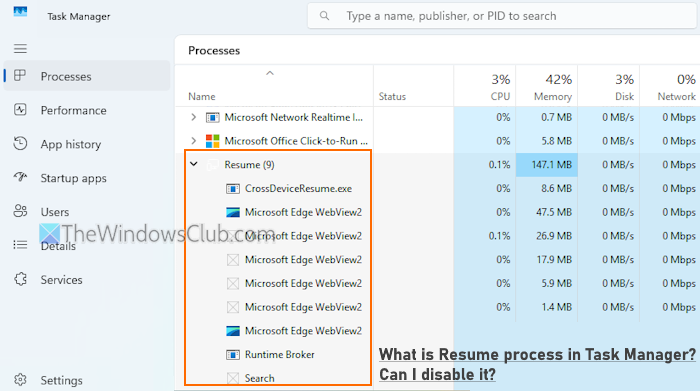
Some users have reported that a Resume process keeps appearing in the Task Manager window of their Windows 11/10 PC. The process includes different child processes or sub-processes, such as CrossDeviceResume.exe, AppActions.exe, Microsoft Edge WebView2, and Renderer, etc., and it runs continuously on their system. While users are able to end this task and sub-processes, the process starts running automatically in the background when Windows starts. If you are also wondering about the Resume process in the Task Manager window, whether it is malicious or contains viruses, or if you can disable it, this post will help you get the answer.
What is Resume process in Task Manager?
“Resume” is a Windows process to continue or resume your work from your mobile device (Android or iOS) on your Windows 11 PC. It helps to work seamlessly across devices (to pick up where you left off, share files and links between connected devices, resume working on files, etc.), and OneDrive and Phone Link apps are good examples of it. That is why you may see a CrossDeviceResume.exe process running under it. You can easily enable the Resume feature for OneDrive in Windows 11 and manage the Share across devices feature in the Settings app. However, CrossDeviceResume.exe is only a part of the Resume process. It is not limited to this one process, as other processes also run under it.
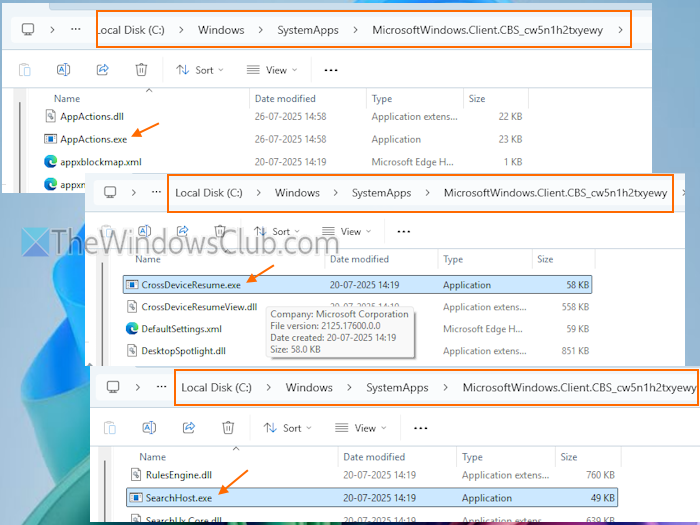
In addition to CrossDeviceResume.exe, you may see Search, Crashpad, Renderer, AppActions.exe, Microsoft Edge WebView2, GPU Process, Runtime Broker, and Utility processes running under the Resume process in Task Manager. These processes are related to Windows applications or files stored under the system folders. For example, Runtime Broker and BackgroundTaskHost.exe processes are present under the System32 folder. The AppActions.exe, CrossDeviceResume.exe, and Search processes can be found under the SystemApps folder in the following location:
C:\Windows\SystemApps\MicrosoftWindows.Client.CBS_cw5n1h2txyewy
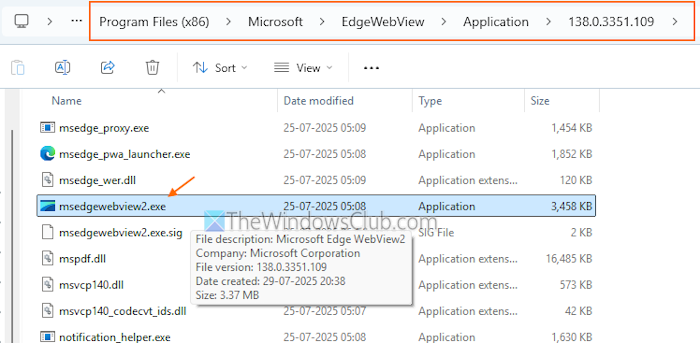
Like that, Crashpad, GPU Process, Microsoft Edge WebView2, Utility, and Renderer processes are related to the msedgewebview2.exe application. It can be found here:
C:\Program Files (x86)\Microsoft\EdgeWebView\Application\138.0.3351.109
You can use the right-click menu for a process and access the location of the associated application.
Related: What is igfxTray.exe? Is it safe? Can I disable it?
Is the Resume process a virus or malware?
The Resume process is a legitimate Windows process and not a virus that runs silently in the background. It’s just a name (we have explained it below), and the actual work is done by the child processes (Search, Renderer, Microsoft Edge WebView 2, etc.) present under it. These are the crucial processes that help run applications smoothly and Windows function normally.
For example, the Search process under the Resume process is related to the SearchHost.exe application for search functionality and indexing files. As soon as you click on the Windows Search box, the SearchHost.exe activates immediately. If the SearchHost.exe is not functioning properly, you may experience that Windows Search is not working properly or keeps crashing.
Additionally, Microsoft Edge WebView2 is associated with msedgewebview2.exe, which is used by many applications, including features in Microsoft 365 Apps, Microsoft Teams, Windows Widgets, and others. That’s why you may see Search, GPU Process, and related processes under the Resume process in Task Manager. You might experience msedgewebview2.exe causing High CPU and Memory usage sometimes, but it’s not because it’s a virus.
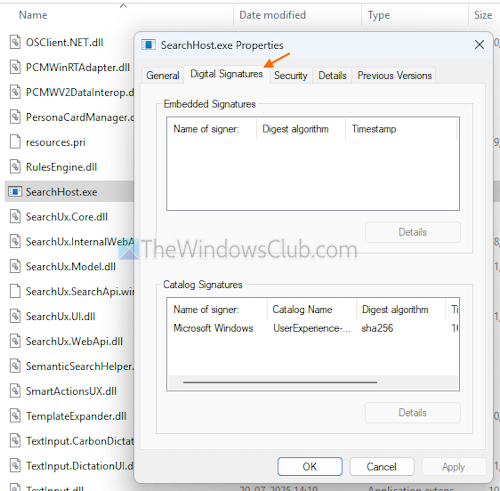
To confirm, right-click on any of these processes and select the ‘Open file location’ option to access the associated applications. Further, you can open the Properties box to find more information, including the digital signatures. These are the legitimate Windows processes if found in their original locations and have a valid signature.
Also read: How to check if a File is malicious or not on a Windows PC
Can I disable Resume process in my Windows PC?
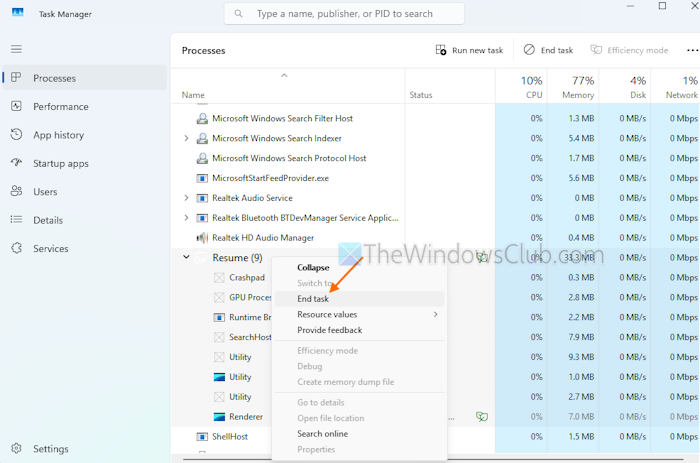
The answer is a bit complicated. You can end the Resume process or any of the processes present under it. Right-click on the Resume process and select the End task option to close it. But it will start running again with a process named Search. See the image added below. Under the Search process, you will see all those processes that were present under the Resume process. That’s why we mentioned above that the Resume is just a name (as far as I came to know) and the actual work is done by sub-processes.
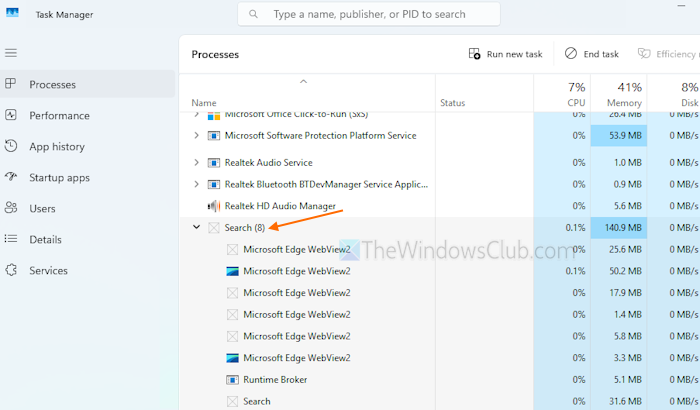
If you end any of the sub-processes, say SearchHost.exe, that process will run again whenever it is needed or the action is triggered by the user. Closing the Render, Utility, Crashpad, and other related processes will allow running multiple Microsoft Edge WebView2 processes.
Furthermore, let’s say you managed to close this Resume process for the session. But, as soon as you restart Windows, the process will run automatically, including the child processes. You can find various answers on the internet claiming to stop the Resume process, but that is not the case. Some mention that turning off the Resume feature (Settings app > Apps > Resume) and setting the Share across devices option to off (Settings app > Apps > Advanced app settings) will make CrossDeviceResume.exe stop running. But that doesn’t work. Even if you are not using the Phone Link app, the OneDrive app is not connected, and all related options are turned off, that process runs in the background as other tasks use it, you won’t find it directly.
Now comes the main part- can you disable the Resume process? Here’s what I did and experienced:
- To disable or make the Resume process stop running permanently, you need to delete the associated Windows applications
- I removed (cut and paste) msedgewebview2.exe from its original location and found that Microsoft Edge WebView2, Utility, Render, and related processes were gone from the Resume process. I restarted my PC and everything was fine until there was a need for the msedgewebview2.exe file, which I placed again
- I removed the CrossDeviceResume.exe file from its original location, and that was a frustrating experience for me. I received the CrossDeviceResume.exe error each time I restarted my PC and logged on to Windows. The Resume process was gone from the Task Manager, and the Search process replaced it. It was running there, including the other child processes that were part of the Resume process
- I also found that the App Actions process was running in place of the Resume process. That happened just once
- I didn’t go further and undo the changes, restarted my PC, and everything was back to normal.
So, the answer is it might be possible to completely remove or disable the Resume process, but you will encounter errors and performance issues using your PC. It won’t be normal again. Therefore, it is advised that you shouldn’t try to disable the Resume feature and let it run in the Task Manager. While sitting idle, the Resume process consumes 150 MB-200 MB of memory, which is pretty low. It should not bother you unless you are tired of seeing it in the Task Manager.
Now read: Task Manager is blank & not showing processes in Windows PC
Why can’t I stop processes in Task Manager?
If there’s a critical Windows process in Task Manager or the processes are needed by Windows services, you won’t be able to stop such processes. Those are required to run Windows smoothly. If you can’t stop third-party processes, try running Task Manager as an administrator and then try again. If that doesn’t help, you can force close a program that Task Manager cannot terminate.
Can I close background processes in Task Manager?
Yes, you can close background processes from running on your Windows PC. If a program is closed but its related processes are still running, you can close them from the Task Manager. You can also disable the startup apps and use the Services Management app to stop background processes in your Windows PC.
Read next: Which Windows Services can you safely disable?
