
If the webcam light remains always ON in your Windows 11/10 computer, even if you do not access it through any app, use the solutions provided in this article to fix the issue. Users who encountered this issue reported feeling as if someone was spying on them. This is possible when a malicious program is installed on your system without your knowledge.

Webcam light always ON in Windows 11
Use the following fixes if the webcam light remains always ON in your Windows 11/10 computer.
- Check your camera’s recent activity
- Troubleshoot in a Clean Boot state
- Check your browser tabs
- Look for suspicious software
- Disable camera access for unwanted apps
- Repair your system image files
- Uninstall and reinstall your camera driver
- Perform a system restore or reset your PC
- Hardware fault
All these fixes are explained in detail below.
1] Check your camera’s recent activity
In Windows 11, you can view which apps used your camera in the recent activity tab. Go through the following instructions:
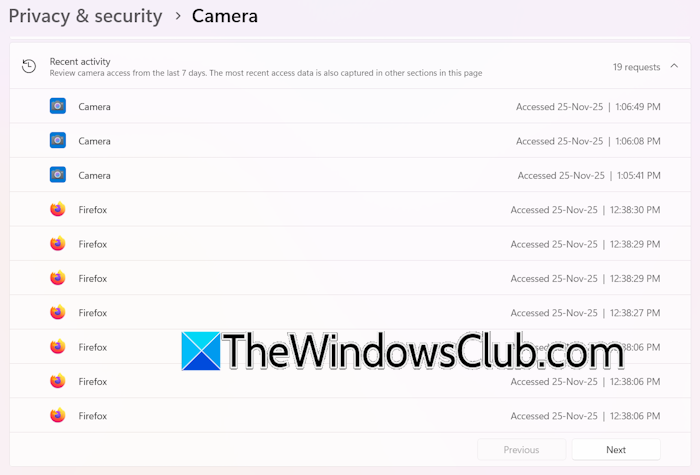
- Open Windows 11 Settings.
- Go to Privacy & Security > Camera.
- Scroll down and expand the Recent Activity tab.
You will see a list of apps that accessed your camera. Click Next to view the complete list. If you find an unwanted app, you can uninstall it or restrict it from accessing your camera.
2 Troubleshoot in a Clean Boot state
A third-party background application or service might be accessing your camera without your permission. Or you might have given consent to a program mistakenly while installing it. To confirm this, you have to enter the Clean Boot state.
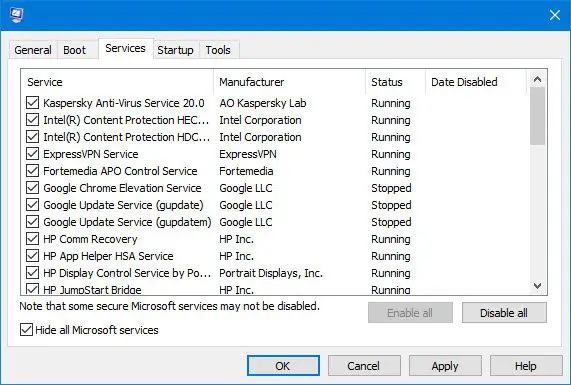
Before proceeding, open the Task Manager and disable all startup apps. Restart your computer and see what happens. If the webcam light remains ON, you need to enter the Clean Boot state to find out the problematic service.
Use MSConfig to start your computer in Clean Boot state, but be careful while disabling services. Disable third-party services only, as disabling all the services will make your system unstable, and you may have to reinstall Windows. If the camera light remains off in Clean Boot state, a third-party service is causing the issue.
Now enable the disabled services and restart your computer. If the light turns ON again, one of the services you have just enabled is the culprit. Once you find that service, check which program it is associated with. Check that program’s settings or contact its support.
3] Check your browser tabs
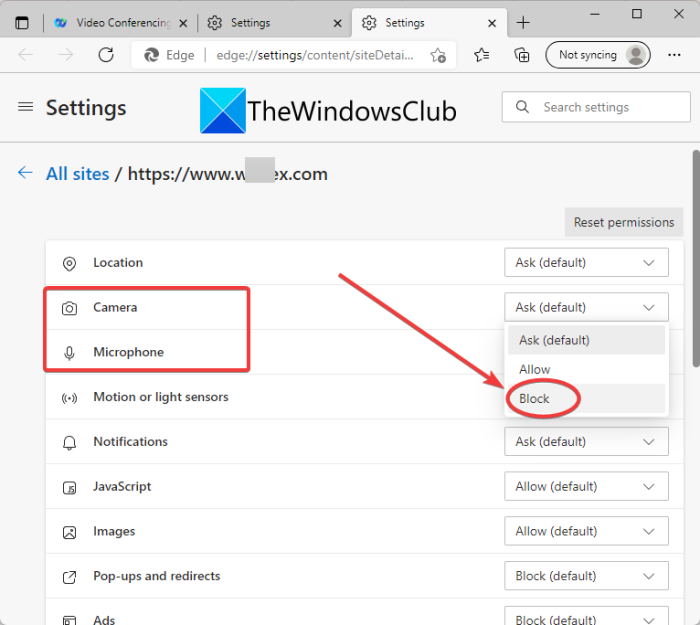
A website might be using your webcam. To check this, close your web browser tabs one by one. When the webcam light turns off, the tab you have just closed was using your webcam. Now, open your web browser settings and block access to the webcam for that website.
4] Look for suspicious software
Unwanted software may have been installed on your system without your consent, for example if you accidentally click a malicious link or visit a compromised website. That software might be spying on you.
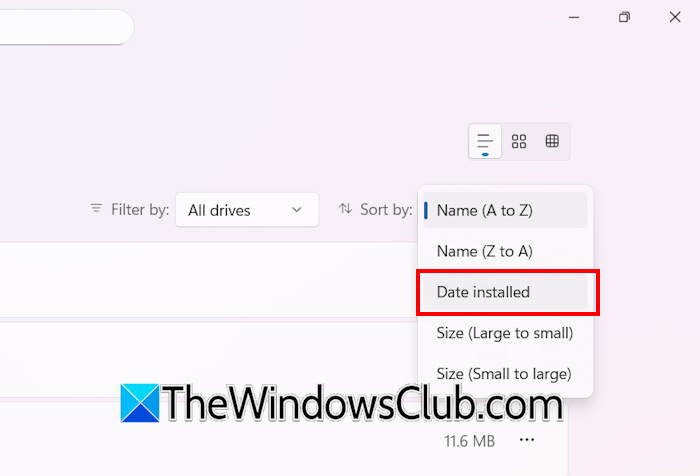
To check this, open Windows 11 Settings and go to Apps > Installed Apps. Sort the programs by Date installed. Now, look at the list carefully. If you find an unwanted program you did not install, uninstall it immediately.
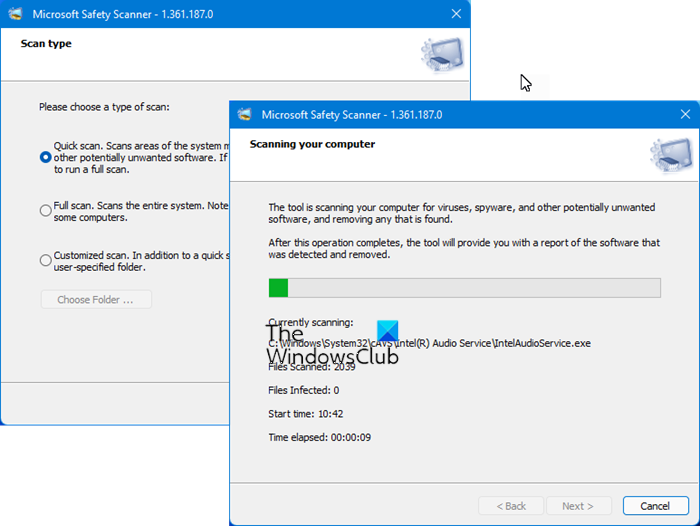
After uninstalling the program, run an anti-malware scan to disinfect your system. Microsoft Safety Scanner is a free antivirus tool from Microsoft that you can use. Rootkits are a type of malware that can hide their presence on a user’s computer. You should also scan your system for Rootkits using free Rootkit Remover Software. Additionally, you can use free Standalone On-demand Antivirus software.
5] Disable camera access for unwanted apps
You should also disable your webcam access for unwanted apps. Here is how to do that:
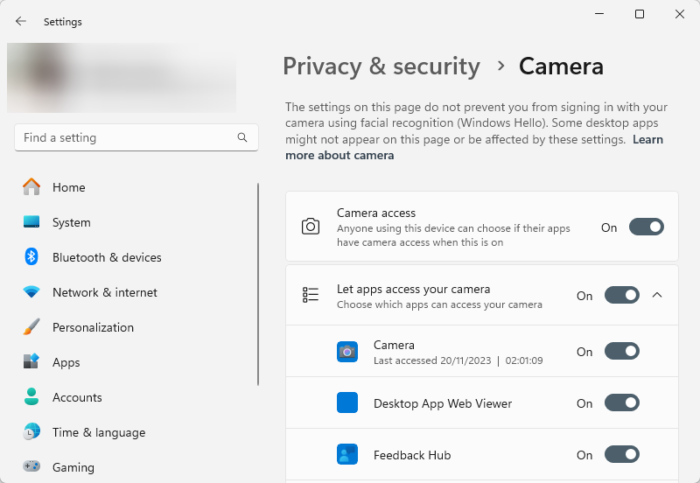
- Open Windows 11 Settings.
- Go to Privacy & Security > Camera.
- Expand the Let apps access your camera tab.
- Turn off the switch for the apps you do not want to access your webcam.
6] Repair your system image files
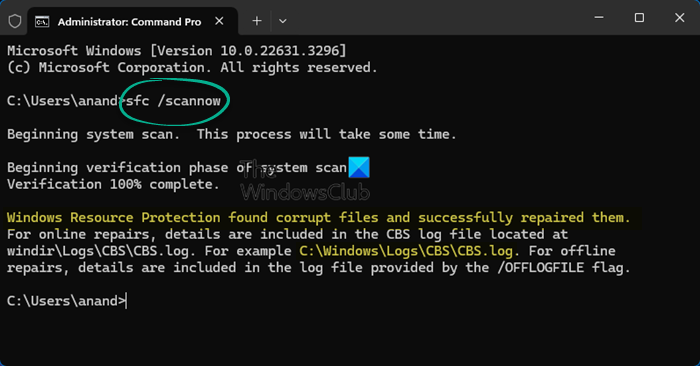
One possible cause of this issue is the corrupted system image files. Run the built-in tools, System File Checker, and DISM one by one to repair the corrupt system image files. Please do not interrupt the scan; it will take some time to complete.
7] Uninstall and reinstall your camera driver
This issue might be occurring due to a corrupt webcam driver. You can try uninstalling and reinstalling the camera driver.
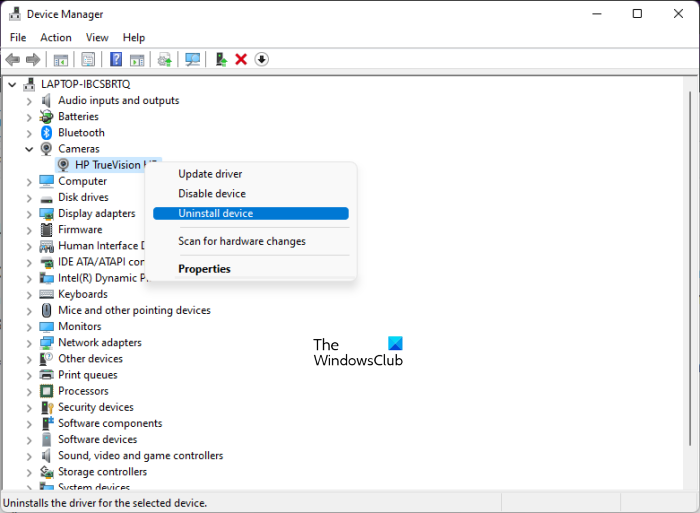
Follow these steps:
- Open the Device Manager.
- Expand the Cameras branch.
- Right-click on your camera driver and select Uninstall device.
- Restart your system or scan for hardware changes.
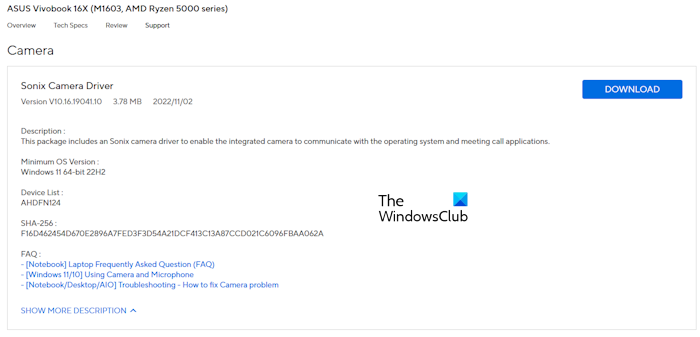
If this does not work, you can try installing the latest version of the webcam driver from your computer manufacturer’s official website. Visit the website and download the camera driver for your computer model. Run the installer file to install the camera driver. If the driver is downloaded as an INF file, use the Device Manager to install it.
8] Perform a system restore or reset your PC
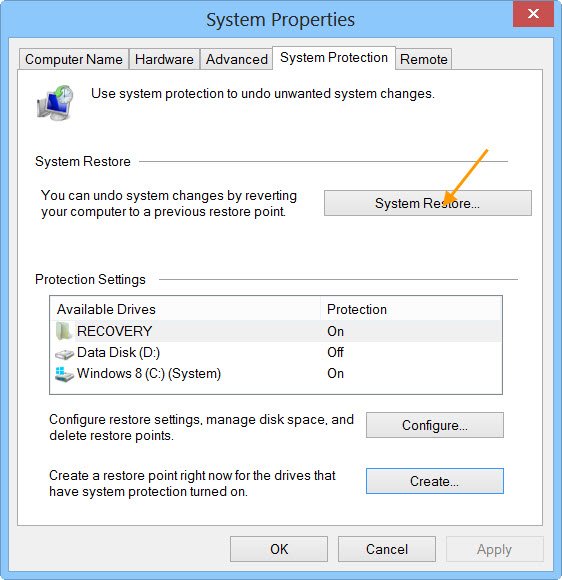
If the issue persists, you can restore your system to the previous working state using System Restore. This action will also uninstall all the programs installed after the selected date for System Restore, but your data will not be erased.
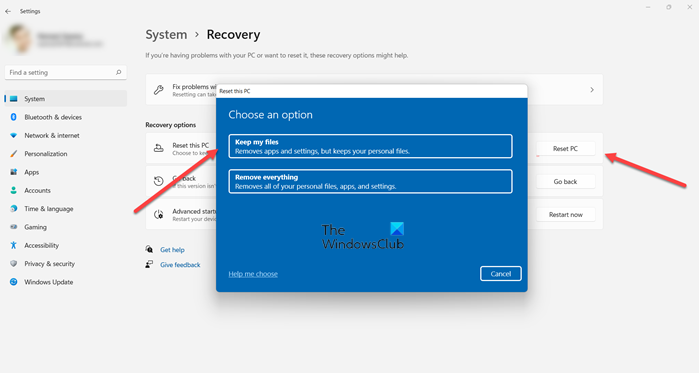
If the System Restore does not work, the last resort is to reset your PC to the factory default settings. First, try resetting your PC without deleting your data. If this does not work, you can perform a complete reset.
9] Hardware fault
If the issue persists despite trying all these fixes, there might be a hardware fault. Take your system to a professional laptop repair shop to get the issue resolved.
That’s it. I hope this helps.
How do I turn off the camera light in my laptop Windows 11?
If the camera light is ON on your Windows 11 computer, an application is using your webcam. To turn it off, you have to close that application. You can check the recent camera activity in your system settings to know which application has used your camera.
Why is the light on my webcam always on?
If the light on your webcam is always on, this means that an application is using your camera without your knowledge. Close all the running applications and see what happens. If the light is still on, your computer might be infected with malware, or a rootkit might be on your system. Scan your system with a good anti-malware and Rootkit scanner software.
Read next: How to adjust Webcam Brightness in Windows.
