
Some VPN users exclusive to Cisco AnyConnect Secure Mobility Client are reporting the issue whereby when they try to launch the VPN software or try to start/connect/enable the program on their Windows 11 or Windows 10 computer they get the error message VPN Agent Service not responding or starting. This post is intended to help affected users with the most suitable fixes.
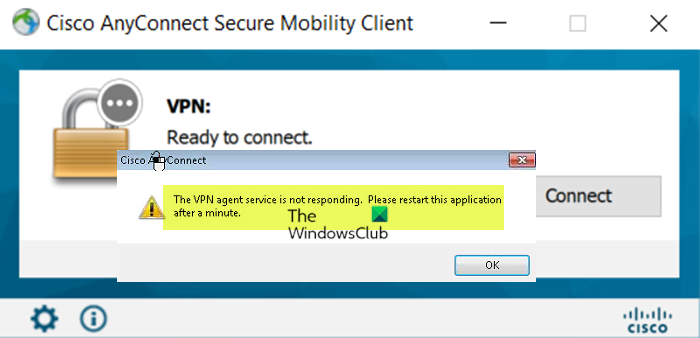
The full error message when the issue occurs on your system reads thus;
The VPN Agent Service is not responding. Please restart this application after a minute.
As most affected users report, restarting the application as suggested in the error prompt didn’t work.
VPN Agent Service not responding or starting
If you’re encountering an issue where the VPN Agent Service isn’t responding or starting when you try to start Cisco AnyConnect VPN on your Windows 11/10 system, try the recommended solutions below in the order shown.
- Initial checklist
- Check essential Cisco AnyConnect Services
- Reinstall Cisco AnyConnect VPN software
- Reset Windows.
Let’s see a quick descritption of these suggestions.
Read: Cisco AnyConnect error Connection attempt failed
1] Initial checklist
Before you try anything else, make sure you tick all the boxes on the following pre-task and see if the VPN software will start normally without throwing any error message.
Assuming that you are using the latest Cisco AnyConnect application, couple of things to check off your list:
- Did you install the VPN client as an administrator AND running the program as an administrator? In any case, you can try these options: allow Standard users to run a Program with Admin rights, login as an Administrator before attempting to install or run the program, and you can grant or get Elevated Privileges.
- Make sure your antivirus or any 3rd-party firewall is not causing the issue. To do this, temporarily disable your security software. This largely depends on the security software you have installed. Refer to the instruction manual. Generally. to disable your antivirus software, locate its icon in the notification area or system tray on the taskbar (usually in the lower right corner of the desktop). Right-click the icon and choose the option to disable or exit the program.
- It might not seem to matter or obvious, but it will save you many minor ‘headaches’ caused by slightly outdated Windows version/build; always check for updates and install any available bits on your Windows 11/10 device and see if the error reappears.
Read: Fix VPN not working problems and issues in Windows
2] Check essential Cisco AnyConnect Services
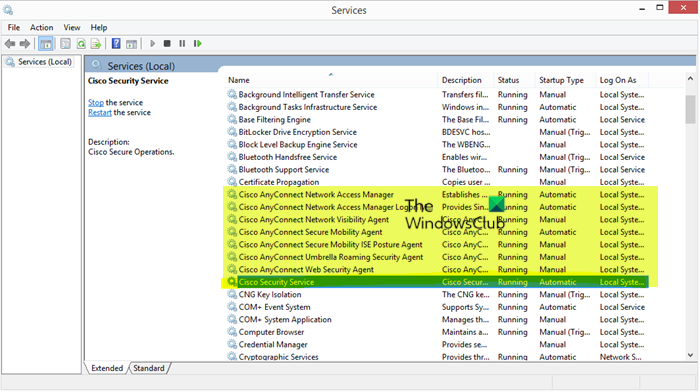
Investigations revealed that a couple of main services especially Cisco AnyConnect Secure Mobility Agent service associated with the VPN client in question triggers the VPN Agent Service is not responding or starting on your Windows 11/10 system. In this case, to resolve the issue in hand, you may need to change its Startup Type to Manual or Automatic if it is Disabled before it will allow you to start it.
Do the following:
- Press Windows key + R to invoke the Run dialog.
- In the Run dialog box, type services.msc and hit Enter to open Services.
- In the Services window, scroll and locate the Cisco AnyConnect Secure Mobility Agent service.
- Double-click on the entry to edit its properties.
- In the properties window, click the drop-down on the Startup type and select Automatic.
- Next, make sure the service is started.
- Click Apply > OK to save changes.
- Relaunch the Cisco AnyConnect VPN software.
If you confirm all services are set as suggested but the issue remains, restart your PC to see if that helps.
Read: How to restore missing or deleted Services in Windows
3] Reinstall Cisco AnyConnect VPN software
For most affected PC users, what worked for them is Solution 1]. If that isn’t the case for you, reinstalling the VPN client should do the trick. When you uninstall, make sure you delete all files from the AnyConnect installation directory (if not, delete them manually). So, to uninstall the software, we recommend using any of the free third-party software uninstaller for Windows 11/10. Once the clean uninstall is completed, you can download the latest version of the software and install normally on your device.
If the issue persists, try the next solution.
4] Reset Windows
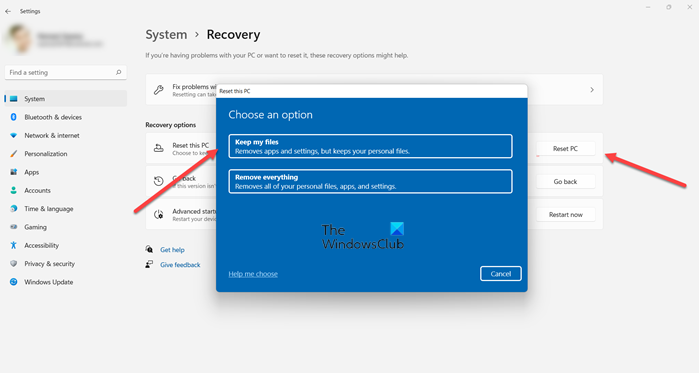
If neither solution above fixes the error, you may be facing system corruption. In this case, you can reset Windows with the option to keep your personal files. Once the reset completes successfully, you can reinstall the latest version of the software.
Hope this helps!
Related post: Fix VPN Connection, Can’t connect to VPN connection error
Why is Cisco AnyConnect not working?
If Cisco AnyConnect is not working on your Windows 11/10 PC, you may need to allow the app through Windows Firewall. In the Windows Search bar, type Allow an app and open Allow an app through Windows Firewall. Click Change settings. Make sure Cisco VPN is on the list and allowed to communicate through Windows Firewall. If that’s not the case, click Allow another app and add it.
Why can’t I log into Cisco AnyConnect?
The “Login failed” error message appears when you have entered an incorrect or invalid username or password combination when trying to log into the Campus or 2-factor VPN services via the Web VPN gateway with your browser or via the Cisco AnyConnect client.
