
If the volume bar of your Windows 11/10 computer is stuck at 100% or 0%, then this post will help you fix the problem. There could be various reasons for the Windows Volume bar to get stuck at high, such as a glitch in the computer system, corrupted audio drivers, or corrupted audio settings. You will notice that the Windows volume bar just won’t move, which can get quite frustrating.
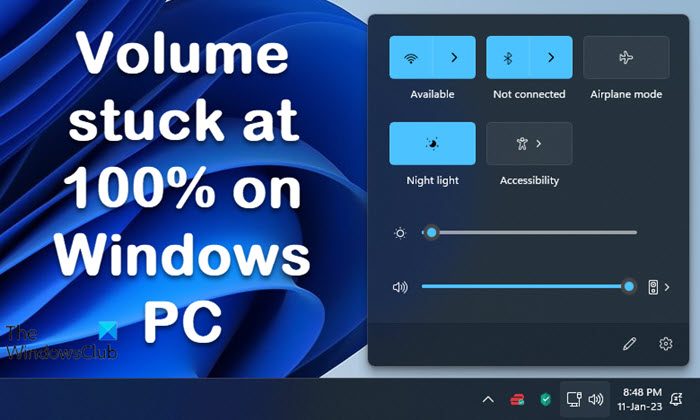
Volume stuck at 100% or 0% on Windows 11
To fix the problem where your Windows volume bar is stuck at 100% or 0% follow these suggestions:
- Restart your Windows PC
- Adjust the Volume via Speaker Properties
- Run Troubleshooters
- Update, Rollback or Reinstall the Audio Driver
- Unplug the Keyboard
- Restart Windows Audio Service
- Troubleshoot in Clean Boot State
Now, let us see these in detail.
1] Restart your Windows PC
The first and foremost step is to restart your Windows 11/10 PC, then adjust the volume bar. Sometimes, simply restarting your PC could fix this issue. See if this works!
Read: Taskbar Volume Control not working in Windows
2] Adjust the Volume via Speaker Properties
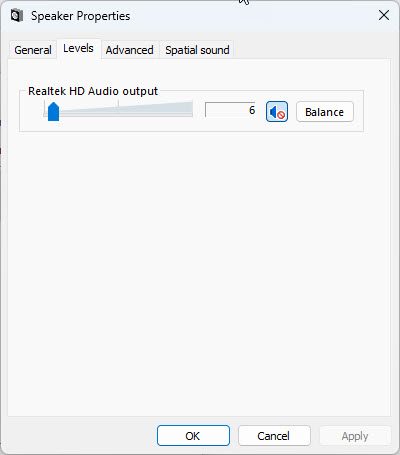
You can adjust the volume level directly from the Sound icon on the taskbar.
Or, you can right-click on the Sound icon on the taskbar > Sound settings > More sound settings > Speaker Properties > Levels > Adjust the volume > Click Apply > Click OK.
3] Run Troubleshooters
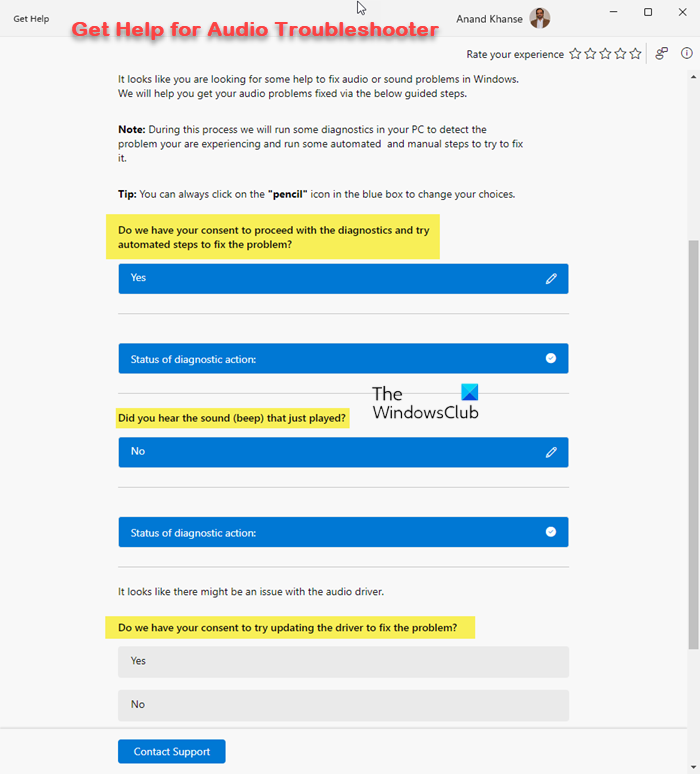
The Audio troubleshooter will scan the system for all the potential causes for the volume problem, and accordingly suggest fixes for the same.
To do so, open Windows Settings > System > Troubleshoot > Other troubleshooters > Playing audio > Run. Apply the fix that the audio troubleshooter suggests and see if that works for you.
4] Update, Rollback or Reinstall the Audio Driver
If you haven’t done so recently, then update the Audio driver and see. The best way to do it is via Windows Optional Updates:
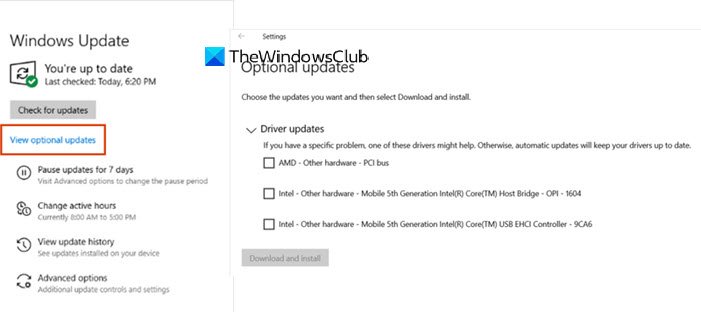
- Open Settings (Win + I)
- Navigate to Settings > Update & Security > Windows Update
- Right under it, look for a clickable link—View optional updates.
- Under Driver Updates, you’ll see a list of updates you can install manually if you are facing an issue.
If you recently updated your Audio driver and are facing this issue, then roll back the driver and see.
If none of these two suggestions help, then we suggest you download the Audio driver for Windows and fresh-install them. To uninstall the Sound Drivers, go to Device Manager > Sound, video and game controllers > Select the device > Properties > Driver > Uninstall Device. Then you can reinstall them.
Read: Microphone keeps resetting to 0 or 100 volume in Windows
5] Unplug the Keyboard
This tip may work if you are using a Windows 11/10 desktop. Simply unplugging and then plugging the keyboard back in could help fix the volume issue. The stuck volume issue could also be due to the volume key on the keyboard getting stuck. This fix can be used only on desktops, and not on laptops.
Fix: Sound and Audio problems and issues in Windows
6] Restart Windows Audio Service
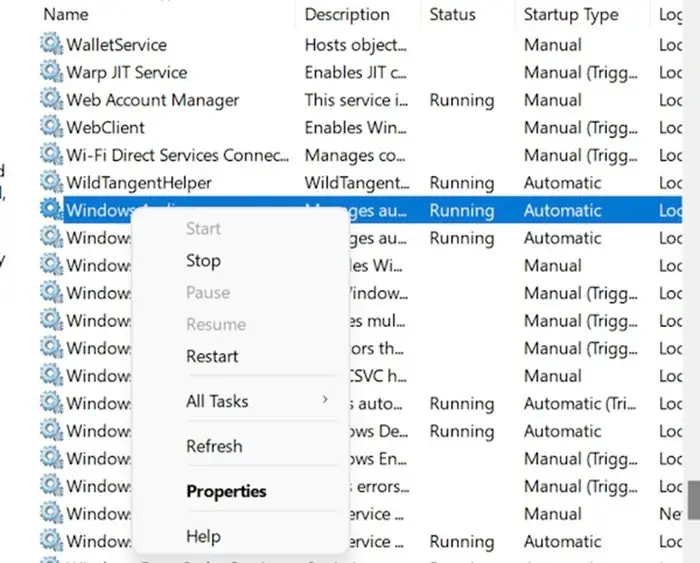
Windows Audio Services manages all the audio services on your Windows 11/10 device. It is responsible for managing the audio component of any program running on your Windows system.
To restart the Windows Audio Service, go to Start > Services > Windows Audio > Right-click on Windows Audio > Restart. You may do the same and restart the Windows Audio Endpoint Builder.
7] Troubleshoot in Clean Boot State
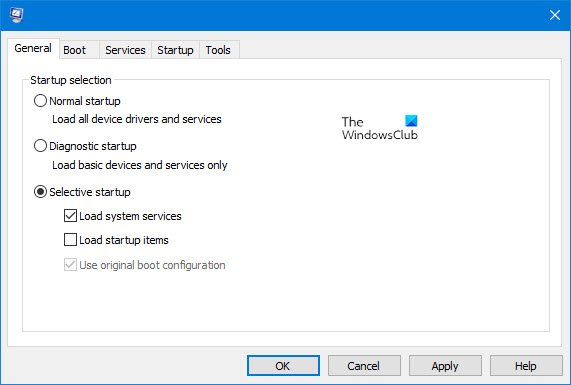
When you start the computer in clean boot, the computer starts by using a pre-selected minimal set of drivers and startup programs.
Clean-boot troubleshooting is designed to isolate a performance problem. To perform clean-boot troubleshooting, you must take a series of steps and restart the computer after each one. You may need to manually disable one item after another to pinpoint the one causing the problem. Once you have identified the offender, you can consider removing or disabling it.
Volume slider stuck on screen in Windows 11
If the Windows 11 volume slider is stuck on your screen, try the following suggestions:
- Refresh the desktop
- Restart Explorer
- Restart PC
- Disable/re-enable your audio device in Device Manager
- Run the built-in Audio Troubleshooter to reset sound settings.
Try out all these fixes and solutions mentioned in this tutorial to resolve the Windows 11/10 volume stuck at 100% or 0%, and let us know which one worked best for you!
Why is my Windows PC so quiet on max volume?
Check the Volume Mixer. You may have lowered the volume for a particular application, so you may find the volume low even though you’ve set the device’s volume to max. To fix this, open the Volume Mixer from the sound icon in the taskbar, and adjust the volume as needed.
