
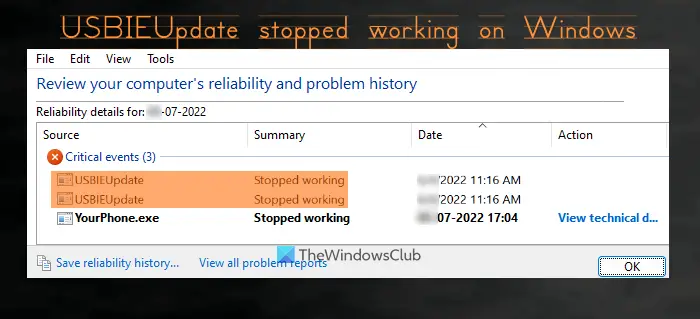
This post will help you fix USBIEUpdate stopped working error on a Windows 11/10 computer. Some users complained that on Windows startup or when they access the Windows Reliability Monitor tool, they see multiple USBIEUpdate errors (for UsbUpdate.exe application) in the critical events section of Reliability Monitor. And, for each error, the problem summary is displayed as Stopped working. If you are seeing such errors too, then some solutions covered in this article might work for you.
What is USBIEUpdate?
USBIEUpdate is a part of the UsbUpdate.exe application and belongs to a Dell tool called Dell Support Assistant that may be installed on your Windows 11/10 computer.
USBIEUpdate stopped working on Windows 11
Here is a list of solutions to solve this USBIEUpdate stopped working problem:
- Update Dell Support Assistant
- Uninstall Dell Support Assistant
- Make sure Windows Defender Antivirus is updated
- Run System Restore.
Let’s check all these solutions one by one.
Critical Event USBIEUpdate (UsbUpdate) stopped working (AppCrash)
1] Update Dell Support Assistant
Most Dell laptop/desktop users face this USBIEUpdate problem. And, the reason behind this problem is Dell Support Assistant (also known as SupportAssist). While Dell SupportAssist is a good tool to keep your Dell laptop or PC updated and run efficiently, it can cause trouble if the tool is outdated. Therefore, if you use SupportAssist, you should run the latest version.
Users automatically get updates for SupportAssist when they launch it. But if it doesn’t work for some reason, the best way to update or get the latest version of SupportAssist is to visit the official website. Download the SupportAssistInstaller application from the official site and run it to install SupportAssist.
2] Uninstall Dell Support Assistant
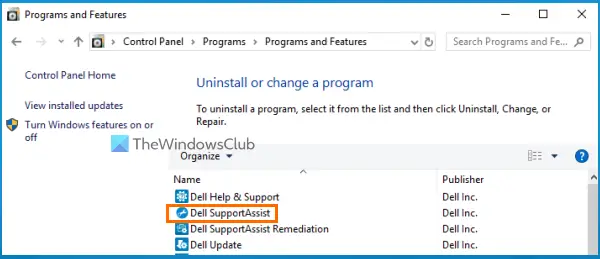
If even after updating the Dell SupportAssist tool, you continue experiencing the same problem, then it is good to uninstall this SupportAssist tool from your Windows 11/10 computer. Access the Programs and Features section present in Control Panel or Apps & features page in the Settings app and look for Dell SupportAssist. Once you find it, simply uninstall it, and restart your computer to solve this problem.
In addition to that, you can also uninstall other bloatware like Dell SupportAssist OS Recovery Plugin for Dell Update, Dell SupportAssistAgent, Dell Update, etc., which might be the cause for this problem.
Related: Download or Update Dell Drivers using the Dell Update utility.
3] Make sure Windows Defender Antivirus is updated
Outdated programs, especially security tools, can cause various problems on a user’s system. So, if you are using Windows Defender with outdated definitions, it could cause these problems. If so, make sure your antivirus tool is up to date.
Though Defender Antivirus automatically updates its definitions along with Windows Updates, it may not be able to do so for some reason. In that case, you can troubleshoot definition update issues for Microsoft Defender or manually update Windows Defender Antivirus so that your antivirus tool continues to protect your system and help you resolve such a problem.
4] Run System Restore
If this problem starts occurring after installing some tools, updates, or running services that you are not aware of, then you should run the system restore which helps to revert your system to an earlier state. Select a system restore point you created, start the system restore process, and see if it solves the problem. If not, try restoring to another restore point. This can be time-consuming, but it may help solve the issue.
How do I fix driver errors in Windows 11?
Most of the device driver errors can be fixed by updating drivers in Windows 11/10. However, if you are having trouble with a specific driver, then you need to try fixes accordingly. In such a case, carefully look for the error message or error type you receive for a driver and then troubleshoot and fix device driver problems.
How do I fix bugs on Windows 11?
Users may encounter bugs and common problems from time to time with Windows 11. These include slow boot times, printers not working, blank widgets, slow File Explorer, blank screens, and more. Thankfully, there are fixes and solutions available for Windows 11 problems like updating Windows, disabling startup programs/apps, re-install a driver, removing additional external devices, etc., that you can try and get rid of such issues.
Read next: Fix Generic USB Hub missing or not showing in Windows.
