
Total War: Three Kingdoms is one of the best real-life tactic games. It creates a world of its own, and for a lot of gamers, it’s their game. However, the game has been crashing on a lot of systems with different configurations, but not anymore, in this article, we are going to see what you need to do to resolve the issue. If Total War: Three Kingdoms keeps crashing or minimizing on your computer, check out the solutions here to resolve the issue.
Why does Total War Three Kingdoms keep crashing?
Total War, just like any other game, needs a compatible environment to run. So, maybe the game is crashing on your system because of incompatibility, that is, the system requirements are not met.
If the system is compatible, the game cache files may be corrupted. There are various reasons why these files are corrupted, but the solution is the same. We are going to scan and fix those files. Also, you need to make sure your graphics drivers are up to date. Usually, all drivers are updated through regular Windows Updates, but there are other methods to do the same.
We will discuss everything in detail and review additional solutions to resolve the issue.
Total War Three Kingdoms keeps crashing, freezing or minimizing on PC
If Total War Three Kingdoms keeps crashing, freezing or minimizing on your computer, try the following solutions to resolve the issue:
- Update Graphics Drivers
- Verify Integrity of game files
- Install latest game patch
- Use Low Graphics Settings
- Disable Overclocking apps
- Troubleshoot in Clean Boot
- Allow the game through firewall
Let us talk about them in detail.
1] Update Graphics Drivers
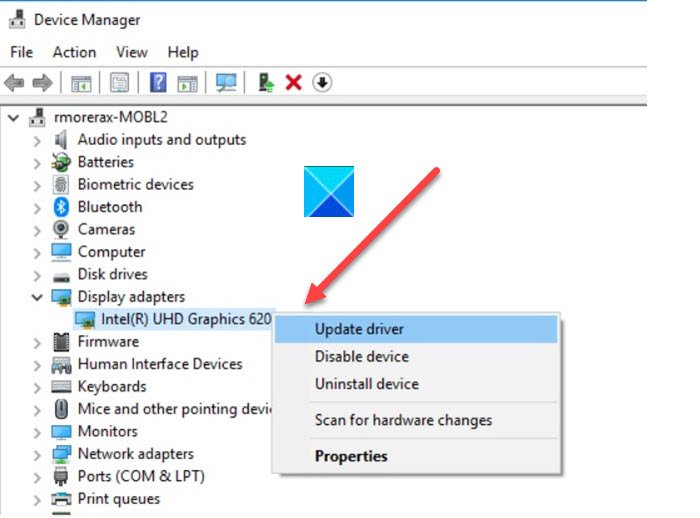
If your Graphics Drivers are outdated, you may encounter compatibility issues. Your game needs the latest version of your driver, and because your system is not providing it, it ceases to launch. So, you should update the Graphics Drivers and see if that works. The following are the methods to upload the drivers.
- Update your computer as it will update the graphics drivers.
- Install the latest version of your Graphics Driver from the manufacturer’s website.
- Use freeware to update the drivers.
- Go to Device Manager and update the driver.
Hopefully, this will resolve the issue for you.
2] Verify Integrity of game files
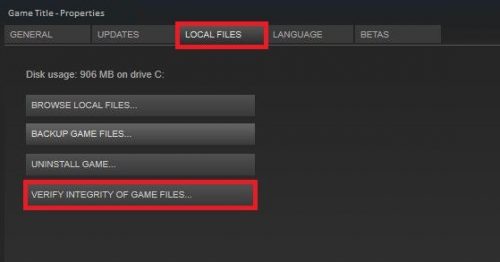
Your game cache can get corrupted because of various reasons, but the solution is one, or maybe the one that you should try first. We are going to verify the integrity of game files and see if the issue persists.
- Open Steam.
- Go to LIBRARY.
- Right-click on the game and select Properties.
- Go to LOCAL FILES > VERIFY INTEGRITY OF GAME FILES.
Wait for the issue to be resolved.
3] Install latest game patch
For many users, the game crashed due to a bug. In this case, the best solution is to install the latest game patch. Steam will automatically update the game patch and install it for you. Hopefully, this will resolve the issue for you.
4] Use Low Graphics Settings
If the game is crashing amidst gameplay then chances are your game is overclocking your computer. What you need to do is lower the Graphics Settings and turn off some features that can make your game crash. Do all this and hopefully, your issue will be resolved.
5] Disable Overclocking app
Overclocking apps are meant to give your computer a performance jump. However, these apps can cause problems for your game, as both tend to impact your CPU in some way. So, try to disable Overclocking apps such as MSI Burner and see if the issue persists. If disabling the app worked for you, you know what to do.
6] Troubleshoot in Clean Boot
Overclocking apps are not the software that can cause the issue for you, there are some other programs that can interfere with your game and cause the issue. What you need to do is troubleshoot in Clean Boot and see what’s causing the issue. Then, remove it to fix the problem.
7] Allow the game through firewall
Your computer’s firewall or antivirus software can block the game and prevent it from saving data on your computer. If you have an antivirus, just whitelist it. But sometimes, even the Windows Firewall can block Total War: Three Kingdoms. You have to allow the game through firewall. Then restart your computer, reopen the game and see if the issue persists.
That’s it!
What do you need for Total War: Three Kingdoms?
You need the following system requirements you need to run Total War: Three Kingdoms.
Recommended
- OS: Windows 11/10 (64-bit)
- Processor: Intel i5-6600 | Ryzen 5 2600X
- Memory: 8 GB RAM
- Graphics: GTX 970 | R9 Fury X 4GB VRAM
- DirectX: Version 11
- Storage: 60 GB available space
If your computer is compatible, move to the troubleshooting guide discussed above.
Also Read:
