
If you cannot open a UWP Microsoft Store app on your Windows 11/10 computer due to the “This application has not been provisioned” error, this article will guide you on how to fix this issue. This error occurs due to several causes, such as corrupt system image files, corrupt or outdated applications, etc.
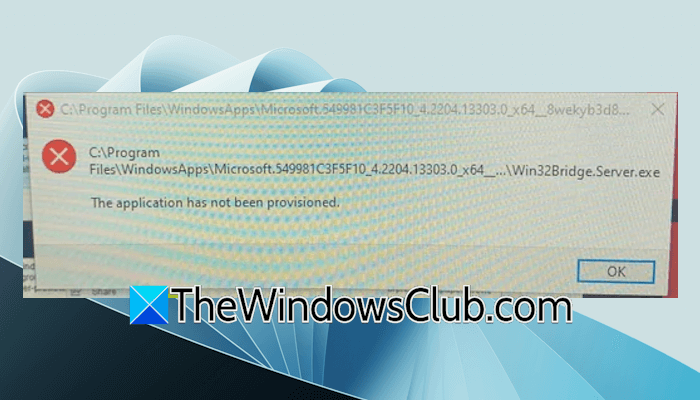
This application has not been provisioned in Windows 11/10
Use these fixes for the “This application has not been provisioned” error.
- Repair your system image files
- Update the affected app
- Repair or reset the app
- Uninstall and reinstall the app
- Create a new user profile
- Restore or reset your system
All these fixes are explained below in detail. Before proceeding, we recommend you check for a Windows Update. If an update is available, download and install it.
1] Repair your system image files

Corrupt system image files can also cause this problem. Windows 11 has built-in tools to repair the corrupt system image files. Launch System File Checker and run the SFC Scan. After the scan completes, you can also use the DISM tool.
2] Update the affected app
Problems also occur with outdated apps. Update the affected app and see if this fixes the error. Use the following steps to update the affected app:
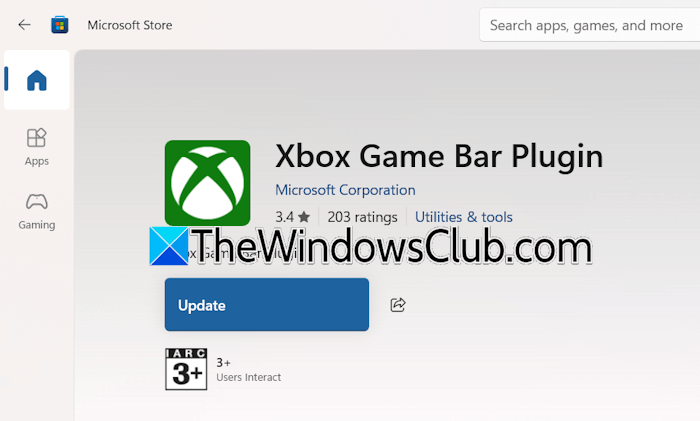
- Launch Microsoft Store.
- Search for the app in the Store.
- Select the app in the search results. If you see an Update button, click on it to update the app.
3] Repair or reset the app
If the problem persists, repair the affected app. Follow the instructions provided below:
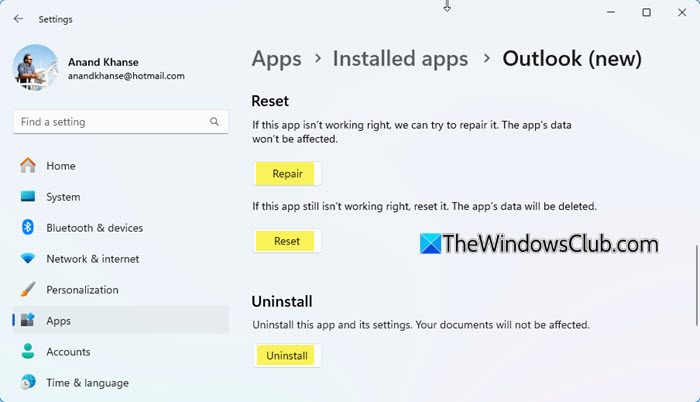
- Open Windows 11 Settings.
- Go to Apps > installed Apps.
- Search for the affected app. Click on the three dots next to it and select Advanced Options.
- Scroll down and click Repair. If this does not work, click Reset.
4] Uninstall and reinstall the app
If repairing or resetting the app does not work, you can try uninstalling and reinstalling the app. Uninstall the app through Windows 11 Settings, then restart your PC. Now, open the Microsoft Store and install the app again.
5] Create a new user profile
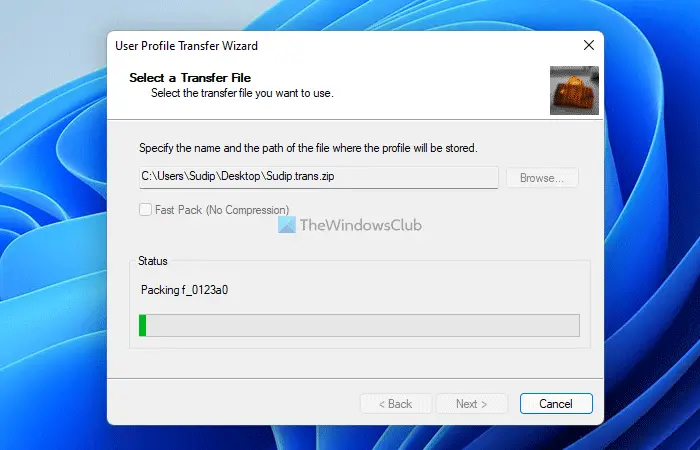
The problem might be associated with your user profile. To check this, create a new user profile. Now, sign in to that profile and launch the app. If the error does not appear this time, this means that your previous user profile might have been corrupted. You can transfer your user data from the previous profile to the new profile using a third-party tool, such as Transwiz. After that, you can delete the previous profile.
6] Restore or reset your system
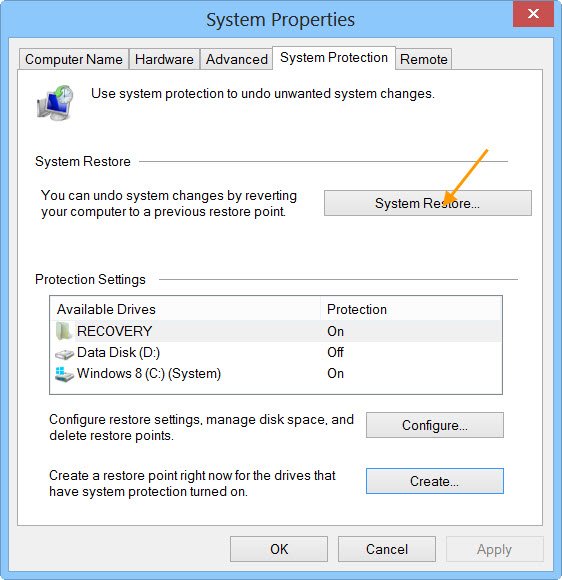
If the issue persists, you can restore your system to the previous working state. While performing this action, select the restore point created on the date before which the apps were working properly.
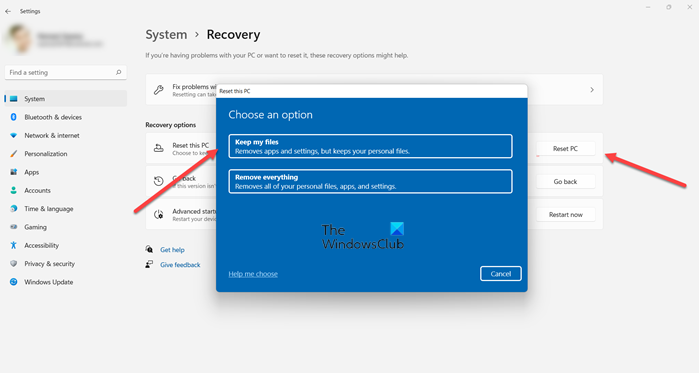
If no restore points are available on your system, you can reset your PC. Windows 11 allows you to reset your PC without erasing your data. However, backing up all important data before proceeding is always recommended.
That’s it. I hope this helps.
How to fix an application not responding in Windows 10?
If you encounter the “The application is not responding” error on your Windows 11/10 computer, check your RAM consumption. If the RAM consumption is always high, this means that the program requires more RAM than your system has. Check the hardware specifications of the program and upgrade your RAM (if required).
How to Startup repair?
You can run the Automatic Startup Repair in Windows Recovery Environment. Restart your system by pressing and holding the Shift key to enter WinRE. Once you are in Windows Recovery Environment, click Troubleshoot > Advanced Options > Startup Repair.
Read next: How to kill a Not Responding process in Windows.
