
Are you getting a Windows Security message “These files can’t be opened” when trying to open a file on Windows 11/10? Here is a complete guide on how you can get rid of the These files can’t be opened message. Many Windows users have reported receiving this message when opening a file. When triggered, you will get the following message:
These files can’t be opened
Your Internet security settings prevented one or more files from being opened.
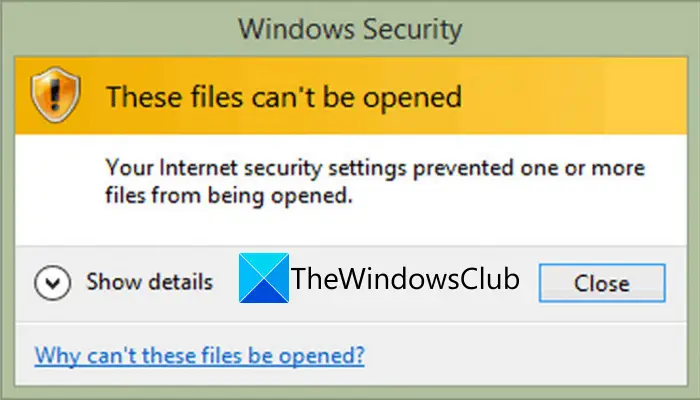
This issue mainly occurs with executable or application files. However, it may happen with other files as well. As the prompt suggests, it is a security prompt caused by Windows’ protection mechanisms. Although it may happen with safe files as well. Now, if you want to fix the problem and open or launch the file, this guide will help you. In this post, we will outline several fixes to help you get rid of the prompt message.
Before we discuss the solutions, let us try and understand why this message occurs.
What causes These files can’t be opened in Windows 11?
Here are the potential causes that trigger the These files can’t be opened message in Windows 11/10:
- If the file is blocked by Windows, you are likely to encounter the above message. Hence, you can try unblocking the file from File Properties.
- It can also be caused by your antivirus blocking the executable or another type of file from launching or opening. In that case, you can try disabling your antivirus to see if the issue is resolved.
- You are likely to receive this security message if you have selected a higher security level in your Internet Properties. If this applies, you can try changing your internet options to fix the issue.
- Custom internet settings may be the reason for this. So, you can try resetting your internet security settings to resolve the issue.
- Windows might have blocked the file even considering it to be an unsafe file. Hence, you can try allowing unsafe files through Command Prompt.
Now that you know the scenarios that trigger the issue at hand, you can try a suitable fix from the below-listed ones.
Why does it say Windows cannot open this file?
The “Windows cannot open this file” message appears when you try to open an unknown file extension. Or the program that can open the file in question is not installed on your system.
These files can’t be opened in Windows 11
Here are the methods to fix the These files can’t be opened message in Windows 11/10:
- Make sure your file is not blocked.
- Rename the executable file.
- Move the file to a different location.
- Modify your Internet Properties.
- Allow unsafe files using Command Prompt.
- Disable your antivirus.
- Reset Internet Properties.
- Perform a system restore.
Let us discuss the above methods in detail now!
1] Make sure your file is not blocked
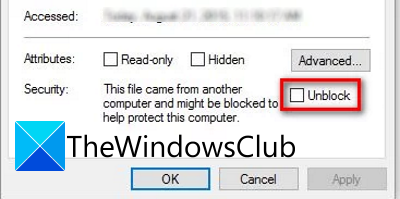
The first thing you should do when you receive this message is check whether your file is blocked. You are likely to get the These files can’t be opened prompt if there is a blocked attribute in the file properties. This is most likely the case with executable files, as Windows might have blocked such files to protect your PC from potential viruses. So, you can open the Properties of the problematic file and make sure it is not blocked.
To do that, go to the location where the problematic executable file is saved. After that, right-click on the file, and from the appeared context menu, select the Properties option. Now, in the General tab, check if the Unblock option is checked or not. If not, enable the checkbox and click on the Apply > OK button to save changes. You can now try opening the file and see if you stop receiving the “These files can’t be opened” security message.
If you still get the same prompt, try the next potential fix to eliminate it.
2] Rename the executable file
If you are experiencing this issue with an executable file, you can try renaming it and see if the problem is resolved or not. In case Windows has used rudimentary protection mechanism, this method might work for you. So, right-click on the problematic executable file and then select the Rename option. After that, give a suitable filename and press Enter. Try running the executable file and see if the problem is resolved now.
If the problem persists, you can move on to the next potential fix.
RELATED: File Explorer will not open in Windows 11.
3] Move the file to a different location
You can also try moving your file to a different location on your system and then try opening it. It is a kind of workaround and might work for you. So, there is no harm in trying this method. If it doesn’t work, move on to the next potential fix to resolve it.
4] Modify your Internet Properties
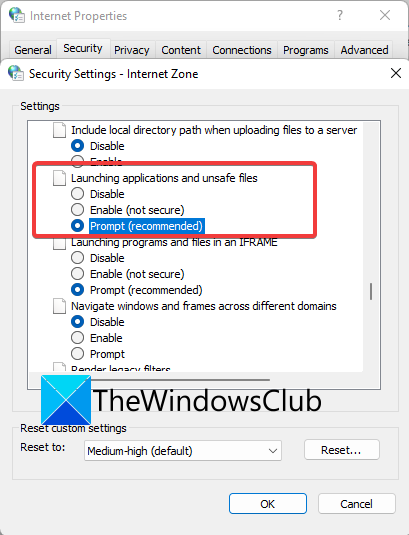
It might be the case that the configured security level in your Internet Properties has blocked programs and executable files from opening. Hence, if the scenario applies, you can try modifying the Internet Properties accordingly and then check whether the issue is fixed.
To change your Internet Properties, follow the below steps:
- Firstly, press the Windows + R hotkey to open the Run dialog box.
- Now, enter “inetcpl.cpl” in the Open field to launch the Internet Properties window.
- Next, move to the Security tab in the Internet Properties Window.
- After that, press the Custom Level button.
- In the newly opened dialog, move down scroll down to the Miscellaneous category, and locate the Launching applications and unsafe files.
- Then, change the settings for the above option to Prompt.
- Finally, press the OK button to save changes and close the Internet Properties window.
Now, try opening the problematic file and check if the issue is resolved or not. You can try doing the same for some documents for the Allow Scriptlets, File Download, and Font Download option.
Still not able to resolve the issue? No worries; you can check out some more solutions to fix it.
See: Fix 7-Zip Cannot open file as archive error
5] Allow unsafe files using Command Prompt
In newer versions, Windows uses more stringent protection mechanisms to safeguard your system against the installation of dangerous applications. But it can sometimes block even safe applications and files. So, you can try allowing unsafe files by tweaking Registry values. It can be done through an Elevated Command Prompt. You can check out the below steps to do so:
Firstly, launch the Command Prompt with administrator rights.
Now, in the Elevated Command Prompt, enter the following commands one by one:
reg add "HKCU\Software\Microsoft\Windows\CurrentVersion\Policies\Associations" /v "DefaultFileTypeRisk" /t REG_DWORD /d "1808" /f
reg add "HKCU\Software\Microsoft\Windows\CurrentVersion\Policies\Attachments" /v "SaveZoneInformation" /t REG_DWORD /d "1" /f
When both commands are executed, close the Command Prompt window and restart your PC. Try opening the file that was giving you the “These files can’t be opened” prompt and see if the issue is fixed.
If you encounter the same problem again, try the next potential solution to fix it.
6] Temporarily disable your antivirus
The problem might be caused by your overprotective antivirus suite. It might be flagging the application file as a potential threat, which is why the security prompt appears. So, what you can do is, if you trust the files and their source, try disabling your antivirus and check if you are able to open the file or not.
Read: Microsoft Teams cannot open files in the Desktop app
7] Reset Internet Properties
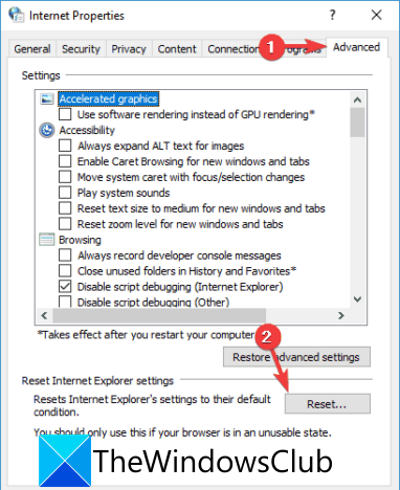
If the problem is caused by corrupted internet settings, you can try resetting the internet properties to their defaults to fix the issue. Here is how to do that:
- Firstly, open the Internet Properties window as explained above
- Now, move to the Advanced tab and tap on the Reset button.
- After that, enable the Delete personal settings checkbox and press the Reset button.
- Once done, try opening the problematic file and see if the problem is fixed.
8] Perform a system restore
If none of the above solutions worked for you, try performing a system restore. The issue at hand may also be caused by corruption in your system. Hence, using System Restore, you can roll back your PC to a previous healthy state when you didn’t receive the “These files can’t be opened” prompt. This should help you fix the problem if nothing else did.
That’s it. Hope this helps!
TIP: This post shows how to bulk Unblock multiple files downloaded from the Internet.
How do I fix an EXE file?
If you are unable to open a particular EXE file, make sure it is not blocked in File Properties. You can also try renaming the file, moving it to a different location, disabling your antivirus temporarily or changing your internet settings.
Now read: Cannot open JPG or PNG files in Windows 11.
