
While opening a Microsoft Store app or game, some users are encountering an error that says “There’s a problem with this app.” According to the error message, users have to install the problematic app or game again or contact their system administrator. It is not an app-specific error. Hence, it can occur with any Microsoft Store app or game. This article explains how to fix this problem. If you encounter this error, try the solutions below.
There’s a problem with this app. Reinstall the application from its original install location or contact your administrator
The following suggestions may help you fix this issue.
- Run Windows Store Apps Troubleshooter
- Update Microsoft Store
- Re-register Microsoft Store apps
- Reset or repair the problematic app
- Use Reset This PC option.
Let’s see all these fixes in detail.
1] Run Windows Store Apps Troubleshooter
Microsoft has developed different troubleshooters to fix different issues on a Windows computer. This error occurs in any Microsoft Store app. Therefore, running the Windows Store Apps Troubleshooter can fix the problem. You can access all the troubleshooters in Windows 11/10 Settings.
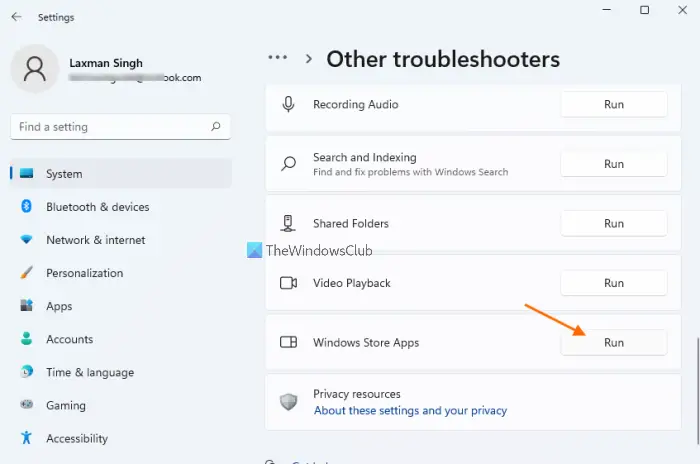
Go through the following instructions to run Windows Store Apps Troubleshooter on Windows 11/10.
- Open Windows 11 Settings and go to “System > Troubleshoot > Other troubleshooters.” Scroll down and click on the Run button next to Windows Store Apps.
- Open Windows 10 Settings and go to “Update & Security > Troubleshoot > Additional troubleshooters.” Select Windows Store Apps and click on the Run the troubleshooter button.
If you do not see the above Troubleshooter in Windows Settings, you will have to run the Get Help app based Windows Store Apps troubleshooter.
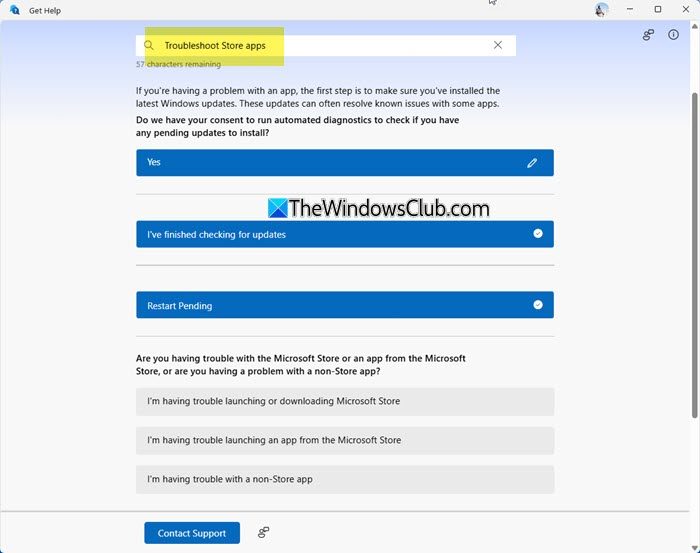
This troubleshooter will help you resolve Store app issues, such as trouble downloading or launching Microsoft Store, Store apps, non-Store apps and more.
2] Update Microsoft Store
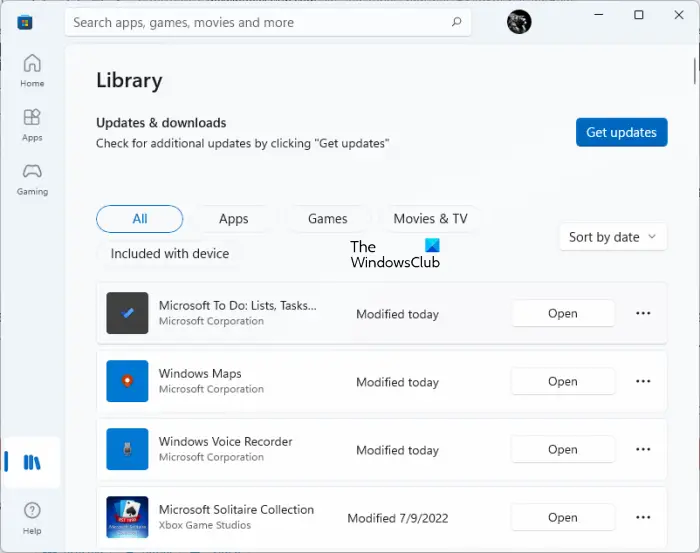
Install updates on time to avoid bugs and errors. Update Microsoft Store manually and see if it fixes the problem. To do so, open Microsoft Store and go to Library. Click on the Get updates button. After this, Microsoft Store will check for updates and install the same (if available).
3] Re-register Microsoft Store apps
You may experience different issues with Microsoft Store apps. For example, if Microsoft Store apps won’t launch or show an error code after you open them, you can re-register them to fix the problem. To re-register Microsoft Store apps, you have to run a command in an elevated Windows PowerShell.
This should fix the issue.
4] Reset or repair the problematic app
If re-registering the Microsoft Store apps doesn’t help, reset or repair the problematic app and see if it works. You can reset or repair a Microsoft Store app in Windows 11/10 Settings. The following instructions will help you with that.
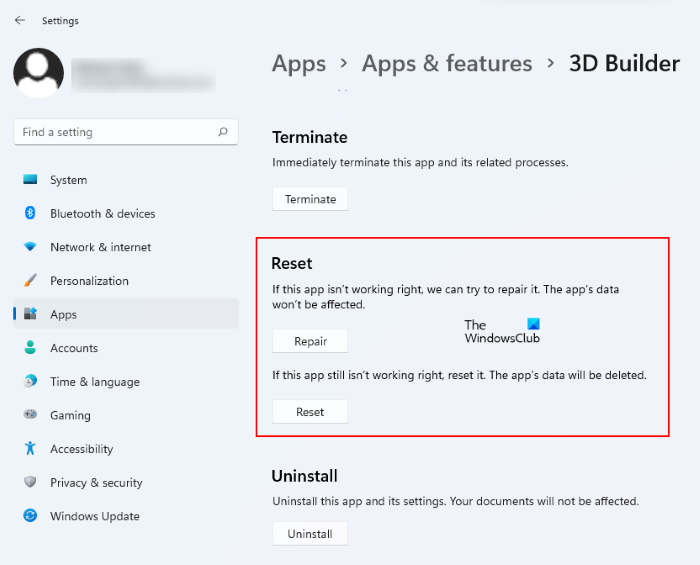
- Open Windows 11 Settings and go to “Apps > Apps & features.” Now, locate the problematic Microsoft Store app. Once you find it, click on the three horizontal dots next to it and select Advanced options.
- Open Windows 10 Settings and go to “Apps > Apps & features.” Select the problematic Microsoft Store app and click on the Advanced options link.
First, click on the Repair button to repair the app. If this does not help, reset the app by clicking on the Reset button.
5] Use Reset This PC option
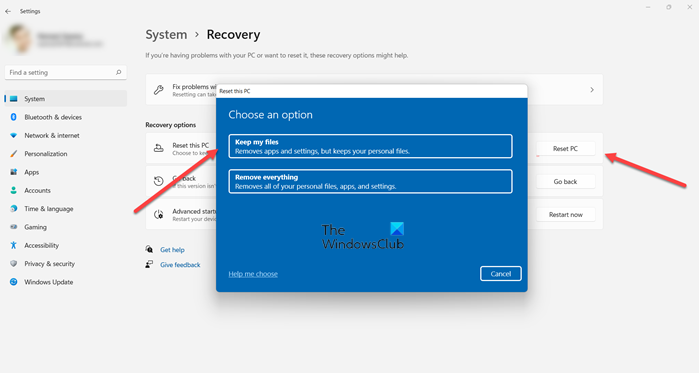
If nothing helps, you may use the Reset This PC option, making sure that you opt to keep your files and data.
This should fix the issue.
Read: Microsoft Store not opening or closes immediately after opening
How do I fix Microsoft App Installer not working?
If you are experiencing problems with apps from the Microsoft Store, try these fixes to resolve the issue. First, run the Windows Store Apps Troubleshooter and see if it helps. Troubleshooters are automated tools that detect problems and fix them (if possible). If you are using an outdated version of Windows, you may experience issues like this. Therefore, we suggest checking for Windows Updates and installing them if available.
You can also fix problems with Microsoft Store apps by updating the Store manually. Open the Store and go to Library. Then click Get updates to install updates in the Microsoft Store. Another potential fix for Microsoft Apps is to reset or repair them. You can repair or reset the problematic app from Windows 11/10 Settings.
How do I reinstall a preinstalled app?
You can re-register or reinstall a preinstalled app by running a command in an elevated PowerShell window. Re-registering or reinstalling an app can help if you are having issues. For example, if an app won’t launch or crashes unexpectedly.
Read next: Microsoft Store is not opening after reset.
