
If you get error 0x8D050002 while downloading apps from Microsoft Store in Windows 11 or Windows 10 computer, these solutions will help you fix it. Whether you get this error while downloading new apps or updating existing apps, the solutions are the same for both of them.
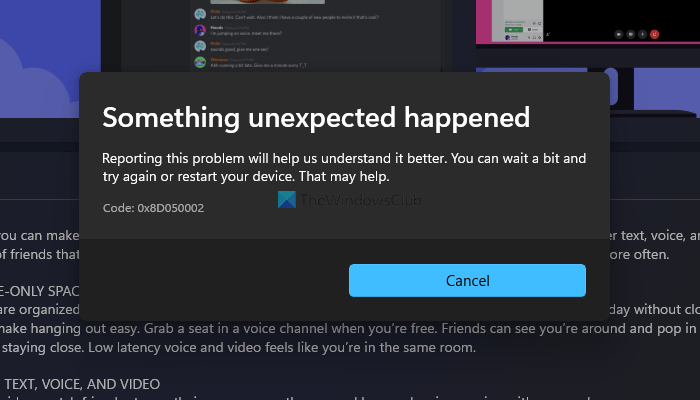
The entire error message says:
Something unexpected happened
Reporting this problem will help us understand it better. You can wait a bit and try again or restart your device. That may help.
Code: 0x8D050002
It is clear from the message that even Microsoft does not fully understand why this error code has appeared. Before exploring other solutions, it is recommended to restart your computer and check if this resolves the problem.
Fix Microsoft Store error 0x8D050002
To fix Microsoft Store error 0x8D050002 in Windows 11/10, follow these steps:
- Change internet connection
- Run Windows Store Apps Troubleshooter
- Disable VPN and proxy
- Reset Microsoft Store
To learn more about these steps, continue reading.
1] Change internet connection
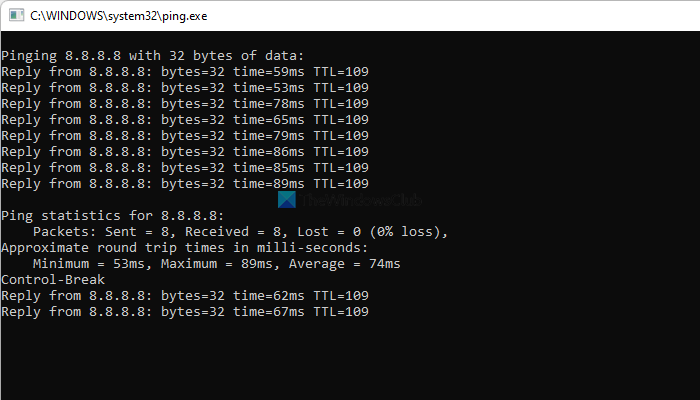
The first thing you need to do when you encounter Microsoft Store error 0x8D050002 is to download apps. The Microsoft Store displays an error message when your computer is disconnected from the internet while downloading or updating apps. That is why you must check if you have a valid internet connection or not. The best way to check is by using the ping command. In other words, press Win+R and type this command:
ping 8.8.8.8 -t
If you get a continuous response, you can try other solutions. However, if it has a ping loss issue, you need to change your internet connection.
2] Run Windows Store Apps Troubleshooter
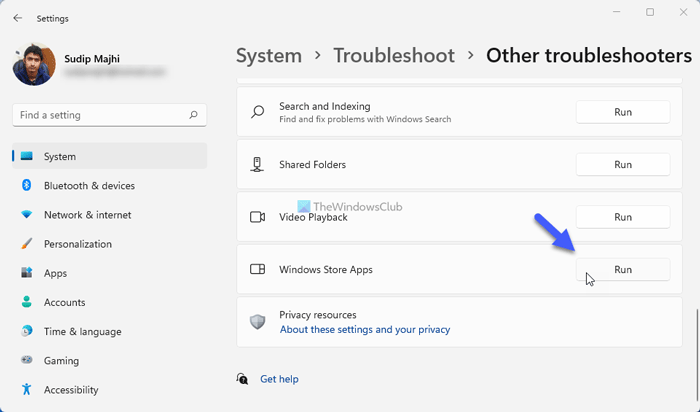
It is the most effective solution when you are having a Microsoft Store issue on your computer. This built-in Troubleshooter solves almost all the common issues like this one. Therefore, follow the following steps to run the Windows Store Apps Troubleshooter:
- Press Win+I to open Windows Settings.
- Go to System > Troubleshoot > Other troubleshooters.
- Find out the Windows Store Apps Troubleshooter.
- Click on the Run button.
- Follow the screen instructions.
After that, you may need to restart your computer to resolve the issue.
3] Disable VPN and proxy
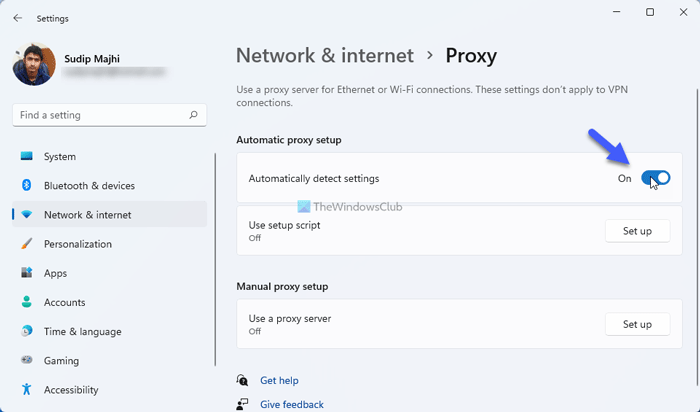
If you use a VPN app or proxy on your computer, it is recommended to disable it for a few moments and check if it resolves the problem or not. At times, VPN servers and proxies create such issues on your computer. That is why it is recommended to disable the VPN app temporarily. To disable proxy in Windows 11/10, follow these steps:
- Open Windows Settings on your computer.
- Go to the Network & internet tab.
- Click on the Proxy option.
- Toggle the Automatically detect settings button to turn it on.
After that, check if you can download the app or not.
4] Reset Microsoft Store
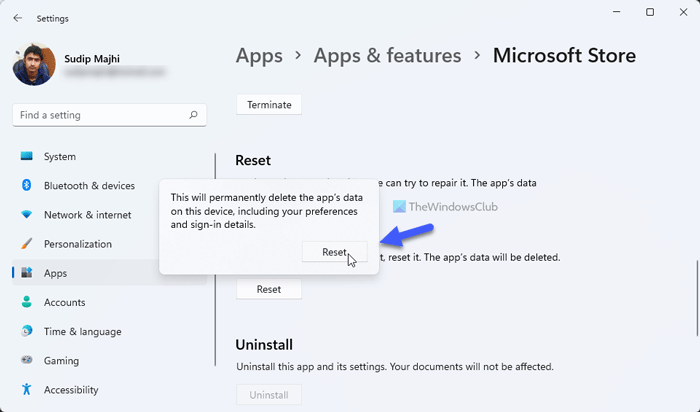
This is the final step to resolve the issue. At first, follow this guide to clear Microsoft Store cache on your computer. After that, follow these steps to reset the Microsoft Store app:
- Open Windows 11 Settings panel.
- Go to Apps > Apps & features.
- Find out Microsoft Store.
- Click on the three-dotted icon and select Advanced options.
- Click on the Reset button twice.
After resetting the Microsoft Store, open the app and log in to your account to download the apps.
That’s all! We hope this guide helped you resolve the issue.
Why does Microsoft Store not work on Windows 11?
Microsoft Store may not work in Windows 11/10 system if the Windows is outdated or the app data or cache is corrupted. Incorrect time and location settings could also be the reason. First, update Windows to the latest version and ensure your location and time settings are accurate. Additionally, you may need to reset the Microsoft Store app to delete all its data and ensure it functions properly.
How do I enable the Microsoft Store in Windows 11?
If you are using the Enterprise or Education edition of Windows 11/10, then you can use the Local Group Policy Editor to enable or disable Microsoft Store. Access the Turn off the Store application setting in Group Policy and set it to Not Configured or Disabled to enable access to the Microsoft Store app. This setting is available under Computer Configuration > Administrative Templates > Windows Components > Store. You can also create a RemoveWindowsStore DWORD value in the required place and set its Value data to 0 to enable the Microsoft Store.
