
If the System File Checker (SFC) scan is stuck or stops at a specific point in Windows 11, here is what you can do to fix the issue. Here, we have discussed some of the most common reasons and solutions so you can get rid of this problem in moments.
Why is System File Checker stuck or stopped?
If the System File Checker is stuck or stopped, one of these could be the reason:
- Damaged system files: System File Checker scans for corrupted or damaged system files and repairs them. If it gets stuck at a certain point, that could be normal.
- Corrupt Windows image: System File Checker can fix damaged system files, but it cannot fix a damaged Windows image.
- Administrator account required: If you try to run it via a non-administrator account, you can encounter this problem.
- Your computer may be infected with a virus or malware, which is blocking the SFC scan.
- You have some problems with the hard disk.
- You are running the SFC scan and using a few heavy-weight programs, which are blocking the System File Checker from using enough resources.
System File Checker stuck or stopped in Windows 11
If System File Checker is stuck or stopped in Windows 11, follow these solutions:
- Close all heavy-weight running programs
- Use the administrator account
- Run DISM
- Run CHKDSK
- Try using SFC in Safe Mode
- Restart Windows Modules Installer service
- Scan PC with malware removal tool
- Repair Windows using Windows Update
Before you begin, update your Windows.
1] Close all heavy-weight running programs
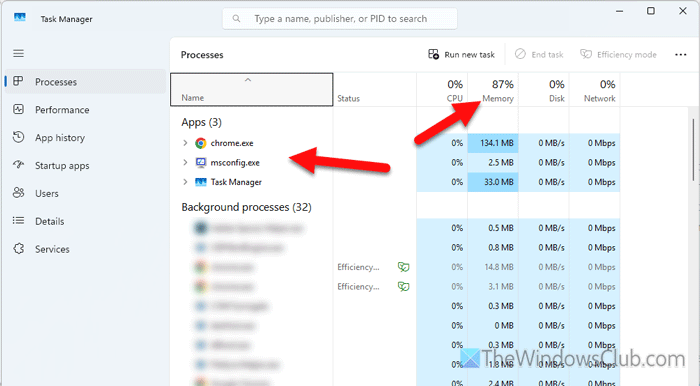
To use the System File Checker, you must provide a certain amount of system resources all the time. If your CPU is occupied by multiple heavyweight programs, you must close them all to free up CPU resources for the SFC scan. You can open Task Manager, go to the Processes tab, identify the apps with high memory and CPU usage, and close them one by one.
Read: How to close running Apps on Windows 11
2] Use administrator account
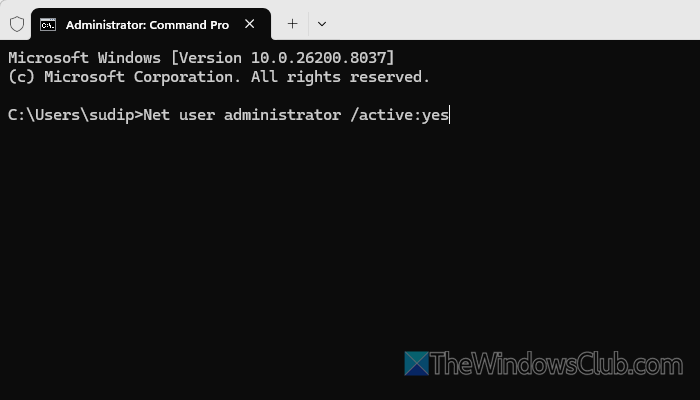
System File Checker requires administrator privileges to run on your computer. If you do not use it via an administrator account, you must use it. If you do not have an admin account, you can follow this article to enable the built-in administrator account.
3] Run DISM
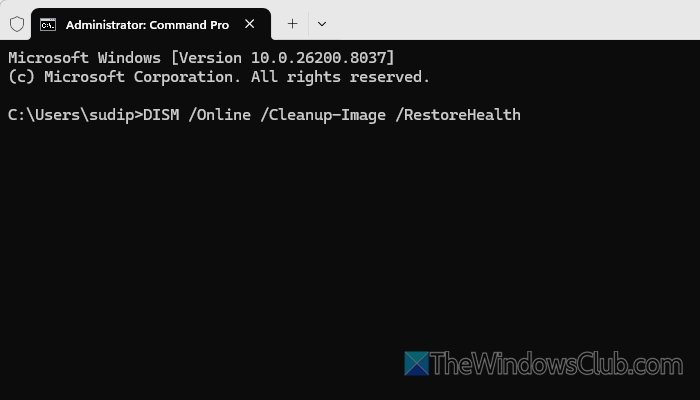
It is one of the most effective solutions for this problem. System File Checker checks for damage in the system files. However, if your Windows image is broken, it won’t work at all. In that situation, DISM will fix the Windows image. That is why it is highly recommended to run the DISM tool when the SFC scan is stuck at a certain point.
Having done that, run SFC scan now and see.
4] Run CHKDSK
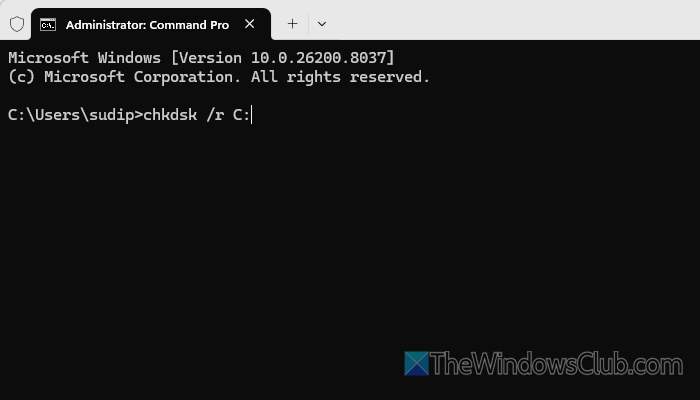
If there are some problems on your hard disk, you will encounter the same problem while using the System File Checker. If so, you can use the CHKDSK tool, which checks for errors on your hard disk and fixes them accordingly.
To run the CHKDSK tool, open a Command Prompt instance in Terminal with administrator permission and enter this command: chkdsk /r C:.
5] Try using SFC in Safe Mode
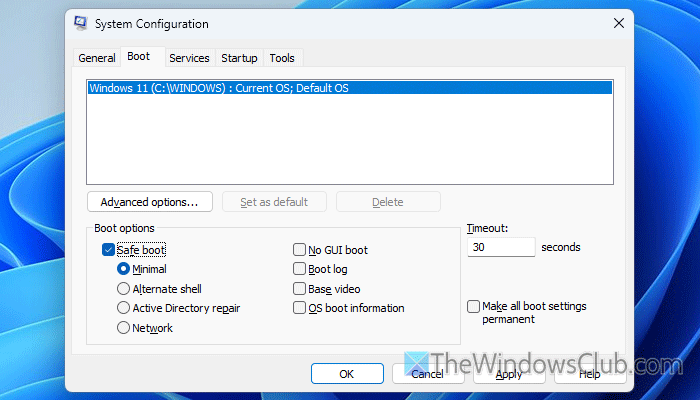
In Safe Mode, you can choose the type of boot or system you want. In order to boot into Safe Mode, press Win+R > type msconfig, and hit the Enter button. Then, switch to the Boot menu and tick the Safe Boot checkbox. Choose the Minimal option and click the OK button.
Finally, restart your computer and run SFC in Safe Mode.
6] Restart Windows Modules Installer service
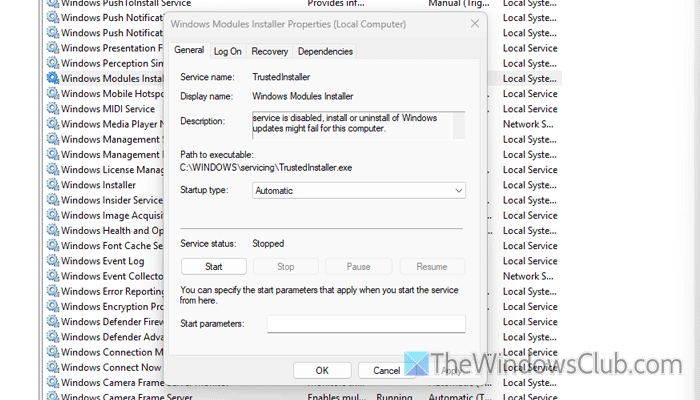
Windows Modules Installer or TrustedInstaller helps you deal with Windows Updates. If there is an issue with this service, such as it not running or stopping frequently, you will encounter the aforementioned problem. That is why it is suggested to restart it.
For that, open the Run prompt, type services.msc, and hit the Enter button. Next, double-click on the Windows Modules Installer and click the Stop button first.
Then, choose Automatic from the Start type drop-down menu, and click the Start button. Finally, click the OK button to save the change.
7] Scan PC with malware removal tool
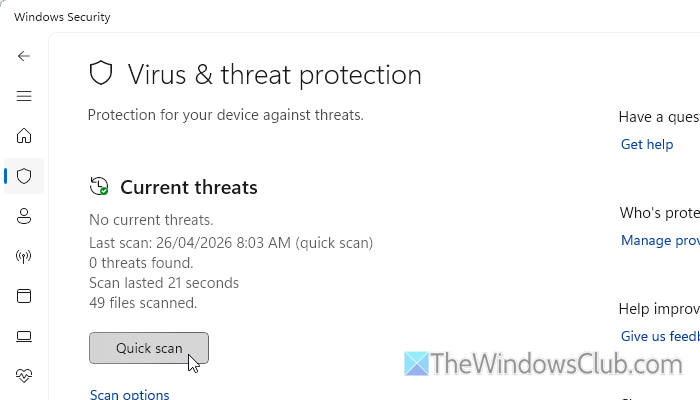
This issue may arise if your computer is infected with malware, adware or a virus, as these often damage system files and the Windows image. That is why it is suggested to scan your PC with an adware removal tool and an antivirus.
8] Repair Windows using Windows Update
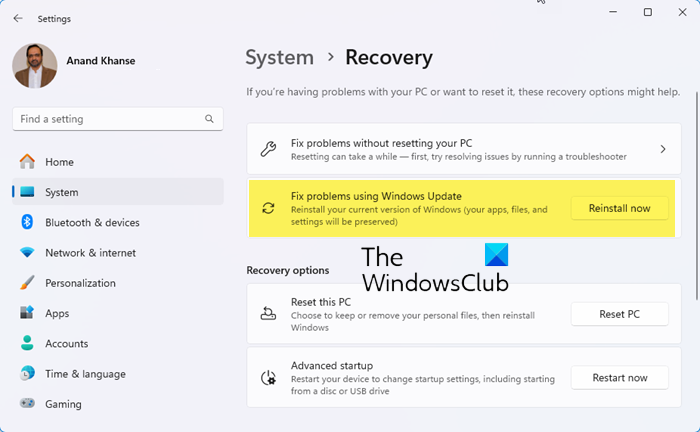
Repair Windows using Windows Update. This new feature lets you reinstall your current Windows 11 version using Windows Update. Your apps, files, and settings will be preserved. Let us see how to do it.
What to do if SFC scannow gets stuck?
If the System File Checker is stuck, run the DISM tool first. If it doesn’t work, ensure that you are using an administrator account, run the CHKDSK tool and try using the SFC scan in Safe Mode.
How to fix System File Checker?
If the System File Checker is not working, the best way to fix it is by using the DISM tool. After that, you can run the SFC scan in Safe Mode or perform a Clean Boot to run this tool.
