
Some users have reported that when they set a font and font style for hyperlinks or change the default hyperlink font style while composing a message on MS Outlook desktop, the fonts appear correct. But when they send the message or save it as a draft, Outlook automatically changes it to the default hyperlink style. In some cases, when users paste a hyperlink from elsewhere, the font style and size change to a weird font for sent emails, which looks unprofessional. The problem occurs when creating, editing, or pasting a hyperlink in a paragraph, signature block, or other similar areas. Thankfully, there are ways to stop Outlook from changing the font for hyperlinks. For those who face this issue, this post covers all working solutions.
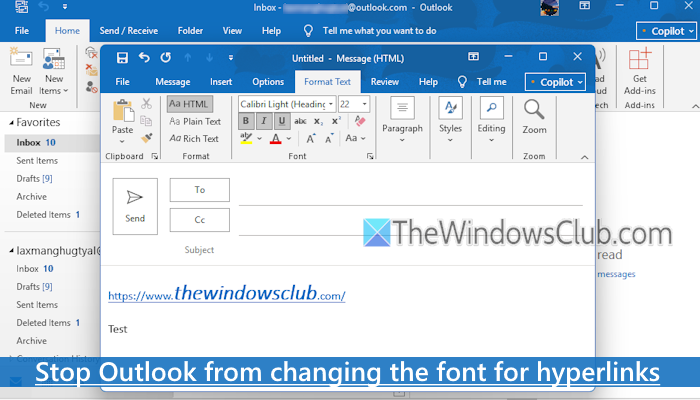
Stop Outlook from changing the font for hyperlinks
You can use the following solutions to stop Outlook from changing the font and font style for hyperlinks:
- Update cut, copy, and paste settings
- Use the Modify Style setting for Hyperlinks
- Open Outlook in Safe Mode and disable add-ins
- Repair Office.
Let’s check these solutions.
1] Update cut, copy, and paste settings
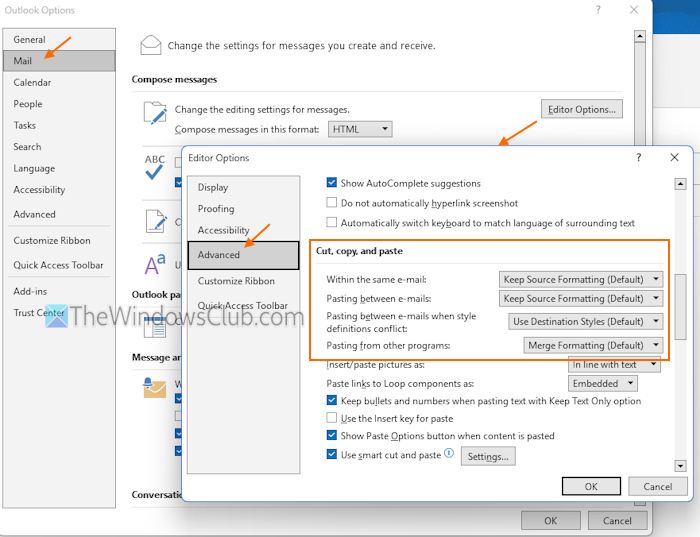
This option is helpful to update the cut, copy, and paste settings for hyperlinks and other content within the same e-mail, pasting between e-mails, pasting from other programs, and pasting between e-mails when style definitions conflict, etc. You can select the Keep Source Formatting (Default), Keep Text Only, or Merge Formatting for the available options. Here are the steps:
- Open the Outlook desktop application
- Go to File > Options > Mail
- In the Mail category, click on the Editor Options… button under the Compose messages section
- In the Editor Options window, select the Advanced category
- Access the Cut, copy, and paste section and set options. If the problem occurs because of the source formatting, set it to Keep Text Only or Merge Formatting
- Press OK
- Again, press the OK button to close the Outlook Options window.
This should resolve your issue when pasting hyperlinks from other sources into your Outlook messages, as the pasted link will reflect the configured setting that you can modify further. The sent emails should have the correct font for hyperlinks.
Related: Font size changes when replying to an email in Outlook in Windows
2] Use the Modify Style setting for Hyperlinks
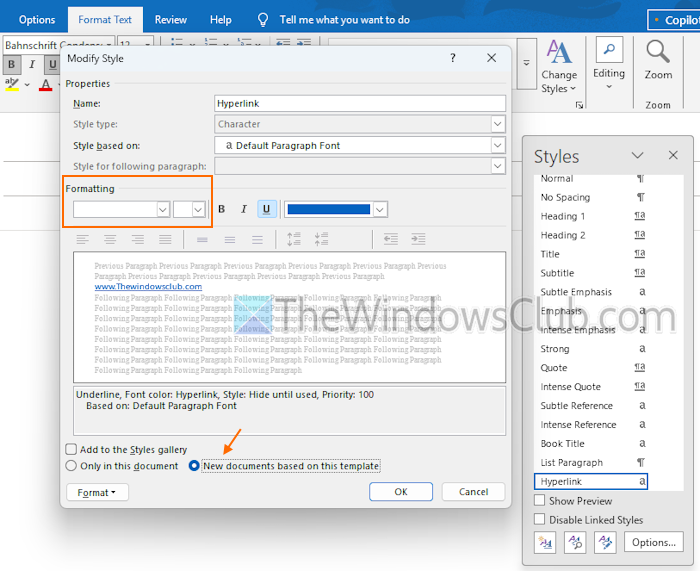
This is one of the best solutions to stop Outlook from changing the font for hyperlinks, as it helped some users. You can also use this solution to keep a font style based on Default Paragraph Font, Strong, Book Title, etc., or simply remove the default font, font size for hyperlinks, and more. To access and use the Modify Style setting for hyperlinks, follow these steps:
- Open the Outlook desktop application
- Compose a new email and create a hyperlink or open a draft containing your hyperlinks
- Click on a hyperlink. Make sure the hyperlink is clickable
- Access the Format Text tab in the Ribbon menu. You will see a Style section where you can create a new Style set in Outlook and use other related options
- In the Style section, click on the dialog box launcher icon (a half square with a diagonally downward arrow)
- This will open the Style pane in the right section. You can also use the Alt+Ctrl+Shift+S hotkey to open the Style pane
- Select the Hyperlink option in the List that appears
- Right-click on the Hyperlink option and select the Modify… option
- A Modify Style setting window will open
- Under the Formatting section, delete or clear the Font and Font size to keep them blank. If you are unable to do that, click the Format button in the bottom left corner, and select the Font… option. In the Font window, empty the Font style, Size, and Font fields. Press OK to come back to the Modify Style setting
- Click on the New documents based on this template radio button
- Set other options like Underline, Bold, Style based on, etc.
- Press the OK button.
Now you can modify the hyperlinks, and those should appear in the correct font, font styles, and size in the sent emails.
3] Open Outlook in Safe Mode and disable add-ins
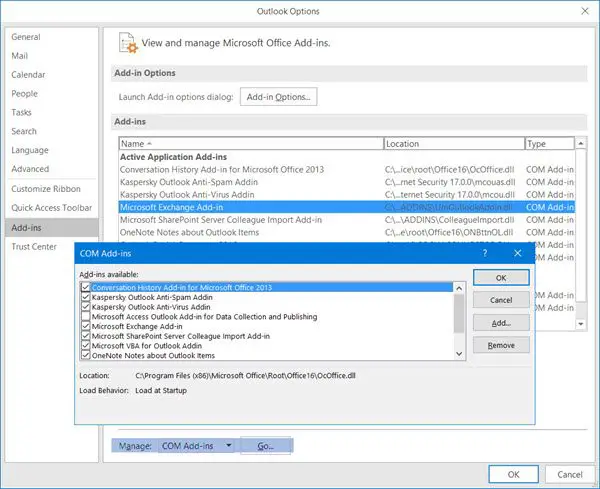
If the problem is caused by some add-ins, this solution is helpful. First, open Outlook in safe mode, which starts Outlook without loading any add-ins. Create a new email or message, add hyperlinks (create or paste them), send your message, and see if the font for hyperlinks changes. If not, some add-ins are conflicting and causing the trouble.
To find out, disable COM add-ins in Outlook, enable them one by one until the problem occurs. When the problem starts again after enabling a particular add-in, that is the culprit that you need to disable or remove to solve the issue.
4] Repair Office

This option is used if a Microsoft Office application (such as Outlook or Word) is not functioning correctly. So, if you can’t stop Outlook from changing the font for hyperlinks using the above solutions, repair Office on your Windows PC.
Hope this helps.
How do I lock font style in Outlook?
To change the default font style in Outlook or set a font, font style, and style for Outlook messages, access the Outlook Options window. In the Mail category, press the Stationery and Fonts button. In the Personal Stationery tab, you can change the font for new messages, replying or forwarding messages, and composing and reading plain text messages.
How do I change the default font in an Outlook hyperlink?
Select the hyperlink text in Outlook, right-click, and select the Font… option. In the Font window, select a Font, Size, and Font style. You can also select Effects (Strikethrough, Small caps, etc.). Preview the output within the same window and press OK. This will apply the changes in the selected text of the hyperlink only. To change the default font and other options for the entire hyperlink, select all the text and repeat these steps.
Read next: Outlook signature format changes when replying.
