
When replying to or forwarding emails, Outlook may alter the formatting of your signature, including font color, size, line spacing, and bullet points. This occurs because Outlook sometimes downgrades HTML formatting to match the original message’s format, such as converting HTML to plain text or restricting HTML. In this post, we are going to talk about this issue and see what you can do if the Outlook signature format changes when replying.
Outlook signature format changes when replying
When replying to or forwarding emails originally sent in plain text or Rich Text Format (RTF), Outlook downgrades your HTML signature to match the simpler format. It also occurs when forwarding messages that use simplified HTML, stripping advanced styling from your signature.
Enabling Outlook’s “Reduce message size” (which removes “non-essential” formatting) or “Read as plain text” settings forces compatibility-driven simplification. Additionally, signatures containing complex HTML/CSS, the ones copied directly from Word or web pages, break when Outlook’s rendering engine modifies or removes unsupported code during message processing.
That being said, there are a few solutions and workarounds that we can try to maintain the integrity of your Outlook signature and make sure that no alterations are made upon sending an email.
If Outlook signature format changes when replying to an email, follow the solutions mentioned below.
- Set Default Reply Format to HTML
- Create a dedicated “Reply/Forward” Signature
- Prevent signature color changes
- Disable Reduce Message Size
- Edit ReadAsPlain
Let’s discuss them in detail.
1] Set Default Reply Format to HTML
As mentioned earlier, Outlook defaults to matching the original message’s format, like Plain Text or RTF, when replying or forwarding. If your signature uses HTML formatting (colors, fonts, images), replying to a Plain text or RTF email forces Outlook to downgrade your signature to match that simpler format. In this solution, we will force Outlook to reply or forward emails while preserving the original HTML signature’s design.
MS Outlook or Outlook (Classic)
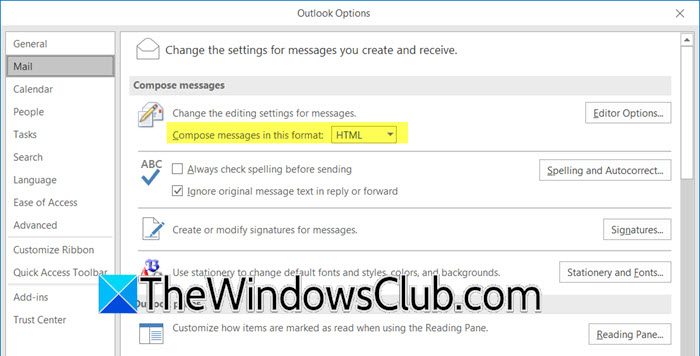
- In Outlook, go to File > Options.
- Select Mail.
- Now, set Compose messages in this format to HTML.
- Scroll down to Replies and forwards, and make sure to set When replying to a message to Reply in original message format.
- Finally, save the changes and exit.
Outlook New app
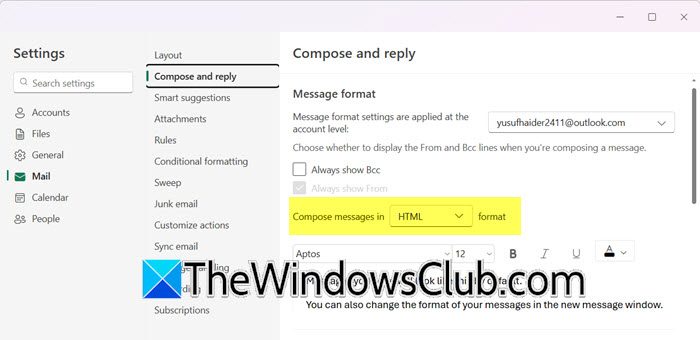
- Open the Outlook app.
- Click on the cog icon to open Settings.
- Go to Mail > Compose and reply.
- Set Compose messages in HTML format.
- Save and exit.
Hopefully, now your emails will have the correct signature.
2] Create a dedicated “Reply/Forward” Signature
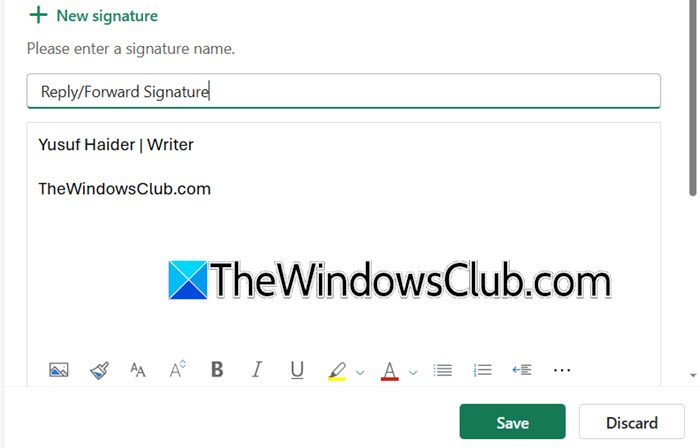
If your signature changes the moment you reply or forward an email, it’s high time you create a dedicated signature, as this issue may be something from the backend and can only be addressed by Microsoft. Meanwhile, a dedicated “Reply/Forward” signature is the way to go.
If you are on MS Outlook or Outlook (Classic), go to Message > Signature > Signatures.
In Outlook New, click on the cog icon to open Settings. Go to Signatures.
Now, you need to create the signature using the basic formatting (bold/italics only), and avoid colors, custom fonts, or images.
Something like the following.
Yusuf Haider | Writer

TheWindowsClub.com
Now, whenever you reply, you need to select this signature instead of the more complicated ones that you have been using.
3] Prevent signature font color changes
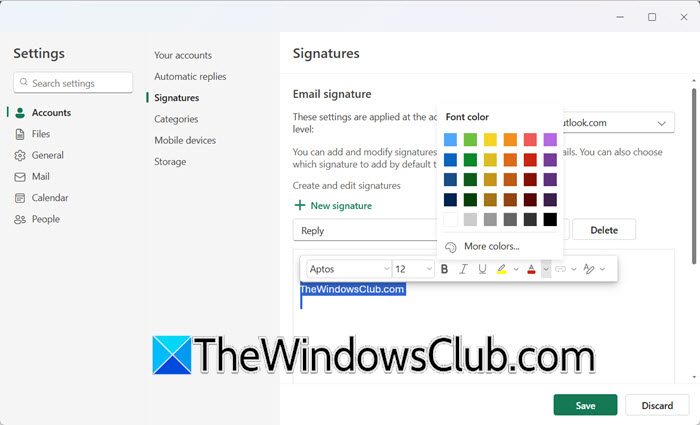
If your font color is set to “Automatic” or has not been configured, Outlook applies your reply/forward preset font color (often black) to signatures. To prevent signature font color changes, we will set a color. If you configure it to your favorite color, all replies will be sent in that color.
To do so, go to your Signature in Outlook New or Outlook (Classic). In the Edit Signature Box, select all the text, and set a color of your choice.
4] Disable Reduce Message Size
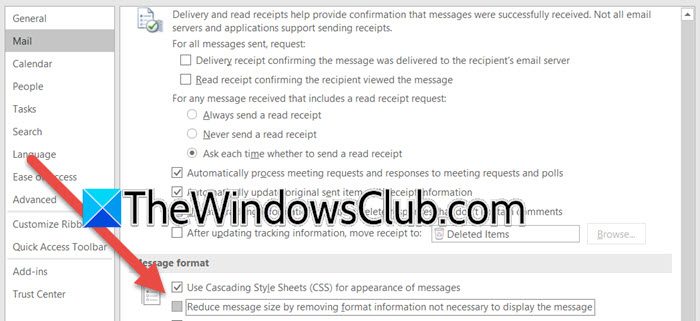
If your message size is quite large, Outlook tends to trim out HTML/CSS, sometimes, from your signature, to maintain agility if the Reduce Message Size feature is enabled. Let’s proceed with disabling it using the steps outlined below.
- Open Outlook.
- Go to File > Options > Mail.
- Now, scroll down to Message Format and untick Reduce message size by removing formatting not essential to content display.
- Click on Ok.
Hopefully, your issue will be resolved.
5] Edit ReadAsPlain
The ReadAsPlain registry value prevents Outlook from converting HTML emails to plain text when reading messages. Setting it to 0 preserves your signature’s HTML formatting during replies/forwards. Please note that this feature is not supported for Outlook (New) or Outlook Web.
First of all, create a backup of your registry. Now, open Registry Editor and go to the following location.
Computer\HKEY_CURRENT_USER\Software\Microsoft\Office\16.0\Outlook\Options\Mail
Note: The version would be 16.0 for any Office above 2013. For Office 2013, it would be 15.0.
Right-click on the empty space in the right panel and select New > DWORD (32-bit) Value. Name it ReadAsPlain. Double-click on ReadAsPlain and set it to “0”. Click on Ok.
Check if the issue is resolved.
Hopefully, with the help of these solutions, your issue should be resolved.
Read: Outlook Signature not working on Reply
Why does my Outlook signature keep resizing?
Your signature resizes primarily because Outlook downgrades its HTML formatting to match the original message’s format when replying or forwarding, especially to plain-text or RTF emails. This strips sizing controls (font sizes, image dimensions) and is exacerbated by Outlook’s Reduce message size feature, which aggressively removes non-essential HTML and CSS.
Read: Outlook Signature disappears every day after reboot
Why does my Outlook signature keep changing back?
Your Outlook signature reverts primarily due to enforced IT policies in corporate environments, where preset signatures are reapplied via system scripts during login or updates. Alternatively, Microsoft’s cloud-based “roaming signatures” feature may overwrite your local edits by syncing older stored versions after Outlook restarts or credentials refresh. Finally, registry misconfigurations can lock signature settings, preventing your changes from persisting across sessions.
Also Read: Unable to add Email Signature in Outlook.
