
The easiest recommendation to someone who wants an open-world Zombie game is State of Decay 2. However, according to reports, State of Decay 3/2 keeps crashing, freezing or failing to launch on some Windows 11/10 computers. This issue is pretty common and regardless of the manufacturer, Windows computers across the board are experiencing this problem. In this article, we will discuss this issue in detail and explore what should be done to resolve it.
The most common reason for this issue is corrupted game files. Usually, when your game is updating, sometimes some files can go missing. This is what has happened to your game as well. The best part is, that you can repair the game easily using your launcher or just the Windows Settings. Apart from that, something such as outdated Graphics Drivers, and conflicting apps are some other reasons we should consider. As per some reports, crashing is usually caused by overclocking apps. Your game is not compatible with running alongside these, and hence, it crashes.
If you want to fix the issue, try the solutions mentioned in this article to resolve the issue.
State of Decay 3 keeps crashing, freezing or is not launching
If State of Decay 3/2 keeps crashing, freezes, or fails to launch on your Windows 11/10 PC, check out the solutions below to resolve the issue.
- Repair Game Files
- Close all unnecessary apps
- Update Graphics Drivers
- Troubleshoot in Clean Boot
- Try a different language
Let us talk about them in detail.
1] Repair Game Files
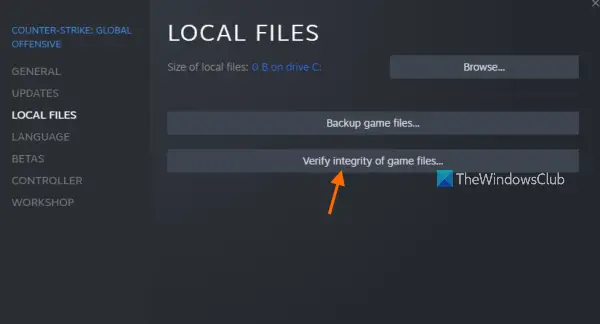
According to reports, many victims have confirmed that the game was crashing because some of its files were corrupted. We need to repair those files and see if that works.
If you don’t have the Steam launcher, try the following steps.
- Open Settings.
- Go to Apps > Apps & Features.
- Look for State of Decay 2.
- For Windows 11: Click on the three vertical dots and click Advanced Options. For Windows 10: Select the app and select Advanced Options.
- Click on the Repair button.
Now, reopen the app and see if that works. If repairing doesn’t work, try resetting the game.
Steam users can follow the steps below to repair the game.
- Open Steam and go to Library.
- Right-click on the game and select Properties.
- Click Local Files > Verify Integrity of Game Files.
This should do the trick for you.
If you are on Epic Games, follow the steps below.
- Open Epic Games and go to its library.
- Go to State of Decay 2.
- Click on the gear icon to go to the Settings.
- Click on Verify.
2] Close all the unnecessary apps
If you are running many apps in the background, they will consume resources that should have been used by the games. So, press Ctrl + Shift + Esc to launch Task Manager, right-click the apps that are using resources, and select End Task. Hopefully, this should do the trick for you.
3] Troubleshoot in Clean Boot
According to some users, overclocking apps were crashing the game. However, we are not so sure that they are the reasons for your issue. You should try, troubleshooting in Clean Boot and see if that works. If the game working in a Clean Boot state, try boiling down potential culprits, and eventually you will stumble upon the correct reason. Just remove that app and your issue will be resolved.
4] Update Graphics Drivers
I am pretty sure that you know the importance of Graphics Drivers. If the driver is outdated and the game is updated, there can be a compatibility issue. Therefore, try any one of the following methods to update the Graphics Driver.
- Update the Driver from Device Manager.
- Install Driver and Optional Updates.
- Go to the website of your manufacturer and download the latest version of your driver.
- Use freeware to download the driver.
Hopefully, this will do the trick for you.
5] Try a different language
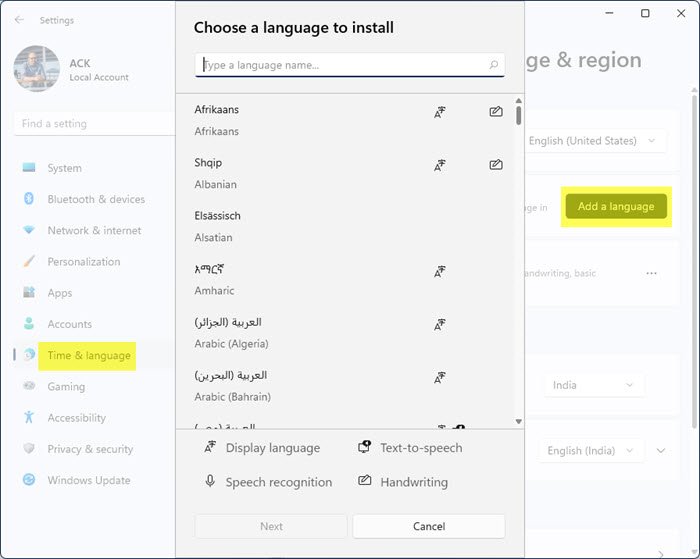
As it turns out, there is a bug related to Language settings that are making the game crash. You should try to use a different language or a different version of the same language and see if that works. Follow the prescribed steps to do the same.
- Search out “Language Settings” from the Start Menu.
- Click on Add Language.
- Search for a different version of English, select it, and click Next > Install.
After installing the language, try restarting your computer and see if that works. This is not a permanent solution but will work for you until the developer releases a new update.
System Requirement to play State of Decay 3
Following are the system requirements to play State of Decay 3.
Minimum
- OS: Windows 11/10 (64-bit)
- Processor: Intel i5-2500 @2.7Ghz / AMD FX-6300
- RAM: 8 GB
- Graphics: NVIDIA GeForce GTX 760 2GB / AMD Radeon HD 7870
- DirectX: Version 11
- Storage: 40 GB available space
- Sound Card: DirectX compatible
Recommended
- OS: Windows 11/10 (64-bit) or later
- Processor: Intel Core i7-3770 / AMD Ryzen 5 1600
- RAM: 16 GB
- Graphics: NVIDIA GeForce GTX 970 / AMD Radeon RX 480
- DirectX: Version 11
- Network: Broadband Internet connection
- Storage: 40 GB available space.
How do I fix a game that crashes on launch?
If a game is crashing on launch on your Windows 11/10 system, then first of all ensure that the game is installed correctly and your PC meets all the requirements. If your PC is overclocked, that could also be the reason. So, you should stop overclocking. Outdated graphics card drivers, a poor or slow internet connection, selecting the wrong mode for the game, and third-party software interfering with your game can also cause this issue.
Why does my computer freeze when I launch a game?
High CPU or RAM usage could be the reason why your computer freezes when you launch a game. As soon as you start the game, it may start consuming your system resources all of a sudden. In some cases, there could be 100% disk, CPU, memory, or power usage for some time that may cause this problem. Poor or low performance by your graphics card, low disk space, outdated graphics card drivers, etc., can also be the reason for it.
Also Check:
