
Some users noticed a weird issue in their web browsers. Their default search engine changes automatically to Yahoo or Bing. This issue was mostly reported on Google Chrome. However, if you use another web browser, you may also experience this problem. According to them, when they search in Google Chrome, they are redirected to Yahoo or Bing search automatically. In this article, we will see what you can do if your default search engine keeps changing to Yahoo or Bing.

Search engine keeps changing to Yahoo or Bing
If your default search engine keeps switching to Yahoo or Bing on Chrome browser, use the fixes below to prevent this from happening.
- Check your extensions
- Check Policies
- Run antivirus and antimalware scan
- Reset your browser to default
- Delete Bing or Yahoo search (if possible)
- Switch to another web browser
Before you begin, you might want to check if it is some browser settings that is changing the search engine.
1] Check your extensions
Such types of issues are indications of virus or malware infection. Because you are redirected automatically from Google Search to Yahoo Search or Bing Search. There might be a malicious extension installed on Google Chrome or another browser, or your computer might be infected with viruses or malware.
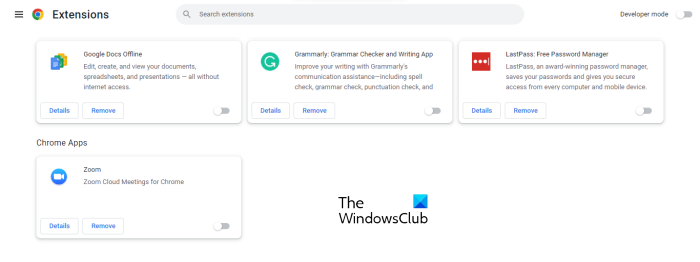
Disable all your extensions and see if the issue persists. If after disabling your extensions in Chrome or your default browser, the search engine does not change automatically, you have to find out the malicious extension. To do so, enable the extensions one by one and then check if the issue reoccurs. When you find the problematic extension, remove it from your web browser.
2] Check Policies
Some software installs hidden policies that force search results to redirect. Your IT admin may have also set Group Policies to ensure that Bing or Yahoo is used as the default search.
3] Run antivirus and antimalware scan
As described above in this article, virus or malware infection is the major cause of such types of problems. We recommend you scan your system with a good antivirus or antimalware. Windows Defender is also a good antivirus software provided by Microsoft for free. Apart from that, you can also use some free antivirus software.
4] Reset your browser to default
If the problem still persists, we suggest you reset your web browser to the default. Resetting a web browser will restore all its settings to the default. Therefore, you have to make all the changes to your browser again after resetting it.
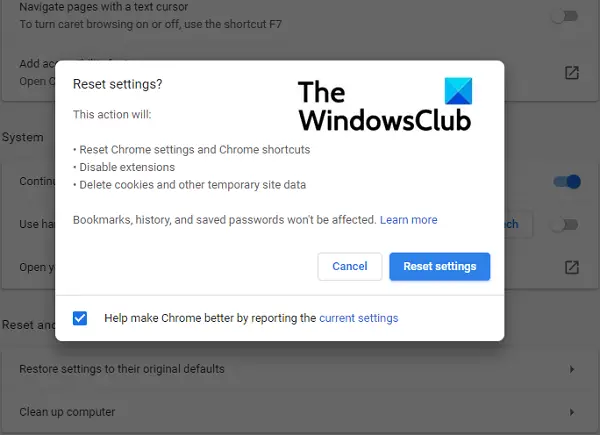
Reset:
- Google Chrome
- Mozilla Firefox
- Microsoft Edge, or any other browser that you use.
The above action will also restore the default search engine in your web browser. In Microsoft Edge, Bing is the default search engine. Therefore, if you reset it, your default search engine will become Bing. You can change it later.
5] Delete Bing or Yahoo search (if possible)
Resetting the browser usually works. If the issue reappears or is not fixed after resetting the browser, delete the search engine. Do note that you cannot delete the default search engine. To delete it, set another search engine as the default. We have explained the steps for popular web browsers below:
Delete search engines in Chrome
Follow the steps written below to delete the search engines in Chrome:
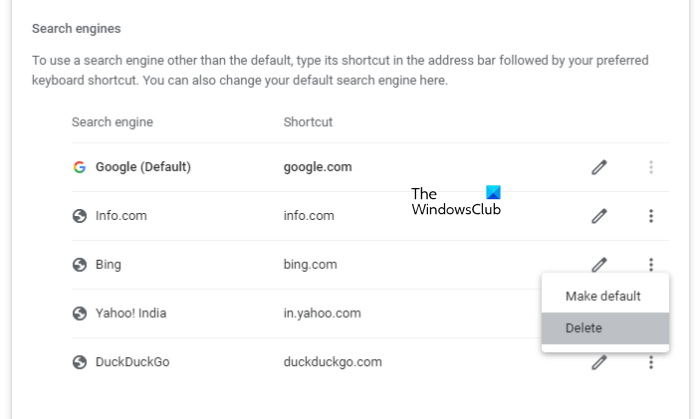
- Open Google Chrome Settings.
- Select Search engine from the left side.
- Scroll down and locate the Search engines section.
- Click on the three vertical dots next to the search engine and select Delete. If the Delete option is not there, that search engine is set as default in Chrome. Hence, change it first.
Delete search engines in Edge
Go through the following instructions to delete search engines in Edge:
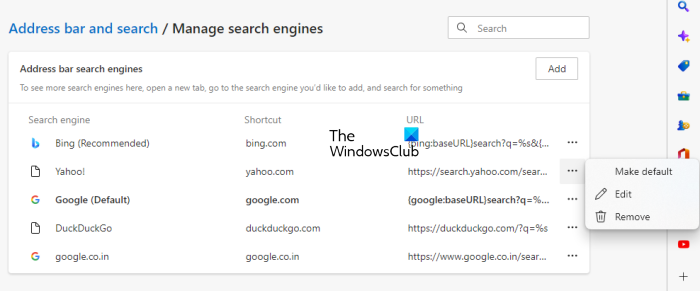
- Open Edge Settings.
- Select Privacy, search, and services from the left side.
- Scroll down to the bottom and click on the Address bar and search tab.
- Now, click Manage search engines.
- Click on the three horizontal dots next to the search engine you want to remove and select Remove. If you do not see the Remove option, change your default search engine and try again.
Delete search engines in Firefox
The following steps will guide you on how to delete search engines in Firefox:
- Click on the three horizontal lines on the top right side and select Settings.
- Select Search from the left side.
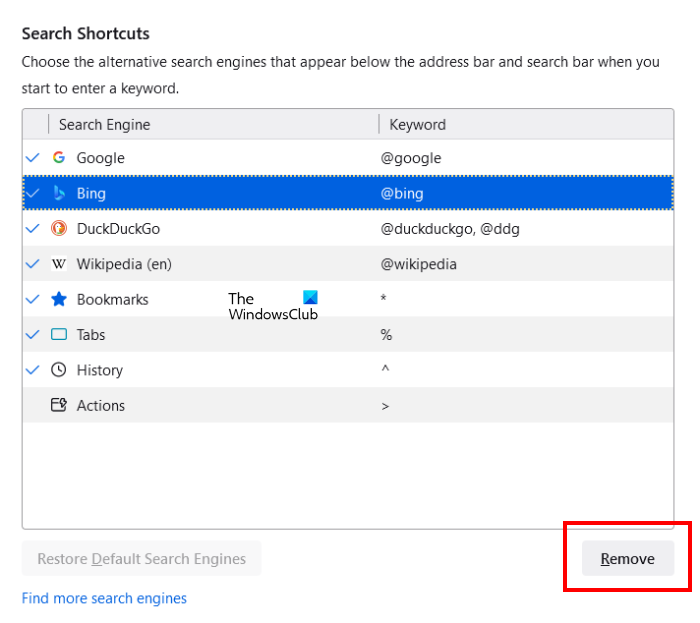
- Scroll down and locate the Search Shortcuts section.
- Select the search engine which you want to remove and click Remove. If the Remove button is greyed out, that search engine is set as default in Firefox. Hence, change the default search engine.
6] Switch to another web browser
The last option is to change your web browser. Switch to another web browser. Though Chrome, Firefox, and Edge are the top players in the market, there are plenty of good browsers available that you can install on your system.
Also read: Edge keeps changing default search engine to Bing
How do I stop Yahoo from hijacking my browser?
If your search engine keeps changing to Yahoo, it seems that Yahoo is hijacking your browser. These types of issues occur due to a malicious extension or malware on your system. Troubleshoot your extensions and run antivirus and antimalware scans on your system. Follow the suggestions provided in this article.
Why is my search engine randomly switching?
If your search engine is switching or changing randomly, the issue might be caused by a malicious extension. Troubleshoot your extensions to identify the culprit. In addition, the issue may occur due to a virus or malware infection on your system.
Read next: How to search open tabs in Edge, Chrome, Firefox, Opera browsers.
