
If you’ve repeatedly set your Microsoft Edge browser to use Google or another search engine, only to find it has switched back to Bing, you are not alone. Some users have reported facing this issue. In this post, we will see what you can do if Edge keeps changing the default search engine to Bing.

Edge keeps changing default search engine to Bing
Microsoft Edge often switches back to Bing for several reasons. First, the browser is designed to promote Microsoft services like Bing, which can be enforced through system policies or automatic Edge updates. On work or school computers, administrators can set Bing as the default search engine and override users’ changes.
Other reasons for this switch include a damaged browser profile, incorrect settings syncing from another device, or conflicts from old Windows registry entries. In some cases, malicious software known as browser hijackers can change your browser settings to generate ad revenue.
If Edge keeps changing the default search engine to Bing, follow the steps below.
- Remove Bing from Edge
- Scan for malware
- Disable Conflicting Search Features
- Inspect and Remove System Policies
The simplest way to deal with this issue is to set your Search engine back to one of your choice. Read on forother suggestions!
1] Remove Bing from Edge
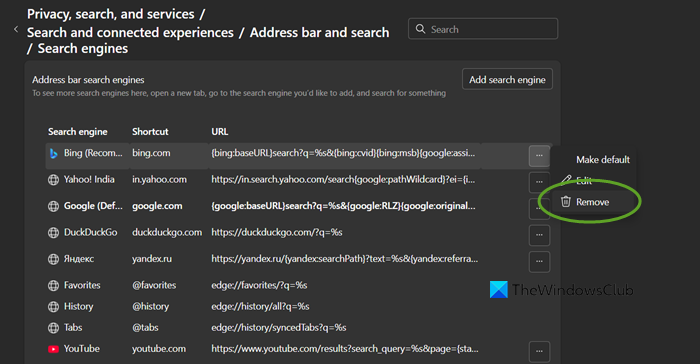
In this solution, we will remove Bing from the engine list to prevent Edge from automatically reverting to it as a fallback option, eliminate suspicious extensions to remove potential hijackers that actively change settings, and perform a full browser reset to clear corrupted cache, flags, or background configurations that a standard settings change cannot reach.
Follow the steps below to do the same.
- In Edge’s address bar, type edge://settings/searchEngines and press Enter.
- Set your preferred search engine (e.g., Google) as the default.
- Find Bing in the list below, click the three dots (…) next to it, and select Remove.
- Go to edge://extensions/ and remove any unfamiliar extensions, especially toolbars or helpers.
- Navigate to Settings > Reset settings > Restore settings to their original defaults and confirm the reset.
Finally, check if the issue persists.
2] Scan for malware
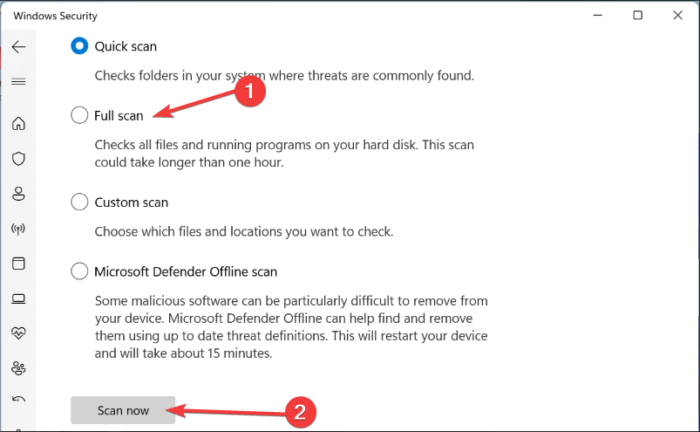
A browser hijacker is harmful software that takes control of your browser settings. If your search engine keeps going back to Bing, it’s likely because this malware is changing your settings to make money from ads or steal your information. Scanning your device with antivirus software can help. It can find and remove these hidden programs, which simple browser resets or manual changes cannot get rid of.
You can perform a Boot-time Windows Defender Scan for the best results. Or if you have an antivirus, use it to scan your system.
3] Disable Conflicting Search Features
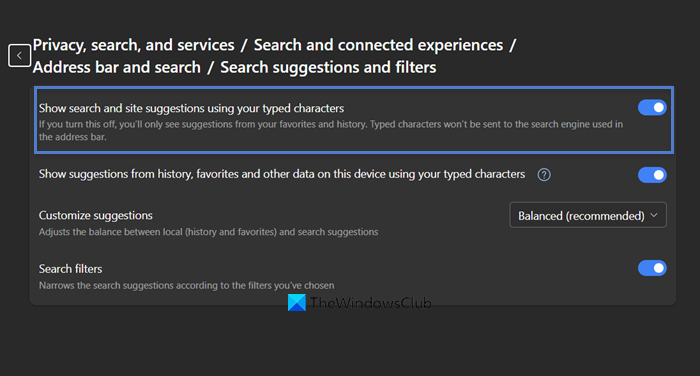
We need to disable Edge’s integrated, predictive search system, which can sometimes take control of your address bar queries and override your chosen default engine. Searching in an InPrivate window bypasses your current profile’s potentially corrupted settings, extensions, and cached data, loading only the browser’s default, clean configuration to see if the problem persists there.
In the Microsoft Edge address bar, type edge://settings/search and press Enter. On the Search suggestions and filters settings page, locate the option labeled Show me search and site suggestions using my typed characters. Turn it off, restart the browser, and test if searches now use your default engine without redirecting to Bing.
Additionally, you can try using the InPrivate Mode for the same.
4] Inspect and Remove System Policies
Microsoft allows system policies (often set by administrators or malicious software) to override your personal choices and enforce browser settings. These policies are stored in the Windows Registry and take precedence over the options you select in Edge’s settings menu. Deleting the relevant registry keys removes this forced configuration, allowing your manually selected search engine to work as intended.
Before making any changes, you need to take a backup of Registry as a precautionary measure. Then, open Run (Win + R), type regedit, and press Enter.
Now, go to the following locations.
HKEY_CURRENT_USER\Software\Policies\Microsoft\Edge

HKEY_LOCAL_MACHINE\SOFTWARE\Policies\Microsoft\Edge
If you find an “Edge” folder at either location, right-click it and delete it.
Restart your computer, then set your preferred search engine in Edge again.
Hopefully, these solutions will resolve your issue.
Read: Search engine keeps changing to Yahoo or Bing
How do I stop Bing from hijacking my browser?
To prevent Bing from taking over your browser, start by changing your default search engine in the browser settings to Google or another preferred provider. If the problem persists, remove any unfamiliar or suspicious browser extensions, then perform a full reset of your browser to its original settings to eliminate any corrupted configurations.
Read: Stop Edge from opening Bing links in new Tab on Windows, macOS, Linux
How to permanently remove Bing?
To stop Bing redirects for good, you need to remove the main cause: a browser hijacker. Start by running a full system scan with your device’s built-in security tool, such as Windows Security, or with a trusted antivirus program to find and remove the harmful software. After that, reset your browser settings again to complete the process.
