
If Edge is showing Couldn’t download – Blocked, No Permission, Virus detected, Virus scan failed and Network issues error while downloading a file from the internet, these solutions will be handy for you. No matter what error appears, you can get rid of it with the help of these tips.
Edge couldn’t download: Blocked, No permission, Virus detected, Network issues
To fix Couldn’t download due to Blocked, No permission, Virus detected, Virus scan failed or Network issues error in Microsoft Edge, do the following:
- Check and change the internet connection
- Run Internet Connections and Network Adapter troubleshooters
- Disable firewall and antivirus
- Flush your DNS cache
- Try in Incognito
- Check Group Policy setting
- Verify Registry value
- Reset Edge Settings to default
To learn more about these steps, continue reading.
1] Check and change the internet connection
It is the very first thing you need to do in order to get rid of the aforementioned issue. As this error may occur for various reasons, you should start troubleshooting by checking your internet connection. If there are some issues with your Wi-Fi or Ethernet or mobile hotspot, you won’t be able to download any file from the internet.
Bonus tip: If the server for the desired website is down for any reason, you won’t be able to download files from that website. In that case, you need to wait a while until it is resolved.
2] Run Internet Connections and Network Adapter troubleshooters
If you see the Couldn’t Download – Network Issue error message in Microsoft Edge, you have to troubleshoot internet connectivity problems. Windows 11/10 has built-in troubleshooters that help users fix different issues on their systems. To fix internet issues and problems, you can run Internet Connections and Network Adapter troubleshooters.
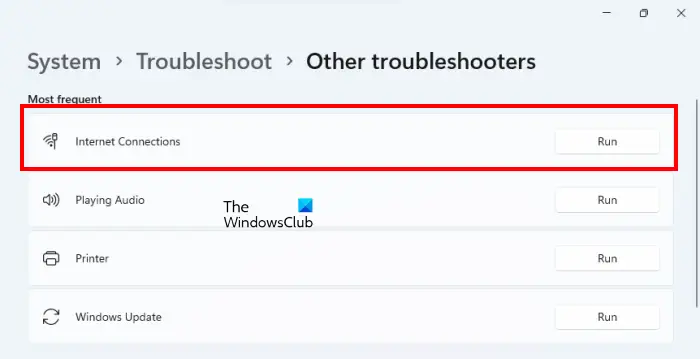
The steps are as follows:
- Open Windows 11/10 Settings.
- Go to “System > Troubleshoot > Other troubleshooters” or “System > Troubleshoot > Additional troubleshooters” whatever you see in your Windows 11/10 Settings.
- You will find both Internet Connections and Network Adapter troubleshooters there.
- Run these troubleshooters one by one.
Now, check if you can download the files from the internet using Edge.
3] Disable firewall and antivirus
If you have recently installed third-party firewall software to manage your incoming and outgoing traffic, it could cause the same issue on your computer. If the firewall software is blocking Edge from downloading the file from the internet, you can find the Couldn’t download – Blocked message on the Downloads page.
On the other hand, if a website is having issues regarding security, your antivirus or anti-malware program could also block Edge from downloading from that website. In that case, if you trust the website entirely, you can temporarily disable the firewall and antivirus program on your computer to bypass this error.
4] Flush your DNS cache
If you are facing internet problems, clearing the DNS cache can help.
5] Try in Incognito
Let’s assume you have changed many settings and installed many add-ons in your browser. At times, an incorrect add-on setting can cause such issues on your Windows PC. Let’s assume you have installed a VPN add-on, but it isn’t working correctly on your PC. If so, you won’t be able to download any files from any website. That is why it is recommended to try to download the same file from the same website in incognito or private browsing mode.
6] Check Group Policy setting
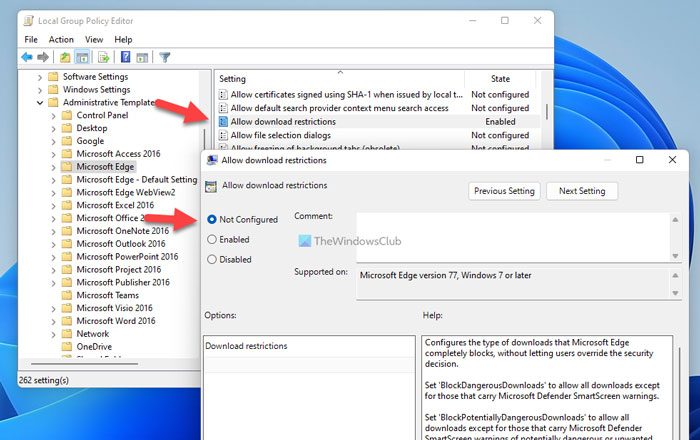
There is a Group Policy setting, which might cause this issue on your computer. This specific setting can allow or block Edge from downloading files from the internet. If you set it wrongly, you will be unable to download files. Therefore, follow the following steps to disable this Group Policy setting:
- Press Win+R > type gpedit.msc > hit the Enter button.
- Navigate to User Configuration > Administrative Templates > Microsoft Edge.
- Double-click on the Allow download restrictions setting.
- Select the Not Configured option.
- Click the OK button.
- Restart your computer.
After that, you will be able to download files without any errors.
7] Verify Registry value
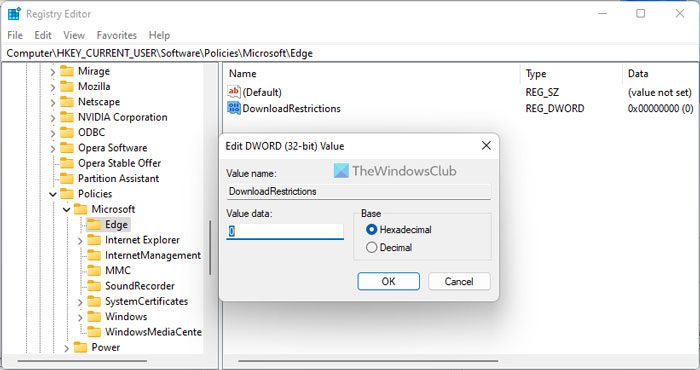
The same Group policy setting can be set with the help of the Registry Editor. Therefore, follow the following steps to disable the download restrictions using Registry:
- Press Win+R > type regedit > press the Enter button.
- Click the Yes button in the UAC prompt.
- Navigate to this path: HKEY_CURRENT_USER\Software\Policies\Microsoft\Edge
- Double-click on the DownloadRestrictions REG_DWORD value.
- Set the Value data as 0.
- Click the OK button and restart your PC.
8] Reset Edge Settings to default
If the problem persists, we suggest resetting your Edge settings to their defaults. This should work. The following steps will help you with that:
- Open Microsft Edge.
- Click on the three horizontal dots on the top right side and select Settings.
- Scroll down and select Reset Settings from the left side.
- Now, click Restore settings to their default values.
- Click Reset.
This action will reset the startup page, new tab page, search engine, and pinned tabs, but your favorites, history, and saved passwords will not be deleted.
Now, you won’t find any problems.
That’s all! Hope this guide helped.
Related read: Cannot download a file from the Internet on Windows PC.
How do I fix Microsoft Edge blocking downloads?
If Microsoft Edge is blocking downloads on your computer, follow the aforementioned guides. However, it is most important to check the Local Group Policy Editor setting and the Registry Editor setting. If those settings are enabled mistakenly, you won’t be able to download files in Edge.
How do I turn off virus detection in Microsoft Edge?
To turn off virus detection in Microsoft Edge, you need to disable SmartScreen filter on Windows PC. Whether you use Windows 11 or Windows 10, you must disable the SmartScreen filter on your computer. After that, Microsoft Edge won’t show any “Virus detected” message when downloading files from the internet.
