
The Save As window is a useful window but it can become annoying if it keeps popping up, especially when you’ve already saved your document. Users have reported the issue in various programs, but the most common ones are Microsoft Word and Microsoft Excel. Even if you try to Save or Cancel, it still appears after a few seconds. It’s hard to instantly identify the cause of Save As windows popping up in Office apps, but you can apply some solutions and see if the issue is fixed.
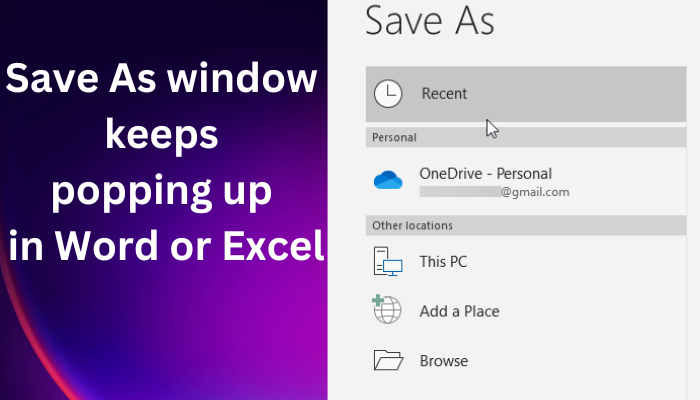
Why does the Save As box keep popping up in Word and Excel?
It is challenging to pinpoint the cause of the ‘Save As’ window that keeps appearing in Word and Excel. However, some issues may trigger it, including keyboard issues, third-party plugins, incompatible apps, VPNs, antivirus software, incorrect configuration settings, and other third-party programs. Outdated apps and OS may also play a part in this.
Some solutions, like disabling Save as shortcuts, disabling any add-ins, or accessing the apps in safe mode, have worked for some users, but some still continue to experience the endless popup. In this article, we will give you the best solution to resolve the Save As window that keeps on nagging you. Keep it here for actionable tips.
Fix Save As window keeps popping up in Word or Excel
Since we can’t determine the exact cause of the error, it’s best to first address the issues that we suspect may be the cause. But before that, apply the rule of thumb by ensuring you have updated your Office apps, and your Windows operating system. If the Save As window still appears endlessly, try the following solutions:
- Disable Protected View
- Disable the Don’t show the Backstage option
- Open the app in safe mode
- Disable add-ins
- Repair Word and Excel apps
Here are the solutions in detail.
Excel or Word keeps asking me to save documents when closing
1] Disable Protected view
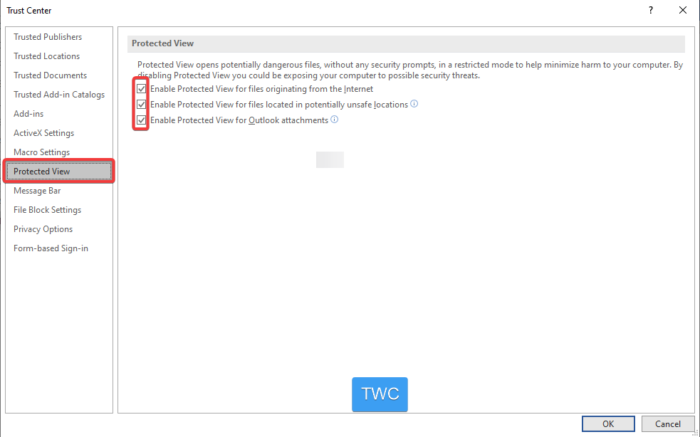
While this is a security setting, you can temporarily turn it off and see whether the Save As window keeps popping up. Protected View shows files that may seem dangerous when you open them. It cautions you against opening and editing such documents. We recommend re-enabling it if the issue persists and trying other solutions. Here is how to disable Protected View on your Windows PC:
- Open your Word or Excel app, go to your document, and click on the File option found on the top left side of the window.
- Scroll down and click Options
- A new window will appear. On the left side, scroll down and select Trust Center.
- Under Microsoft Word Trust Center, click on the Trust Center Settings.
- Select Protected View on the left side and uncheck all the options in the new windows.
- Return to your document and verify if the issue is resolved. If not, enable these options and try the ones below.
Note that the above steps apply to both Word and Excel.
2] Disable the Don’t show the Backstage option
Some users fixed the Save As window in Word and Excel by disabling the ‘Don’t show the Backstage when opening or saving files with keyboard shortcuts’ option. Use the following steps to do this:
- Open your document and click File on the top left.
- Scroll down and select Options.
- On the new window, select Trust Center, and then click Trust Center Settings.
- Another new window will pop up, select Save and uncheck the box next to Don’t show the Backstage when opening or saving files with keyboard shortcuts.
3] Open the app in safe mode
If the Save As window keeps on popping up, the cause could be certain issues that can be resolved in safe mode. Problems like corrupted files, apps, templates, resources, or templates can trigger the popup window. To start Office apps like Excel or Word in safe mode, use the following easy steps:
- Open the Run Dialog by pressing the Windows key + R.
- On MS Word, type the command: word/safe.
- On MS Excel type the command: excel/safe.
- Click OK and see if the Save As window keeps popping up.
If it does not, then you may need to check your Office add-ins.
4] Disable add-ins
Some add-ins in Excel or Word can trigger the error. Turning them off can stop the Save As popup from reappearing. There are chances that the add-ins and extensions may interfere with the parent apps. Follow the steps below to disable add-ins in Word and Excel:
- Open your MS Word or MS Excel and click on Options.
- From the list, choose Add-ins.
- At the bottom of the panel and next to Manage, select COM Add-ins from the drop-down menu.
- Next, click on Go and then uncheck all add-ins followed by OK.
- Reopen your app and see if the issue has been resolved
5] Repair Office installation
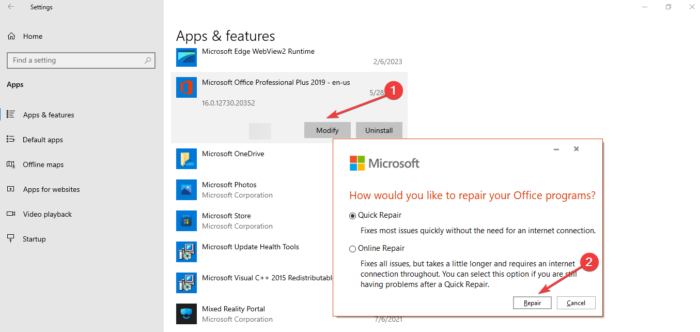
Repairing Office will stop the Save As window that keeps popping up. We recommend using the Quick repair method first to fix the problem because Online repair takes quite some time, and needs a stable internet connection. Follow the steps below to repair Excel or Word on your Windows PC.
- Open the Windows Settings app by pressing the Windows key + I on your PC keyboard.
- On the left side, select Apps and then head to Installed apps or Apps and features.
- Click on Microsoft Office or the three dots next to it.
- Choose Modify and wait for a few seconds
- On the new small window, select Quick repair followed by Repair.
- You can choose Online Repair if you have a good internet connection and the Quick repair didn’t work.
- Wait for the tool to repair your app. It might take a few minutes.
If none of the preceding solutions resolves the Save As window’s endless popup, you can try these too:
- To eliminate the cause that your keyboard shortcuts may be causing this issue to occur, disable your keyboard shortcuts and see.
- To check if any third-party process is causing this issue to occur, perform a Clean Boot and see if the issue disappears.
We hope one of these solutions helps you.
How do I stop Word and Excel from saving to OneDrive as default?
To prevent Word or Excel from saving to OneDrive, you need to modify the save settings in each app. Open any of the apps’ documents and go to File > Options > Save. Change your preferred file location in the Default local file location option. Please note that you need to adjust these settings in each app individually.
