
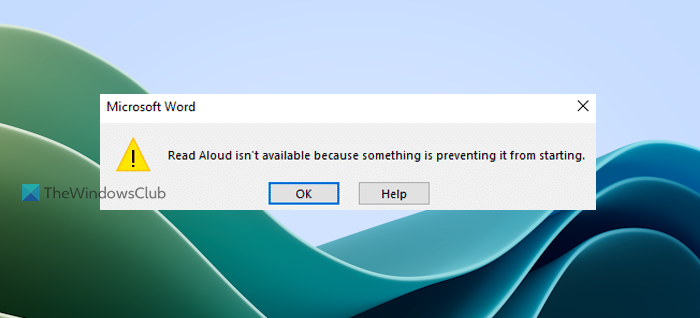
Read Aloud is a built-in feature of the Microsoft Office suite that reads text or documents aloud like an audiobook. Although the feature works fine, you may sometimes encounter an error when using or activating it. Some users have reported that the Read Aloud feature is not working correctly in Word. One such error reported by some users is that Read Aloud isn’t available because something is preventing it from starting in Word. If you also encounter this error on Windows 11/10, the options in this post will help you resolve the issue.
How do I get Read Aloud to work in Word?
Read Aloud feature is present in Microsoft Office 365, Office 2024, and Office 2021, and it remains enabled by default. To get Read Aloud to work in Microsoft Word to read the entire document or parts of your document or a selected text, access the Review tab, and select the Read Aloud option. Now you can use the Play, Pause, Next, and Previous options to read aloud the text. You can also change Read Aloud settings to adjust the reading speed, change voice, etc. Alternatively, you can also try opening the Read Aloud function using the Ctrl + Alt + Space shortcut key and see if it works.
Why is Read Aloud not working in Word?
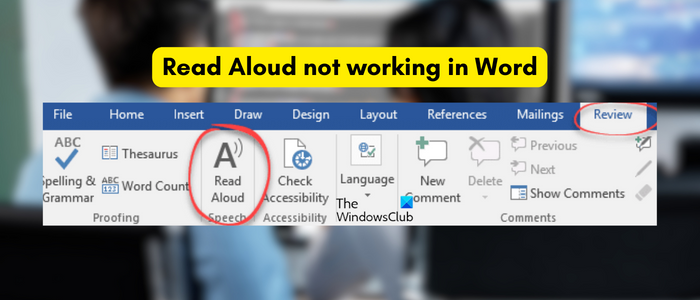
The reason why Read Aloud is not working on Microsoft Word is the required language pack is not installed or missing on your PC. Even if the language pack is installed and language features like speech recognition, handwriting pack, etc., are not installed, then also Read Aloud won’t work. Another reason for this problem could be conflicting add-ins, an outdated version of Microsoft Word, etc.
Before you try advanced troubleshooting methods, make sure it is not a generic issue causing the problem. Here are some tips you need to take care of:
- First, check whether your PC is on mute. Make sure you have a high volume and then try using the Read Aloud feature in Word.
- If you are using a headset, make sure it is in proper working condition. You can unplug the headset and then check whether you can hear the document text. If so, your headset is most likely at fault.
Read Aloud isn’t available because something is preventing it from starting in Word
To fix the Read Aloud isn’t available because something is preventing it from starting error in Microsoft Word, the following options will surely be helpful. Before that, close and then re-open Word, update Microsoft Office and see if it helps. If not, use these solutions:
- Install the required language along with the language features
- Close Word and restart it
- Open Microsoft Word in Safe Mode
- Identify the Culprit Add-in and remove it
- Use the Speak feature
- Set the correct Volume Mixer settings
- Reset Word to default settings
- Check if the document is corrupted
- Repair Office.
Let’s check all these options one by one.
1] Install the required language along with the language features
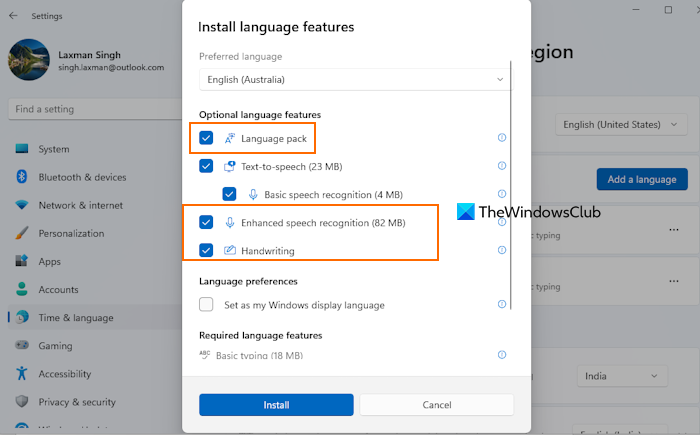
This is one of the best solutions to solve this Read Aloud isn’t available error for Microsoft Word as it helped some users. To use or get Read Aloud to work successfully in Microsoft Word, you must install a supported language pack along with the necessary language features. Otherwise, you may face issues. Here are the steps to install the language pack and language features on a Windows PC:
- Right-click on the Start button
- Select the Settings option
- In the Settings app, select the Time & language category
- Access the Language & region section
- Press Add a language button
- Look for a supported language (like English (Australia), English (Canada), etc.) and select it
- Press the Next button
- Now, in the Optional language features section, select Text-to-speech, Handwriting, Enhanced speech recognition, Language pack, and other options
- Press the Install button.
Once the language pack installation is complete, open MS Word and check whether the Read Aloud feature is working now. This should fix the issue.
If the required language is already installed on your Windows PC, first repeat steps 1 to 4. After that, click on the three horizontal dots icon available for the installed language that you want to use for the Read Aloud feature, and click on the Language options.
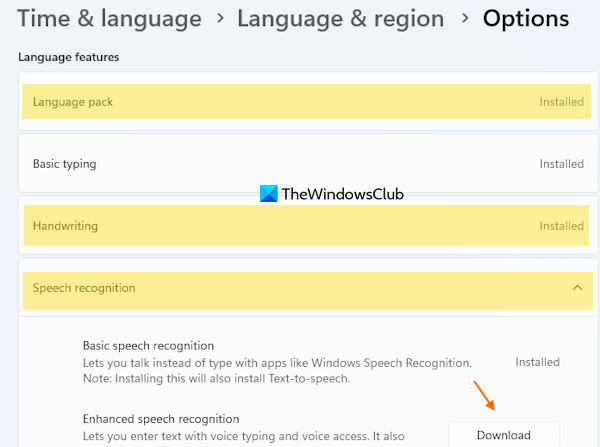
Now, in the Language features section, check if the Language pack, Speech recognition, and Handwriting packs are downloaded and installed. If not, download them and install them. After doing that, your problem should be gone.
Related: How to enable the Read Aloud feature in Outlook and fix it if not working
2] Close Word and restart it
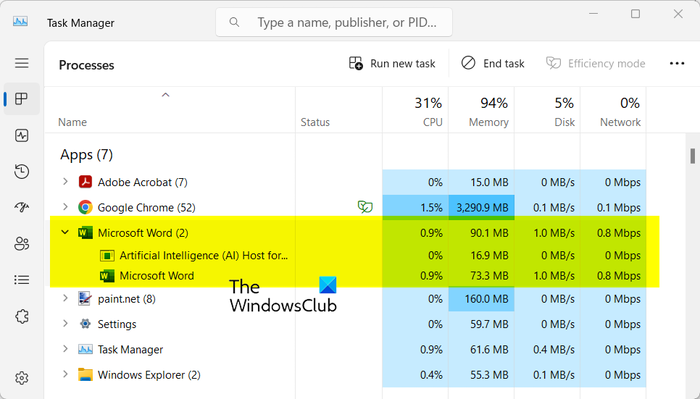
A simple restart works in many cases. So, you can simply restart the Word app and then check if the problem is resolved. To do that, make sure to completely close all the running instances of Word on your PC. Here’s how:
- First, open Task Manager using Ctrl+Shift+Esc.
- Now, close all instances of Microsoft Word using the End task button.
- Once done, restart Word and check whether you can use the Read Aloud function.
See: Microsoft Word won’t open on Windows PC.
3] Open Microsoft Word in Safe Mode
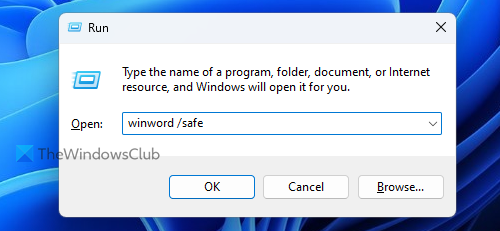
Use Win+R hotkey to open the Run Command box, type winword /safe, and press the Enter key to open Microsoft Word in Safe Mode. When you launch Word in Safe Mode, it opens with all the third-party add-ins disabled. Now open a document and check if Read Aloud is working fine.
If yes, then there must be some add-in(s) that are interfering with Word, because of which the Read Aloud feature is giving this error. You have to identify the add-in(s) and disable or remove them. For this, use the next solution.
4] Identify the Culprit Add-in and remove it
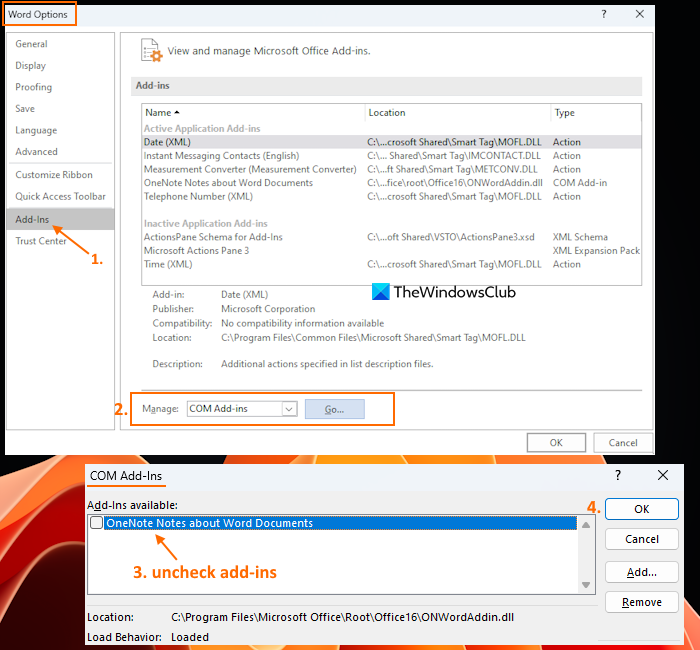
If a third-party add-in installed in MS Word is causing the Read Aloud isn’t available because something is preventing it from starting error, then identify the culprit add-in using the following steps:
- Launch Microsoft Word in normal mode
- Access the File menu
- Select Options
- In the Word Options box, select the Add-Ins category from the left section
- Select the COM Add-ins option from the drop-down menu available for Manage (on the bottom part)
- Press the Go button and a COM Add-Ins box will open
- Now uncheck all the add-ins
- Press the OK button
- Relaunch MS Word, enable add-ins one by one and see if the Read Aloud feature works.
If the Read Aloud feature shows the same error after enabling an add-in, then that add-in is the culprit. Once the culprit add-in is found, keep it disabled, or simply uninstall it from Microsoft Word.
Read: Microsoft Word won’t open on Windows PC
5] Use the Speak feature
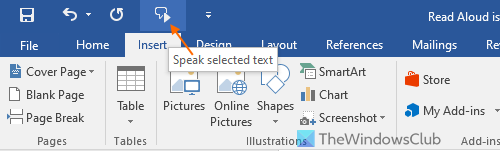
Like Read Aloud, Microsoft Word also comes with a Speak feature that can be used when Read Aloud is not working (for the time being or as an alternative). Though the Speak feature is not as advanced as the Read Aloud feature, it is helpful for reading the selected text aloud. You can also select the entire document and use the Speak feature to listen to your document.
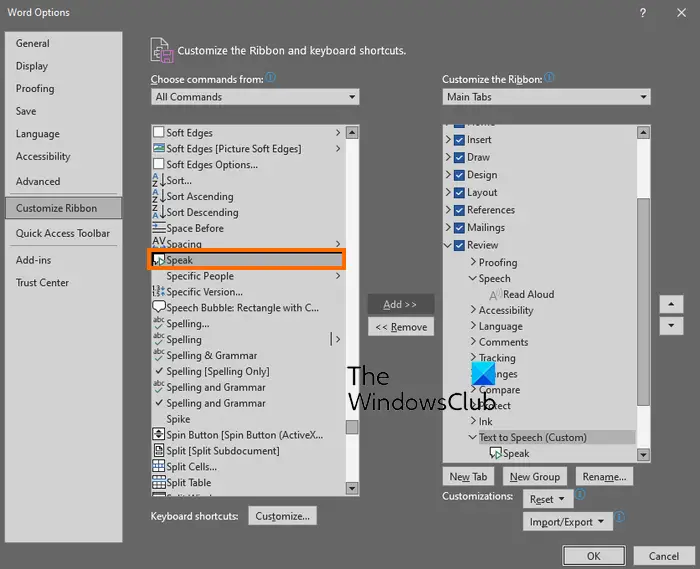
Speak feature can be accessed from the Quick Access Toolbar of Microsoft Word. In case you don’t see that feature there, you need to add Speak feature to Quick Access Toolbar first. Once done, select some text or the document in MS Word, and click on the Speak selected text icon available in the Quick Access Toolbar. It will start reading the selected text for you.
Use the same Speak selected text icon to stop the reading.
Read: Word or Excel hyperlinks are slow to open.
6] Set the correct Volume Mixer settings
Your Volume Mixer settings might be preventing you from hearing the text using the Read Aloud feature in Word. Windows lets you set up volume levels for the system and apps. If your volume mixer settings are incorrect, this problem is likely to occur. So, in that case, you can configure the right volume mixer settings and see if it helps. Here’s how you can do that:
First, right-click on the volume icon on your taskbar and choose the Open volume mixer option. Next, make sure the volume is set high and the correct output device is set for apps. See if the problem is resolved now.
7] Reset Word to default settings
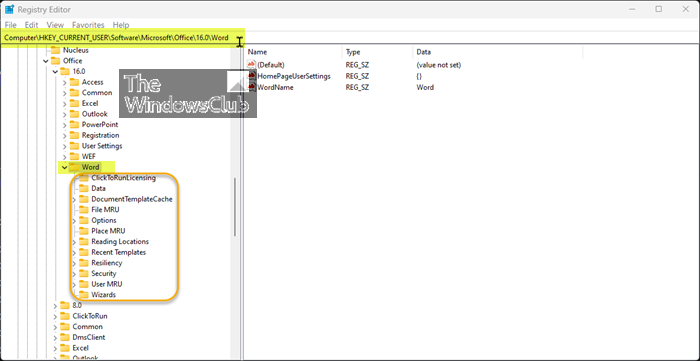
Incorrect settings can also cause problems when using Microsoft Word or any other application. So, this may be why Read Aloud isn’t working in Microsoft Word, and this error appears instead. If this is the case and you have no idea which setting is causing the problem, you should reset Microsoft Word to default settings.
8] Check if the document is corrupted
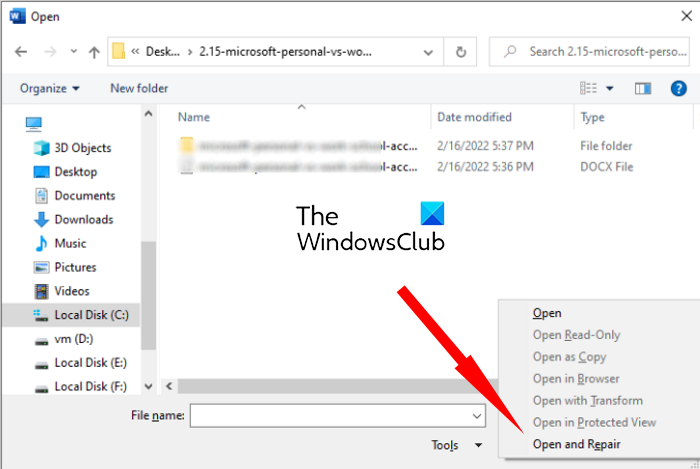
If the above solutions didn’t work, the issue may be due to your document being corrupted. If so, you can repair the corrupted document and then check if the issue is fixed. Here are the steps to fix a corrupted Word document:
- First, click the File menu and select Open.
- Next, tap the Browse button and select the document where the problem occurs.
- After that, click the small downward-pointing arrow icon inside the Open button.
- Now, click on the Open and Repair option and then let Word repair and open the target document.
- Once done, try using the Read Aloud feature and see if the problem is resolved.
9] Repair Office

If your Microsoft Office suite is corrupted, then it can lead to various issues. You may not be able to use Office applications or features/options (including Read Aloud, Speak, etc.) present in those applications. In that case, you may need to repair Microsoft Office.
You can either perform a Quick Repair or Online Repair (if the Quick Repair option doesn’t help to solve the issue) for your Microsoft Office suite. Online Repair downloads files to repair the Microsoft Office installation; this may take time, but it’s worth trying. After that, restart your Windows PC, and see if your problem is gone.
If nothing works, then you may need to completely uninstall Microsoft Office from your computer and then reinstall it.
I hope these options will help solve this problem.
Read Aloud Speech options missing from Microsoft Word
If the Read Aloud Speech option is missing in Microsoft Word, first ensure you’re running the latest Office updates via File > Account > Update Options. Next, go to File > Options > Ease of Access and check if “Show Read Aloud” is enabled. If it’s still absent, add it manually by right-clicking the Ribbon, choosing Customize Ribbon, and adding Read Aloud under Review tab commands. Also, verify that your Windows Speech settings are installed and active in Settings > Time & Language > Speech.
Why is Read Aloud greyed out in Word?
If the Read Aloud function is greyed out in Word, it might be due to an outdated version of Word. Additionally, some add-ins might be interfering with the app’s functionality and causing the problem. You might also face this issue if the Word app is corrupted.
Read next: Fix Microsoft Word is not responding error.
