
Sometimes, we need to insert a video in our PowerPoint presentation to make it more engaging and interactive. However, some users encountered an issue where PowerPoint crashed when they inserted a video. This issue can occur due to several causes, such as incompatible video formats, corrupted Office files, etc. This article shows what you should do if PowerPoint freezes or crashes when inserting a video.
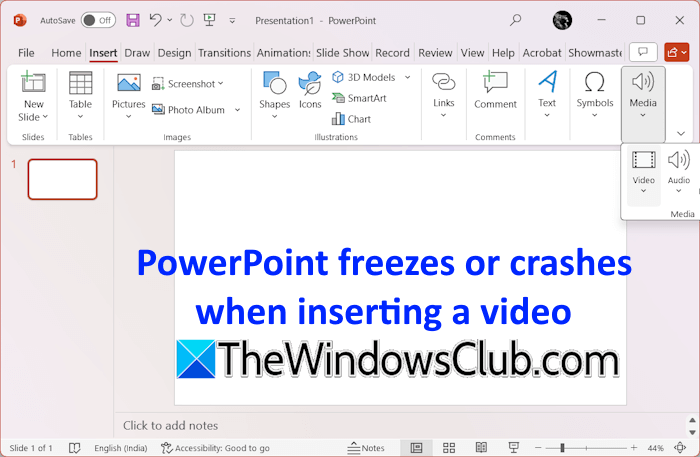
PowerPoint freezes or crashes when inserting a video
Use the following suggestions if PowerPoint freezes or crashes when inserting a video:
- Update Office
- Check for supported video formats
- Try the web version of PowerPoint
- Disable your antivirus
- Disable add-ins
- Update your graphics card driver
- Repair or reinstall Office
All these fixes are explained below in detail.
1] Update Office
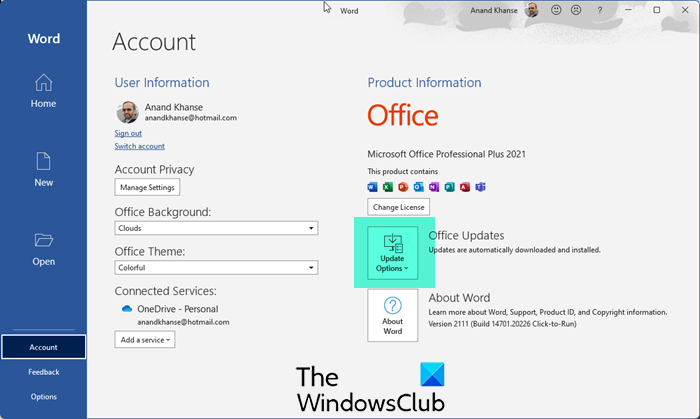
An outdated version of Office can cause several issues. Usually, the automatic update option is enabled by default in Office applications, but you can also check for updates manually. Update Office manually and see if the issue is fixed.
2] Check for supported video formats
PowerPoint does not support all video formats. Therefore, before inserting a video, it is better to check if that video is compatible with PowerPoint. If the video is incompatible, PowerPoint may freeze or crash. The recommended video format is MP4. You can view all video formats compatible with PowerPoint on Microsoft’s official website.
3] Try the web version of PowerPoint
You can also upload a video to the web version of PowerPoint. To do so, follow these steps:
- Save the presentation to OneDrive.
- Open your favorite web browser.
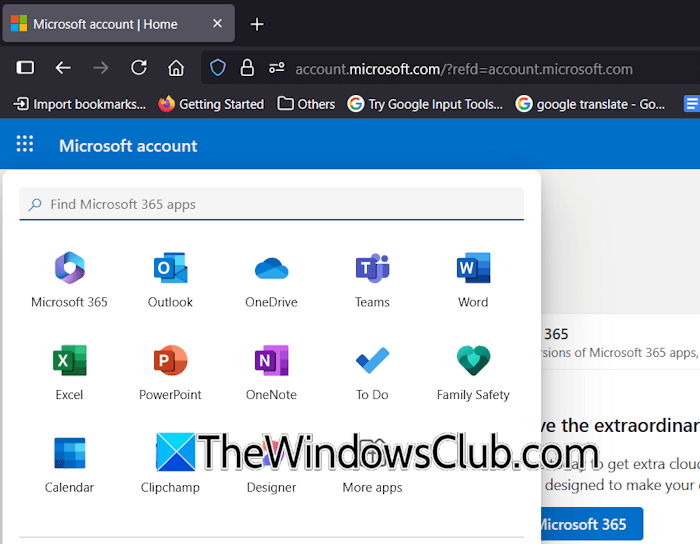
- Visit account.microsoft.com and enter your Microsoft account credentials.
- Click on the nine dots on the top left side and select PowerPoint.
- Now, open the presentation and insert a video.
4] Disable your antivirus
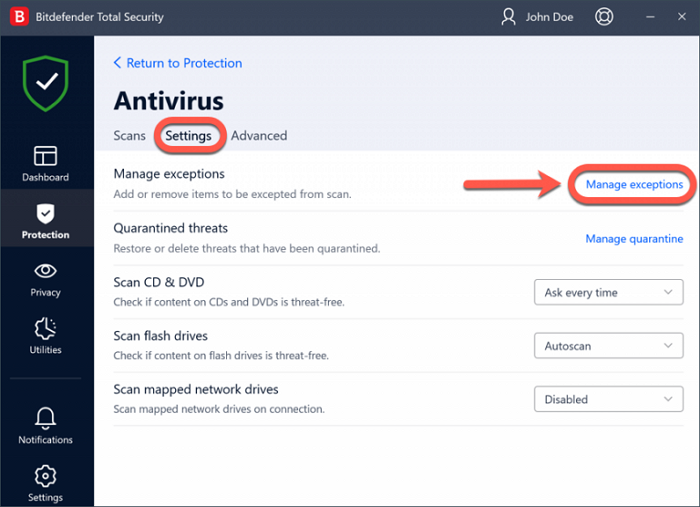
Your antivirus might be conflicting with PowerPoint and causing this issue. To confirm this, disable your antivirus program and then insert the video. If this works, you can add the PowerPoint exe file to the exception list of your antivirus software.
5] Disable add-ins
If the issue persists, you can try disabling the add-ins. Follow these steps:
- Open PowerPoint.
- Go to Options > Add-ins.
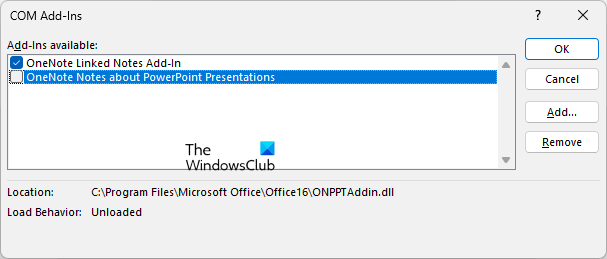
- Select COM Add-Ins in the drop-down on the right side and click Go.
- Uncheck all the checkboxes and click OK. This will disable all the add-ins.
- Restart PowerPoint and insert the video.
If the issue does not occur, you have to find the conflicting add-in and uninstall it.
6] Update your graphics card driver
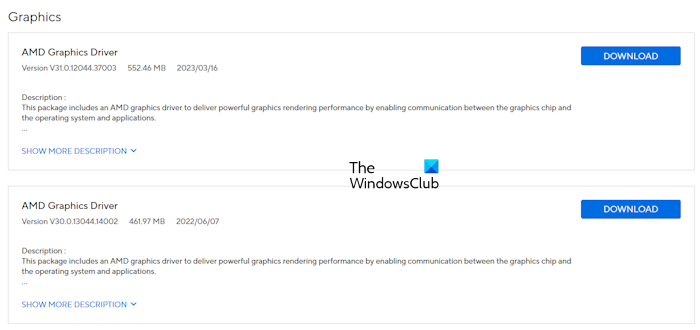
The problem may also be associated with your graphics card driver. We suggest you check for an updated version and install it (if available). Visit the official website of your computer manufacturer and download the latest version of the graphics card driver. Run the exe file to install the driver.
7] Repair or reinstall Office

If some of your Office files have been corrupted, you may encounter several issues with Office apps. Repairing Office can help in such cases. Run an online repair. If online repair does not help, reinstalling the Office suite is the last resort.
That’s it. I hope this helps.
Read: Audio and Video does not play in PowerPoint
Why is MP4 not working in PowerPoint?
MP4 is one of the supported video formats in PowerPoint. If the MP4 file is not working in PowerPoint, the issue may be with that video file. It may be corrupted. Another possible cause is an outdated Office version. Update your Office suite to the latest version.
Why does my PowerPoint presentation keep crashing?
A variety of issues are responsible for PowerPoint crashing issues, such as an outdated Office suite version, problematic add-ins, third-party antivirus software, etc. PowerPoint may also crash due to unsupported media in the presentation. Therefore, if you have inserted a video file, make sure that its format is compatible with PowerPoint.
Read next: PowerPoint can’t open this type of file.
