
If you have a PPT presentation but do not have the PowerPoint desktop app, Microsoft 365, or MS Office, here is how to open the file and view the presentation. This article outlines multiple methods for opening PPT without the PowerPoint desktop software on a Windows computer.
How to open PPT without PowerPoint
To open PPT without PowerPoint, follow these methods:
- Use PowerPoint Web
- Use Google Slides
- Use LibreOffice
- Use WPS Office
- Use Canva
- Use online PPT viewers
- Convert PPT into PDF
To learn more about these solutions, continue reading.
1] Use PowerPoint Web
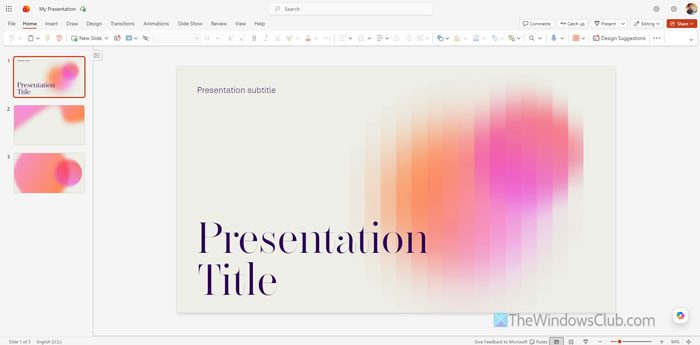
If you do not have the PowerPoint desktop app, you can always use the PowerPoint Web version. The online version of PowerPoint is available for free, and you can use it on a computer as well as a mobile. Whether you have a OneDrive or Microsoft 365 subscription or not, you can use it to open your presentation.
However, you must upload it to OneDrive first. For that, open OneDrive, click on the Create or upload option, and select the Files upload option.
Next, choose the presentation and upload it. Once done, click on the uploaded file to open, edit, and view the PPT.
2] Use Google Slides
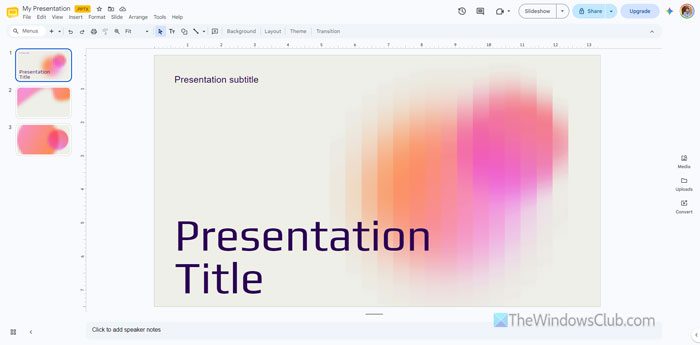
Google Slides is similar to the online version of PowerPoint. In other words, you do not have to spend money on any subscription to open PPT files.
For your information, Google Slides is one of the best tools for creating and viewing PowerPoint presentations. As it provides countless options and features, you won’t have any problem opening and editing your presentation as per your requirements.
That being said, you must upload the presentation or PPT file to Google Drive first. Then, you can access it via Google Slides. For that, open Google Drive and click on New > File upload. Then, choose the file to upload.
Once done, you will be able to open it in Google Slides. The best thing is that you can download the edited file as a PPTX, a PowerPoint-compatible format.
3] Use LibreOffice
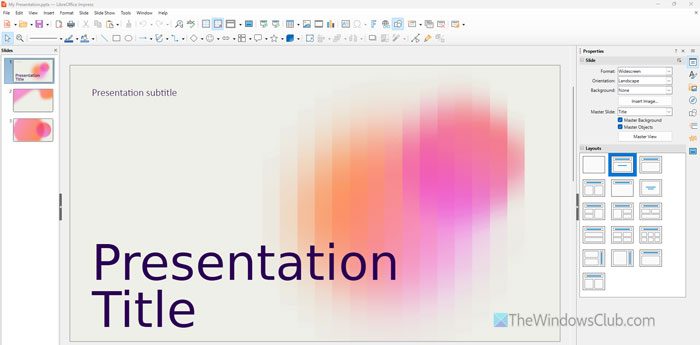
LibreOffice is an alternative to Microsoft Office or Microsoft 365, and LibreOffice Impress is yet another tool that lets you open, view, and edit PowerPoint presentations. If you have this tool installed on your computer, there is no need to use any online tool as well.
The user interface of LibreOffice Impress is neat and clean, so that you can use it. The highlight of this tool is that you do not need to convert the original file to any other format in order to open it.
You can simply right-click on the PowerPoint presentation, select Open with, and choose the LibreOffice Impress option.
4] Use WPS Office
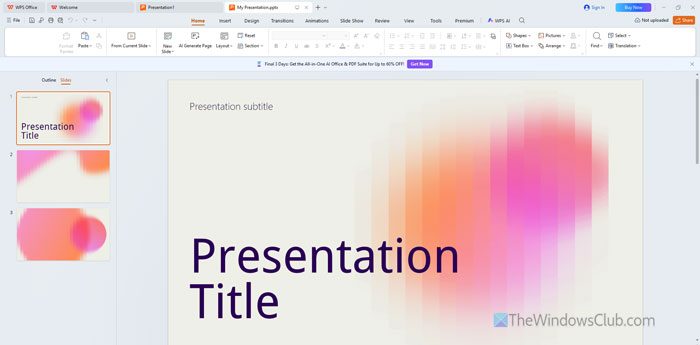
WPS Office is another Microsoft Office alternative that lets you do almost everything Microsoft Office can. That said, you can open a PPT or PowerPoint presentation in WPS Office.
The best thing is that you won’t find a huge difference between the PowerPoint and WPS Office user interfaces. It implies that you can find a similar ribbon, tabs, options, etc.
To open a PPT in WPS Office, right-click on the file, choose Open with > WPS Office.
5] Use Canva
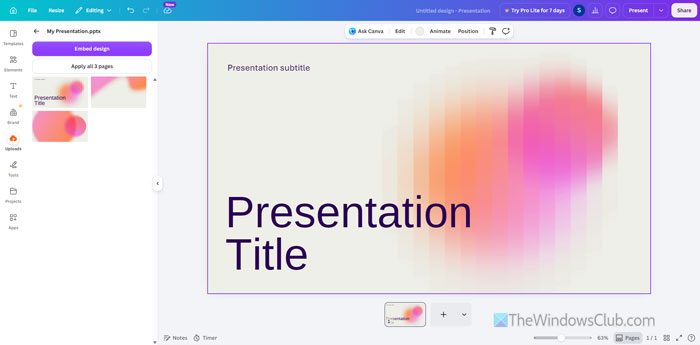
Canva is one of the best third-party online tools that lets you view and edit PPT files without any problem. You do not need to have a paid subscription to open and check your presentation on your Windows computer. Not only can you use Windows 11, but you can also use this tool to view the PPT file on your mobile.
To open the PPT file in Canva, visit the official website and log in to your account. Then, create a blank presentation and go to the Uploads tab.
Next, click on the Upload files option and upload the presentation that you want to view. Once the upload is done, go to the Designs tab and click on your presentation. It will show you all the slides on your screen. You can click on a particular slide and edit it accordingly.
6] Use online PPT viewers
There are quite a few online PPT viewers that you can use to open and check the presentation. Some of the best tools in this segment are these:
1] QwerPDF:
QwerPDF.com is one of the best online PPT viewers you can use to view presentations. You can view all the slides on your screen at once. However, you might not be able to find all the animations that the editor has embedded.
2] Visual Paradigm
Online.visual-paradigm.com is yet another web tool to view PPT files on your computer. The best thing about this tool is that you can play the presentation, use the laser tool, use a pen to edit, etc.
3] GroupDocs
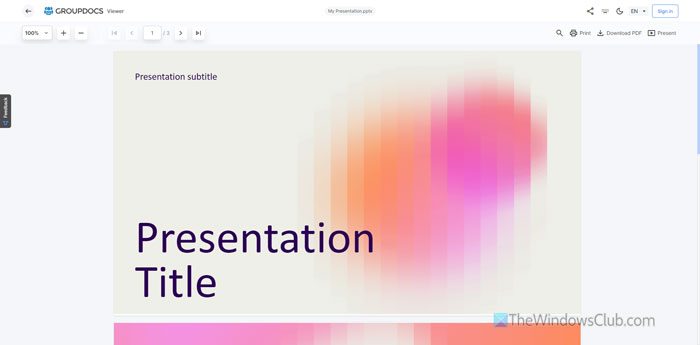
If you need an uncluttered user interface to enjoy your presentation, GroupDocs.app is one of the best sites you can use. It has three important options:
- Download PDF
- Present
You can use them as per your requirements.
7] Convert PPT into PDF
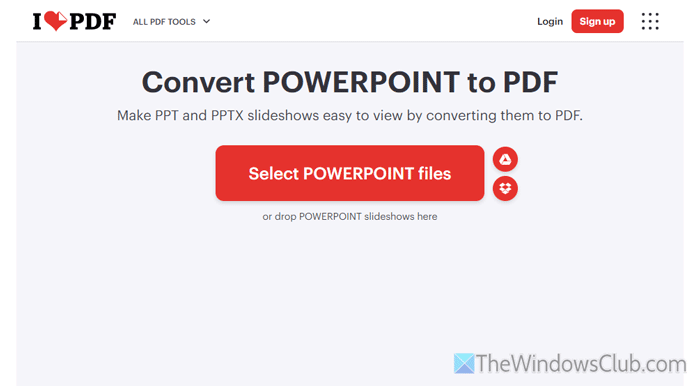
If you are unable to open the PPT in any of the aforementioned tools, you can always convert it to PDF and view all the slides. Although you won’t find any animation, it will get your job done.
Some of the best tools to convert PPT to PDF are:
1] ILovePDF
To use this tool, visit ILovePDF, and click on the Select POWERPOINT files button to upload the file. Then, click on the Convert to PDF button to start the conversion process. Once done, you will be able to download your file.
2] CloudConvert
To use this tool, open cloudconvert.com in your browser and upload the file. Then, choose the PDF option and click on the Convert button. Once done, download the file to your computer.
Read: Batch Convert PowerPoint (PPT or PPTX) to PDF on PC
How to do PPT without PowerPoint?
You can make a PPT without PowerPoint using Google Slides, Canva, PowerPoint Web, etc. All of these are free and can be used on any device, including Windows 11.
How to present PPT without PowerPoint?
To present a PPT without PowerPoint, you can use Google Slides. Apart from that, you can use Canva, which is one of the best free tools to create and present PPTs.
