
Some users have reported that when they open MS Outlook, they receive an error message that Outlook is using an old copy of your Outlook data file (.ost). For some users, the issue occurred after cloning a hard drive, but it can also arise from performing a Point-in-time restore, sync issues causing Outlook data file mismatches, and other reasons. Fortunately, there are working fixes to address this issue. Depending on the changes made to your data file, you may see the following message:
Outlook is using an old copy of your Outlook data file (.ost). Exit Outlook, delete the file, and restart Outlook. A new file will be automatically created the next time you initiate a send/receive.
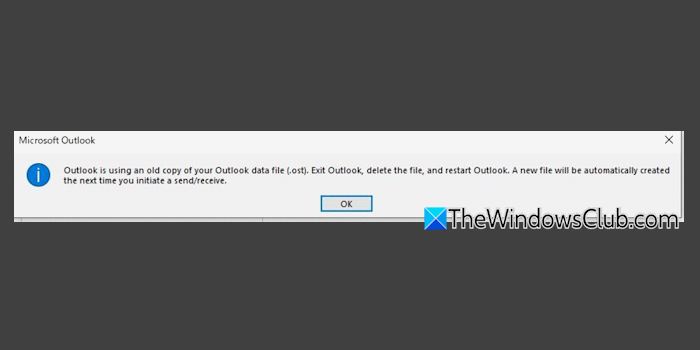
Outlook is using an old copy of your Outlook data file [Fix]
To fix the Outlook is using an old copy of your Outlook data file issue, you can use the solutions listed below. Before that, update Outlook and see if it helps.
- Repair your Outlook data file using the Inbox Repair tool
- Delete your OST file
- Recreate your Outlook profile
- Repair Office.
Let’s check these fixes.
1] Repair your Outlook data file using the Inbox Repair tool
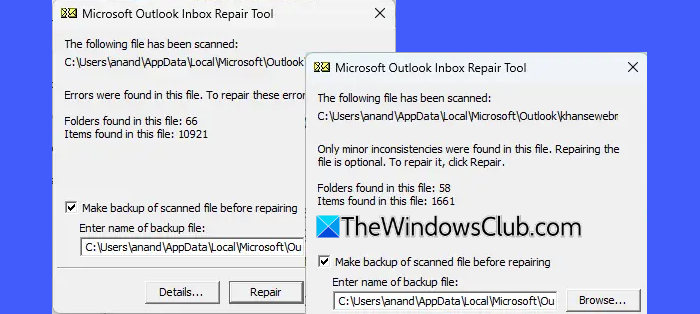
If your Outlook data file (.pst and .ost) is damaged or has errors that are causing this issue, you should use the built-in Outlook Inbox Repair tool (SCANPST.EXE) to repair your Outlook data file. This will solve the problem. Before doing that, you should back up or export your Outlook data file.
2] Delete your OST file
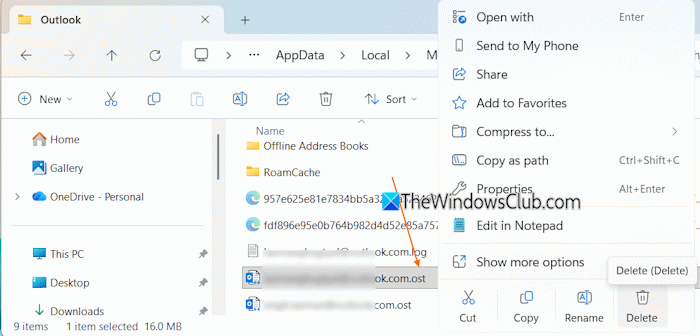
This is one of the helpful solutions as it worked for some users. If you are using an Exchange email account and there’s an Outlook data file (.ost) mismatch or sync issues, you should delete your offline Outlook Data File (.ost). That file will be created automatically when you open MS Outlook next time. Here are the steps:
- Open the File Explorer (Win+E)
- Paste
%LOCALAPPDATA%\Microsoft\Outlookon the address bar and hit Enter - You will see OST files (look like an email address) with the .ost extension
- Delete the OST file causing the problem
- Restart MS Outlook
- It will rebuild the cache from the server.
This will fix the issue.
Related: How to repair the Inbox Folder in Outlook
3] Recreate your Outlook profile
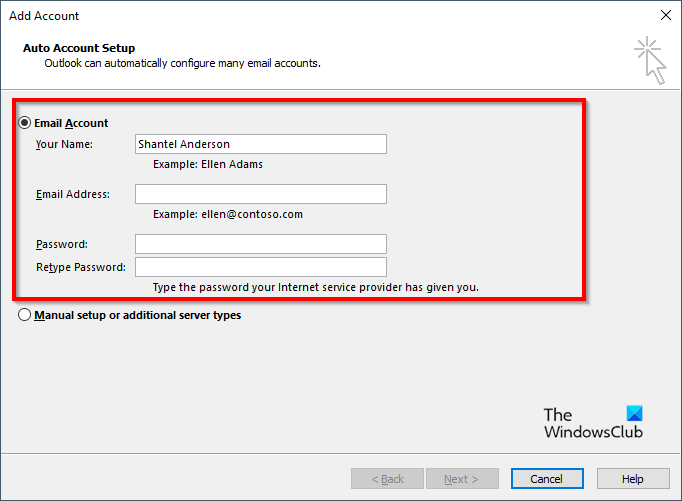
If the problem is not solved, you should recreate your Outlook profile. For this, open MS Outlook > File > Account Settings > Manage Profiles. In the Account Settings window, select the profile (in the Email tab), and click on the Remove option.
After removing the profile, you can create a new Outlook profile with the same account to get rid of the issue.
Also, in the Account Settings window, make sure to select that profile to Set as Default.
4] Repair Office

If the above solutions don’t help, you should repair Office.
Hope this is helpful.
Now read: Outlook Error: OST File Is Inaccessible – Causes and Fixes
Why is Outlook using an old copy of your Outlook data file OST Citrix?
If Outlook is using an old copy of your OST data file in Citrix workspace, the file is not synced properly with the server, and the Exchange account does not update the OST data file. Repairing or deleting the OST data file can help you solve this problem.
How do I fix an Outlook data file error?
If you receive an error message saying Your Outlook data file cannot be configured or Outlook Data File couldn’t be opened, first, clean up the unnecessary disk space, and see if this solves the problem. If not, recreate the data file or repair the PST file.
Read next: New Outlook app not working or opening.
