
Nioh is an excellent adventure game for PC users. The game is played and loved by a lot of users, however, there is a whole lot of those users are complaining that Nioh keeps crashing, freezing or disconnecting on their Windows computers. In this article, we will address this issue and resolve it.
Why does my Nioh game keep crashing and freezing?
Nioh is a CPU-intensive game; it requires a lot of processing power to run on your system. If the game is not getting adequate resources, it will crash. Usually, users get the game without checking the system requirements; you should review the specifications and make sure your computer is compatible. Also, make sure not to run many heavy apps, such as Chrome and Discord, alongside your game. This article also mentions other solutions that will help you resolve the issue.
Fix Nioh keeps crashing, freezing or disconnecting on PC
If Nioh 3, Nioh 2 or Nioh 1 keeps crashing, freezing or disconnecting on your Windows 11/10 gaming rig, try the following solutions.
- Close all the other apps
- Adjust in-game settings
- Verify game files
- Install the latest version of Visual C++ Redistributable and DirectX
- Update Graphics Drivers
Let us talk about them in detail.
1] Close all the other apps
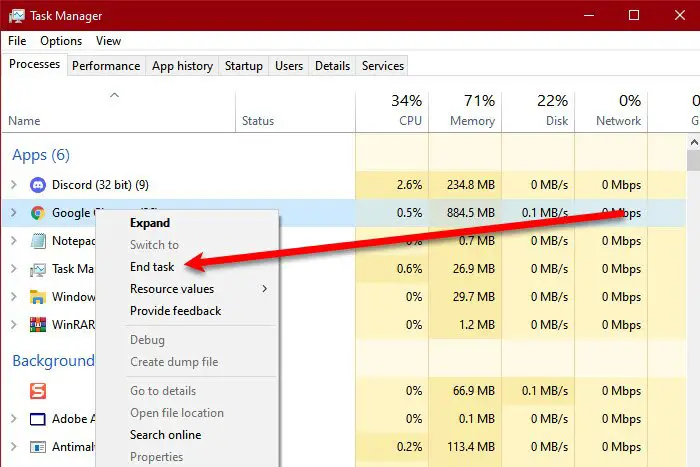
For many users, closing Chrome or Steam while playing the game has worked. This is pretty obvious, as these apps are meant to consume CPU resources, and since Nioh is a CPU-intensive game, it’s likely to crash. You should open Task Manager, look for such apps, right-click on them and click End Task. Now, open the game and try playing. You can also try restarting the computer, as that will close all the apps automatically.
2] Adjust in-game settings
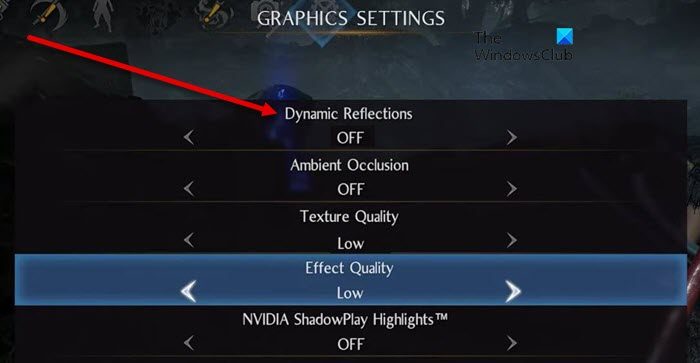
If you are playing the game with high graphics settings, your computer may be unable to handle it. Go to System > Graphics Settings. Now, disable every feature primarily Dynamic Reflections. That should do the trick for you.
3] Verify game files
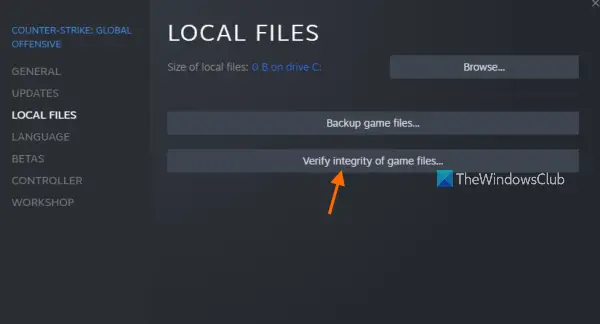
Maybe your game files are corrupted. The good news is that the Steam launcher has an option that will scan and repair the game files. Follow the prescribed steps to verify game files.
- Open Steam.
- Go to Library.
- Right-click on your game and select Properties.
- Click on Local Files > Verify integrity of game files.
Hopefully, this will do the job for you.
4] Install the latest version of Visual C++ Redistributable and DirectX
Both DirectX and Visual C++ Redistributable are responsible for creating the environment required to run your game. If these tools are missing, corrupted, or outdated, Nioh or Nioh 2 won’t launch. Therefore, install the latest version of DirectX and Visual C++ Redistributable on your computer and check if the issue persists.
5] Update Graphics Drivers
If the game keeps crashing, make sure your device drivers are updated, specifically your Graphics Drivers. There are various ways to do the same, so pick one from the following and do the required updates.
- Download Driver and Optional Updates from Settings.
- Go to the manufacturer’s website and download the driver.
- Use free driver update software.
Hopefully, updating will do the trick for you.
Read: Tips to improve gaming performance on PC.
Nioh System Requirements
The recommended system requirements for Nioh 3 on PC include Windows 11 (64-bit), an Intel Core i5-10600K or AMD Ryzen 5 5600X processor, 16 GB of RAM (multi-channel preferred), and a graphics card such as the NVIDIA GeForce RTX 3060 Ti (8 GB) or AMD Radeon RX 6700 XT (12 GB). You’ll also need at least 125 GB of SSD storage, preferably NVMe, for smooth gameplay.
Read: Skyrim keeps crashing or freezing on PC
How do I fix my game suddenly from crashing?
If your game crashes just after launch, check whether the files are corrupted. You can use your launcher to scan and verify game files. But if the game crashes after playing for a while, close all unnecessary apps before playing.
Also Read: Rogue Company keeps crashing, freezing, lagging or stuttering.
