
Some users encountered high CPU usage in the Task Manager whenever they charged their laptops. This issue also causes several other problems, such as increased CPU temperature and reduced laptop performance. If your Windows laptop shows high CPU usage when it is plugged in, the solutions provided in this article will help you.
Windows laptop high CPU usage when plugged in
Use the following fixes if your Windows 11 laptop shows high CPU usage when plugged in:
- Use another charger
- Change your power plan
- Troubleshoot in a Clean Boot state
- Check your CPU temperature
- Check the processes in the Task Manager
- Update BIOS and chipset drivers
- Restore your system
All these fixes are explained below in detail.
1] Use another charger

Your laptop charger might be faulty, which is causing this issue. To confirm this, connect another compatible charger to your laptop and see what happens. If this fixes the issue, the problem is with your charger. You can contact the manufacturer for a replacement if the warranty period has not expired.
2] Change your power plan
Incorrect power plan settings can cause this issue. Reset your current power plan settings to the default. Before proceeding, note down the current power plan settings. Follow the steps provided below:
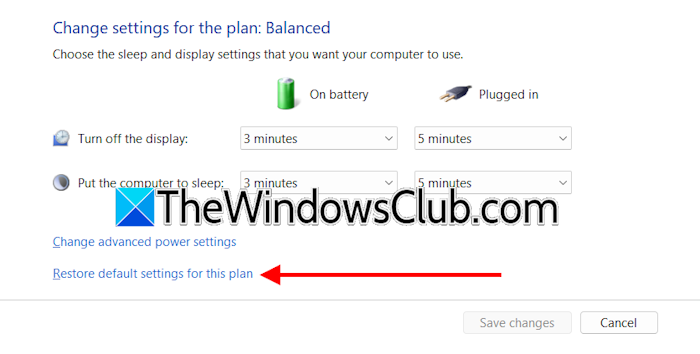
- Open the Control Panel.
- Type power in the Control Panel search bar.
- Select Power Options.
- Click Change plan settings.
- Now, click Restore default settings for this plan.
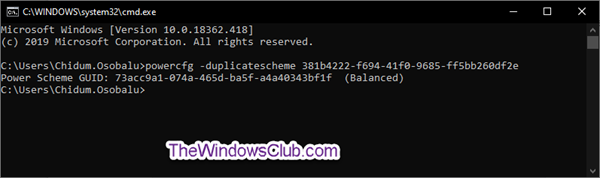
If the issue persists, you can switch to another power plan, preferably to the Balanced Plan. If other default power plans are not available on your system, you can restore them by executing the required commands in the command prompt.
3] Troubleshoot in a Clean Boot state
A third-party application might be causing this issue. You can check this by booting your laptop in the Clean Boot state. To enter the Clean Boot state, you need to disable all the third-party services. Be careful while doing this, as disabling all the services by mistake will put you in trouble, and you may have to perform a clean installation of Windows.
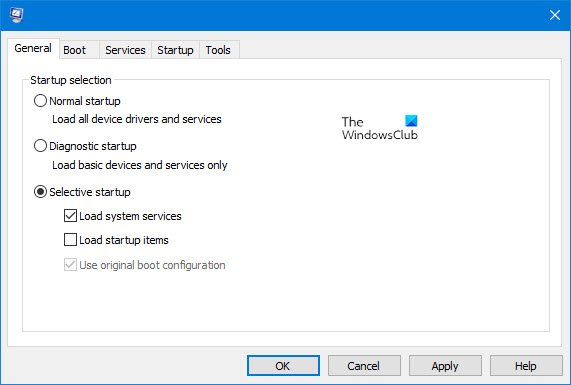
Once you are in the Clean Boot state, check if the issue persists. If the CPU usage remains normal while charging your laptop, it suggests that some services may be causing the problem. To identify the problematic third-party service, enable some disabled services and restart your computer. If the issue reappears, one of the services you have just enabled is the culprit. When you find the problematic service, update or uninstall the associated application.
4] Check your CPU temperature
If you encounter slow performance after plugging in your laptop, it may be due to CPU throttling. Heat is generated when a laptop is being charged. Poor ventilation traps this heat, increasing the internal temperature. An increase in temperature also causes CPU throttling, which decreases the performance.
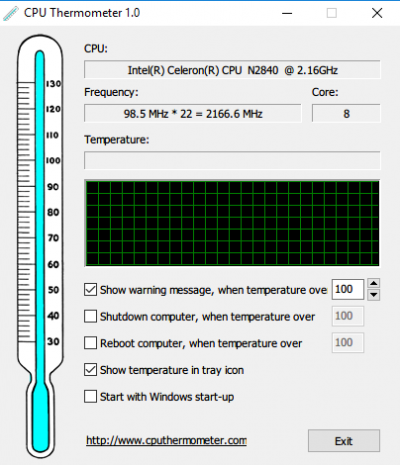
You can use free third-party tools to monitor the CPU temperature. If the CPU temperature also increases when you charge your laptop, cleaning the laptop can help.
5] Check the processes in the Task Manager
Some apps slow down on battery but run fully when charging. This might be the case with you. When charging your laptop, open the Task Manager and go to the Processes tab, then click the CPU column. This will sort all the processes consuming CPU in decreasing order. Now, you can easily see which process is causing the high CPU usage.
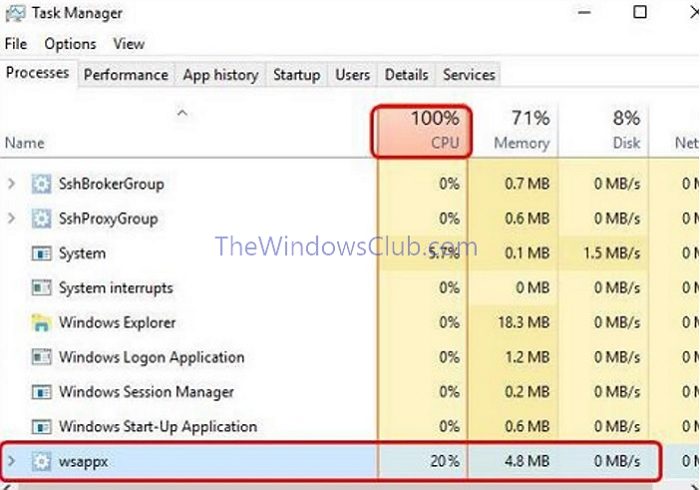
Once you find the service, check which application is associated with that service. If it is a third-party service, reinstall the respective application or check for its updated version. You can also contact the application’s developer support.
6] Update BIOS and chipset drivers
Updating BIOS is recommended because it boosts hardware compatibility and the system’s stability. Since your laptop shows high CPU usage when plugged in, updating the BIOS can help fix this issue. Open System Information and check the current version of BIOS.

Now, visit the official website of your computer manufacturer and download the latest version of BIOS from there. Follow the instructions to update the BIOS. We also suggest you update the chipset driver.
7] Restore your system
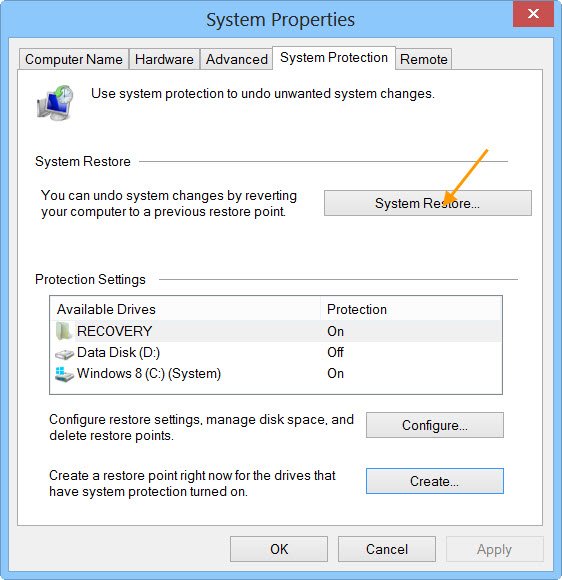
If nothing worked, you can restore your system to the previous working state using the System Restore tool.
That’s it. I hope this helps.
Why is my CPU usage at 100% with nothing running?
If your CPU usage is 100% when nothing is running, this means that the background Windows processes are consuming CPU. These processes include Windows Update, search indexing, security scans, etc. You can check this in the Task Manager.
Is 100 degrees Celsius too hot for the CPU?
Yes, 100° C is too hot for your CPU. If you do not resolve this issue immediately, your CPU will be permanently damaged. Too-high CPU temperatures also cause thermal throttling, which can cause a drop in your system’s performance.
Read next: Why is my CPU usage so low when gaming?
