
Startup programs are the programs that start automatically when you turn on your system. In a Windows ecosystem, startup programs include Microsoft services, apps, and third-party software that run automatically at startup. Some of these startup programs are essential for Windows OS, and some are not. Unnecessary startup programs can slow down your system and create performance issues. You can disable such startup programs to boost your system performance. In this article, we will see how to find out what startup programs you can disable safely in Windows 11/10.

How to find out what startup programs I can disable safely in Windows 11
When you start your system, Windows loads all essential Services and apps configured to run at startup. The Windows Services are an essential part of the Windows operating system and are required for the proper functioning of Windows OS. Apart from Services and some essential apps, there are some apps or programs that are not necessary to get launched on system startup. Such unnecessary startup programs also take your system resources which may result in performance issues. Hence, you should disable them.
Since there is no hard and fast rule in Windows 11/10 that lets you find out which startup programs you can disable safely, you have to make a decision on your own by viewing the list of startup programs.
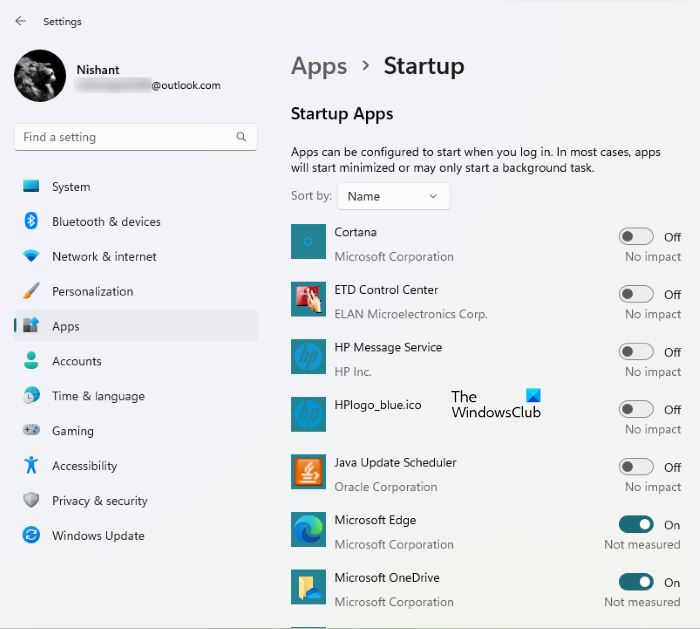
To view the list of all startup programs in Windows 11/10, follow the below-listed instructions:
- Open Windows 11/10 Settings.
- Go to “Apps > Startup.”
You will see the list of all startup apps there. Now, you can disable those startup apps that do not cause any trouble after being disabled. For example, in the above screenshot, startup apps like ETD Control Center, Java Update Scheduler, etc., can be disabled safely because they do not cause any impact on Windows 11/10 system. The Java Update Scheduler checks for Java updates. If you disable it, you have to check for Java updates manually. You can also disable Microsoft OneDrive, as disabling it will not impact your system, but your files will not sync automatically until you start OneDrive manually.
You can disable all the third-party startup apps safely like Steam, Telegram Desktop, Adobe Reader, etc. if you are facing performance issues on your system. If you do not know what is the use of a particular startup app or if you can disable it or not, you can search for the same on the internet.
We have listed some common startup apps you can safely disable on your Windows 11/10 computer.
- Zoom
- Microsoft Teams
- Microsoft OneDrive
- Microsoft Edge
- Google Chrome
- Adobe Reader
Basically, except for your security software, you can safely disable most 3rd-party programs from the startup list.
Both Zoom and Microsoft Teams are video conferencing apps developed by Zoom Video Communications and Microsoft Corporation, respectively. Disabling both of these apps from startup apps will not impact your system as these apps are not an essential part of Windows OS. Disabling these startup apps also won’t affect their performance. You can use these apps as you did before.
Microsoft OneDrive is a cloud storage platform developed by Microsoft. You can use it to store your photos, videos, documents, and other files securely. OneDrive is enabled as a startup app by default. That’s why OneDrive starts by itself every time you turn on your system. If you disable OneDrive as a startup app, it will not start automatically when you turn on your system. This will save your RAM and also fix performance issues. After disabling OneDrive from startup apps, your files will not sync to OneDrive automatically until you start it manually.
Microsoft Edge and Google Chrome are web browsers developed by Microsoft Corporation and Google respectively. If these web browsers are enabled as startup apps, they will continuously use your system resources. This will impact your system performance. You do not need these apps to start in the background automatically every time you turn on your system. You can disable them from startup apps.
Adobe Reader is a free PDF reader developed by Adobe Inc. If it launches automatically every time you turn on your system, disable it in the startup apps.
Where do I find startup programs in Windows 11?
You will find startup programs in the Task Manager and Windows 11 Settings. Launch the Task Manager and select the Startup tab. There, you will see all the startup programs in Windows 11. You can also view the same list of startup programs in Windows 11 Settings. Launch Windows 11 Settings and go to “Apps > Startup.”
How to manage startup programs on Windows 11?
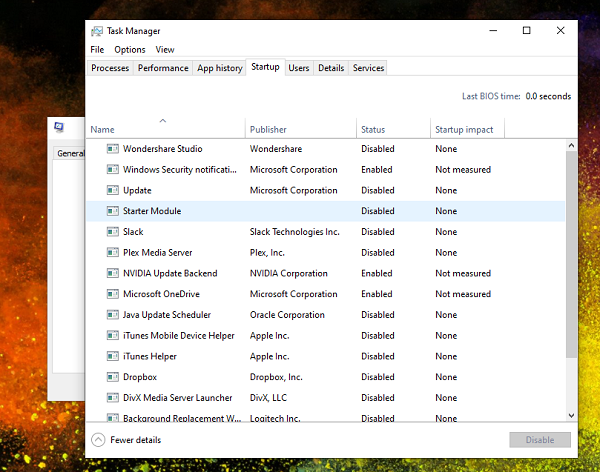
You can manage the startup programs by enabling and disabling them. There are multiple ways by which you can enable and disable the startup programs in Windows. The Task Manager and Windows 11/10 Settings app let you manage startup programs easily. In Windows 11/10, the section to manage Startup items is now available with the Task Manager. You can enable or disable applications from starting with Windows. I use it to remove applications that register themselves to start with Windows. It improved my overall boot timing.
You can also install some free software to manage startup programs on your Windows 11/10 device. Some of these freeware also offer additional features in addition to managing the startup programs. For example, CCleaner is a good software that lets you manage startup apps as well as delete junk files from your system.
Read: How to find out Startup programs slowing down Windows Boot.
What programs can I disable at startup?
When you turn on your system, Windows loads startup programs and services. The Windows services are an essential part of the Windows operating system. If any of the Windows Services stop working, you may encounter errors on your system. Some apps you install are configured to start at system startup. These apps are not necessary for the Windows operating system. So you can disable them safely. You can disable third-party startup apps via Windows 11/10 Settings or the Task Manager. The general rule is: If you do not want a third-party app to start up every time, you can disable it. There also several good free startup manager software to help you.
Also read:
- Location or path of the startup folder in Windows
- Windows Registry Startup Paths
- How To Delay Startup Programs in Windows
Hope this helps.
