
We encountered a peculiar issue where the Hard Drive disappeared in the File Explorer in Windows 11/10. Basically, the drive keeps disappearing from time to time without any apparent reason. We checked the Task Manager and found that the load on the machine is high. There could be other reasons, such as software glitches, drive failure, and more. So, if you are encountering this issue, this post is for you.
Why did my hard drive disappear in Windows 11?
There could be various reasons why your Hard Drive has disappeared, with software glitches being a common cause, such as bugs from updates, corrupted drivers, or drive letter conflicts. Connection problems like loose or faulty cables between the drive and motherboard are also frequent culprits. Additionally, power issues can arise under heavy load, where an insufficient power supply causes temporary disconnections, or the drive itself might be failing due to bad sectors or hardware failure.
Fix Hard Drive disappeared in Windows 11/10
There are instances of Hard drives disappearing that we noticed when trying to learn more about this issue.
- After installing a Windows update.
- During or after heavy computer use (gaming, editing, rendering).
- When you plug in a new external drive, it causes a drive letter conflict.
- Randomly, for no obvious reason, which often points to a loose cable or a failing drive.
To resolve this issue and recover your hard drive, follow the solutions mentioned below.
- Check for loose connections
- Check the processes in the Task Manager
- Use Disk Management to find and reactivate the drive
- Update or reinstall your drive’s drivers
- Run the Hardware troubleshooter
- Check for hardware issues
Let us talk about them in detail.
1] Check for loose connections
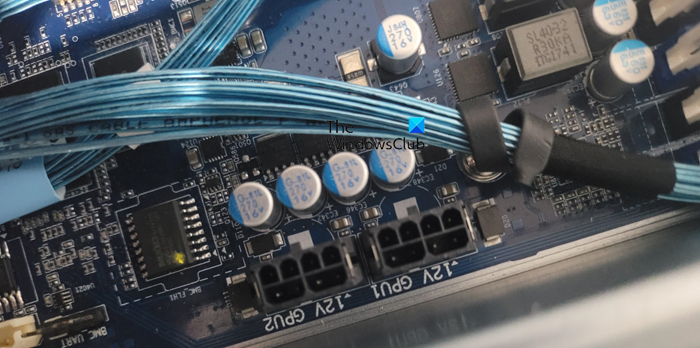
First of all, we need to check and make sure that connections are tight and there is are no loose ends. To do that, first shut down your computer completely and unplug the power cable. Then, open your PC case if you are comfortable doing so. Now, unplug and firmly re-plug both the SATA data cable (the smaller cable to the motherboard) and the SATA power cable (the wider cable from the power supply) from the hard drive. Try using a different SATA port on your motherboard and a different power cable from your PSU if possible.
Read: C or D Drive letter missing in Windows 11
2] Check the processes in the Task Manager
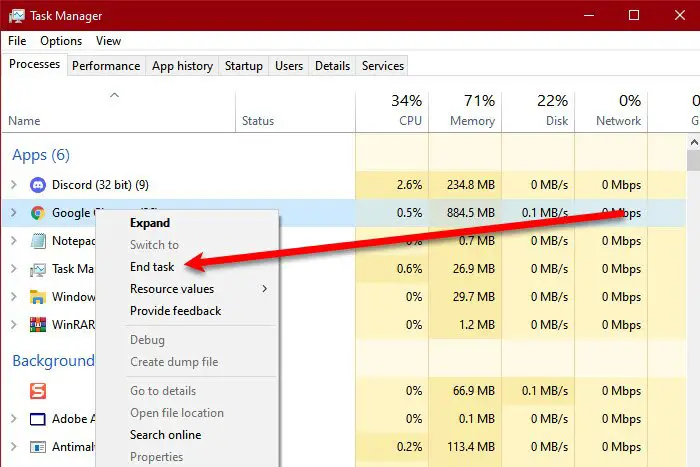
You may encounter this issue if there is a huge load on the CPU (although it is rare). In that case, you need to open the Task Manager, check for the processes consuming more resources, and if possible, kill them. To do so, right-click on the process and select End Task.
Read: Hard drive missing after Windows Update
3] Use Disk Management to find and reactivate the drive
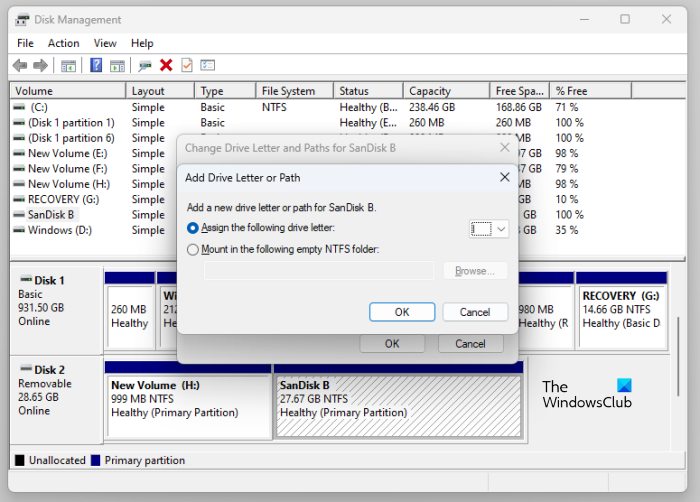
If your drive appears here but is missing from your files, it’s often because Windows has simply lost its address (drive letter) or has put the drive to sleep (offline). By right-clicking on the drive in this menu in Disk Management, you can quickly reassign a letter or bring it back online, which makes it visible again without affecting any of your data. Follow the steps mentioned below to do the same.
- Launch Disk Management from the Start Search Menu.
- Check the list of drives for your missing one. It might be listed, but either of the two things could have happened.
- Missing a drive letter: It will have a healthy partition but no letter (like C:, D:).
- Says “Offline”: The drive is connected but not active.
- To assign a drive letter: Right-click the primary partition on the missing drive and choose Change Drive Letter and Paths… > Add. Assign it a letter not already in use.
- To bring a drive online: If it says “Offline,” right-click it and select Online.
Finally, check if the issue is resolved.
Check: Drive letter keeps disappearing after reboot in Windows 11
4] Update or reinstall your drive’s drivers
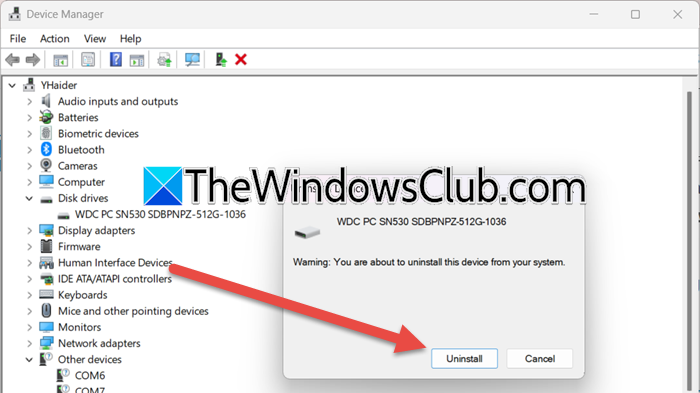
If the issue is due to corrupted or outdated drivers, we will have to reinstall or update them. You can check for Windows Drivers and Optional Updates, or use a free driver update tool. If updating the driver is unsuccessful, we will reinstall the driver using the steps mentioned below.
- Open Device Manager.
- Expand Disk drives.
- Right-click on your hard drive (it might be listed with its model number or as a generic name) and select Uninstall device > Uninstall.
- Now, reboot your computer when prompted.
Finally, download and install the latest version of the driver from the manufacturer’s website.
Read: Hard Disk Partition not showing up in Windows
5] Run the Hardware troubleshooter
If nothing worked, our last resort is to ask Windows to troubleshoot and resolve the issue. To do this, we will be using the Get Help app. Open the app and enter “Hardware Troubleshooter” in the search field. It will prompt you to run the troubleshooter; if it doesn’t, you can run the MSDT Hardware troubleshooter.
Read: External Hard Drive not showing up or detected in Windows 11
6] Check for hardware issues
If the hardware troubleshooter didn’t work, you need to check with a hardware expert to see if there is an issue with your hard disk. If your hard disk has bad sectors, you will need to get it fixed or replace the drive.
Hopefully, these solutions will resolve the issue for you.
Read: How to Recover Lost or Deleted Data from Windows PC
How to fix Hard drive disappear?
If the hard drive has disappeared or is disappearing or repappearing under load, you need to follow the solutions mentioned in this post. First, check if the connections are tight; if they are loose or not perfect, you will face this issue. If that is not the case, check for a hardware or software conflict.
Also Read: Hard Drive missing after cloning in Windows 11.
