
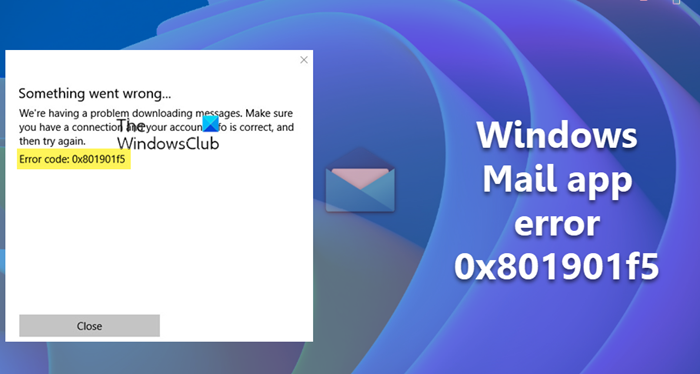
Error 0x801901f5 in Windows 11 usually occurs in the new Outlook app, Contacts app, Calendar app, Windows Mail app, People app, etc, due to sync issues. The message typically says the following-
We’re having a problem downloading messages. Make sure you have a connection, and your account info is correct, and then try again.
Error code: 0x801901f5.
Fix Error 0x801901f5 in Windows 11
Here are some suggestions that may help you fix Error code: 0x801901f5 in Windows 11/10 when syncing messages:
- Re-enter the account details
- Change the privacy settings
- Clear Microsoft Store cache
- Repair or Reset the Windows Mail App
- Uninstall & reinstall the Mail App
1] Re-enter the account details
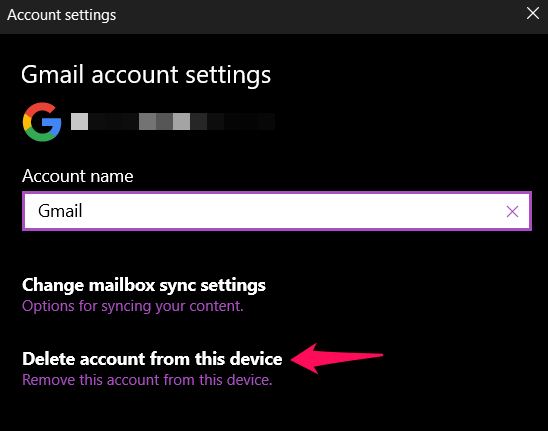
The first thing you should try is to delete the account, followed by re-entering the account details. You can do so by following the below steps.
- To begin with, open the Start menu by pressing the Windows key.
- In the space provided, type Mail and press the enter key.
- In the Mail app, click on the Gear icon present at the bottom left corner.
- Choose Manage accounts under the Settings window.
- Click on the problematic account.
- In the Account settings windows that pops up, choose Delete account from this device option.
- Confirm your selection in the following window, by pressing the Delete option.
- The account has been successfully removed from Mail app.
- Now, click on the Gear icon again at the bottom-left corner, and choose Manage accounts.
- Click on Add account option.
- Enter the credentials to login with the account again.
That’s it. Check whether the problem is fixed. If not, try the next solution on the list.
See: Error 0x80040154 in new Outlook app
2] Change the privacy settings
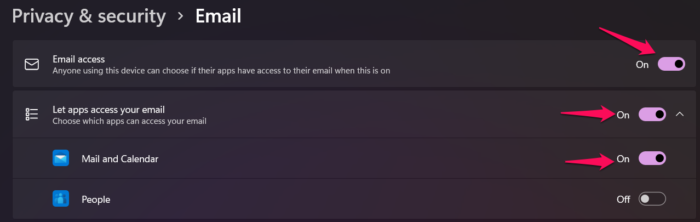
The Mail and Calendar app need access to your email to work as intended. If this isn’t the case, you are most likely to face Windows Mail app error 0x801901f5. Here’s how to provide the required permission.
- Open Settings on your system by pressing Windows + I shortcut key.
- Click on Privacy & security option present at the left panel of the screen.
- In the following window, choose Email option present under App permissions.
- Enable the toggle present next to Email access.
- Enable the toggle present next to Let apps access your email and Mail and Calendar.
That’s it. Now reboot your system and check if the problem is fixed. If not, try the next solution.
Read: Fix Outlook app error codes 0x8000000b, 0x8007042b, 0x80040154, 0x8000ffff, 0x8007000d, 0x80c8043e, 0x80070435, 0x8007006d, 0x80070425.
3] Clear Microsoft Store cache
The next effective solution you can try in this situation is to clear the Microsoft Store cache. Here’s how to do it.
- Open the Command Prompt in administrator mode.
- Type wsreset.exe and press the enter key.
- Wait until the command is executed.
- Once done, Microsoft Store will popup automatically.
Alternatively, you can open the Start menu, type wsreset.exe, and press the Enter key to clear the Microsoft Store cache.
Read: Fix Error 0x80070490 in Outlook app on Windows
4] Repair or Reset the App
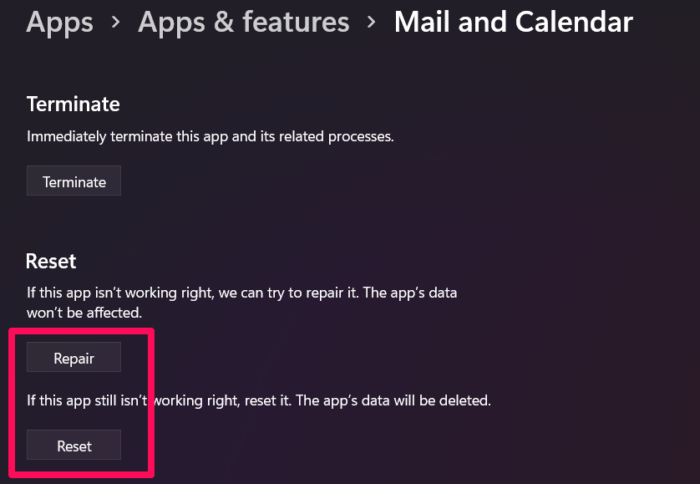
There can be an ongoing issue with the app, which is causing the error in the question. You can use the built-in Repair feature to fix any minor bug causing the problem. Here’s how to do it.
- Open Settings on your system.
- Navigate to Apps > Apps & features.
- Locate the app that is causing problems, click on the three-dots present next to it, and choose Advanced option.
- In the following window, click on the Repair option.
Wait until the Repair process is complete. Once done, check if the problem continues. If yes, you will have to reset the app. You can do so by clicking the Reset option in the same window.
5] Uninstall and Reinstall the app
If none of the steps were helpful, you can uninstall the problematic app and then reinstall it.
Now log in with your email account, and you will notice you are no longer experiencing the problem.
How do I fix errors in the Outlook (new) app?
To fix errors in the new Outlook app, first check your internet connection and update Outlook to the latest version. If issues persist, go to Settings > General > Add-ins and disable any problematic add-ins. Next, repair or reset the Outlook app via Settings > Apps > Installed apps > Outlook > Advanced options. Clearing the Microsoft Store cache with wsreset.exe often resolves sync problems. Finally, re‑add your email account or check privacy permissions to ensure Outlook has access to your mail and calendar – if not you will have to reset the app.
How to fix Windows Update Error Code 0x801901f5?
Below is a list of effective solutions to fix Windows Update Error Code 0x801901f5.
- Windows Update Troubleshooter
- Reset Windows Update components
- Delete SoftwareDistributon & Catroot2 folder contents
- Run Windows Update in Clean Boot state.
Read Next: Fix Error code 0x8007139f on Windows.
