
If you receive Error 0x80040154 in Outlook (new) or the Mail app when trying to open, create a new account, or sign in to the app, this post will help you. Some Windows 11/10 users report receiving Error Code 0x80040154 when attempting to open, create a new account, or sign in to the app. If you are experiencing this issue, the following suggestions may help you resolve it.
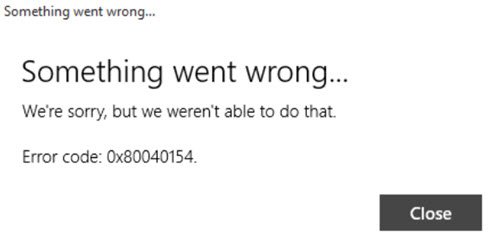
Error 0x80040154 in new Outlook app in Windows 11
The exact message you see would be:
Something went wrong. We’re sorry, but we weren’t able to do that. Error code 0x80040154.
So if you are facing problems with your Outlook app, create a system restore point and then go through the entire list of suggestions first, before you decide which of the suggestions you would like to try out:
1] Run Windows Store Apps troubleshooter
Run Windows Store Apps troubleshooter. This has been know to help many.
2] Reset the Outlook app
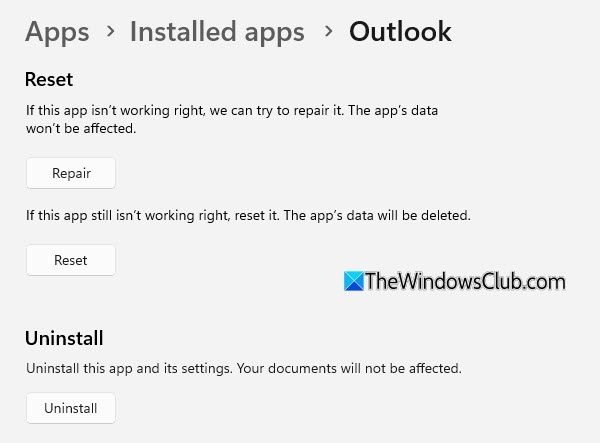
If you face this error, Reset or Repair the Mail & Calendar app. and see.
3] Run System File Checker
Run System File Checker to replace potentially corrupted system files.
4] Delete contents of the Comms folder
Open File Explorer and navigate to the following folder:
C:\Users\<username>\AppData\Local\
Here you will see a Comms folder. Rename it to, say, Comms-old, and restart your computer.
5] Reinstall the Outlook app
Uninstall the app and then download and reinstall it via the Microsoft Store.
Please note that you may lose your settings when following some of these suggestions.
Note: Error Code 0x80040154 can also occur in Microsoft Outlook.
Related: Fix Outlook app error 0x8000000b, 0x8007042b, 0x8000ffff, 0x8007000d, 0x80c8043e, 0x80070435, 0x8007006d, 0x80070425.
Please let us know if any of this information was helpful or if you found an alternative solution to resolve this issue.
