
Incompatibility issues between the security policy of Google and your mail app, may result in error 0x8000000b when trying to add a Gmail account to the Outlook (new) app in Windows 11/10.
Something went wrong, We’re sorry, but we weren’t able to do that. Error code 0x8000000b
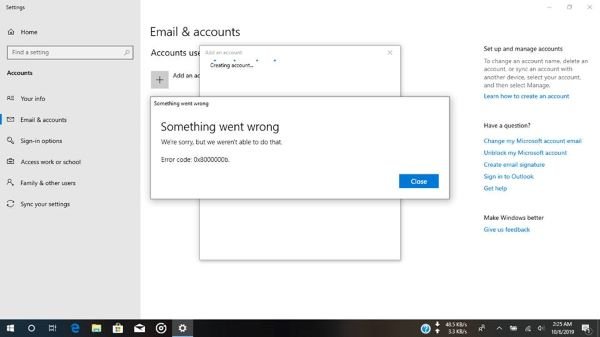
Note: You may receive other error codes such as 0x8007042b, 0x80040154, 0x8000ffff, 0x8007000d, 0x80c8043e, 0x80070435, 0x8007006d, 0x80070425 associated with this same error message. Whichever error code you receive, the underlying issue remains: you can’t add your Gmail account. Generally, the error prevents you from using your Gmail account on the Mail app.
Outlook (new) app error 0x8000000b
Launch the Outlook (new) app and click open Settings > Accounts > Add account.
Here, under Advanced setup > Internet email.
Here fill in your Gmail account details and then enter these details:
- In the Incoming email server field, type in: imap.gmail.com:993
- In the Account type field, type in: IMAP4
- In the Outgoing email server field, type in: smtp.gmail.com:465
Ensure these options are checked:
- Outgoing server requires authentication
- Use same user name and password for sending email
- Require SSL for incoming email.
Click Sign in when you’re done and wait for a few minutes, your Gmail account will be added successfully to the app without the error 0x8000000b.
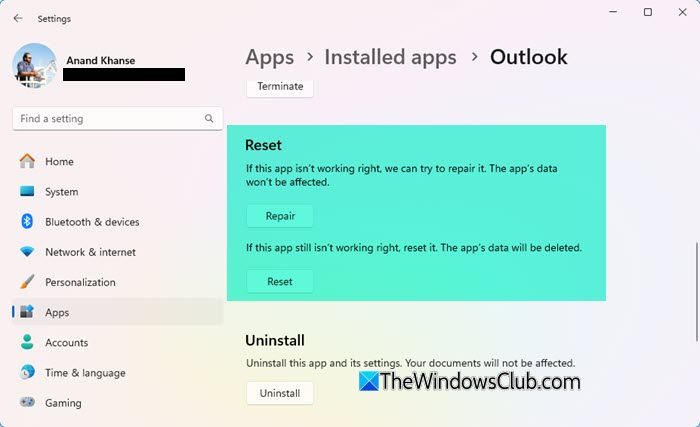
If this does not help, Reset the app or Uninstall and fresh-install the Outlook (new) app.
That’s it, folks. I hope that helps.
How do I fix error code 0x8000000b?
To fix error code 0x8000000b, make sure that your internet connection and then try syncing your mail settings. Then, try disabling your antivirus software temporarily and reinstalling the affected mail application. This should help.
How to fix Microsoft Store error code 0x80131500?
To fix Microsoft Store error code 0x80131500, try running the Microsoft Store troubleshooter. Also ensure your Microsoft Store app is updated, reset the Store cache and change your internet connection and see.
