
The Outlook app is easy to launch and use, thanks to its lack of bells and whistles. If you just want to check and send emails, then the full Outlook experience is not required.
There might come a time when you’ll need to print an important email, and since the Outlook app can print, it makes sense to use it rather than launch MS Outlook.
OK, so you’ve launched the Outlook app, and to your surprise, when attempting to print, you’re getting an error that says:
Nothing was sent to print. Open a document and print again
To keep your mind at ease, follow the steps below to fix your printing problem.
Outlook app won’t print emails in Windows 11/10
Is the Printing feature not working in the Outlook or Calendar app? Receive error message – Nothing was sent to print. Open a document and print again? Outlook app won’t send print data to the printer? Follow these suggestions to fix the issue.
- Check for updates
- Update Printer driver
- Reset the Outlook app
- Re-install the Outlook app
- Use third-party apps or Outlook on the web
To learn more about these tips and tricks, continue reading.
1] Check for updates
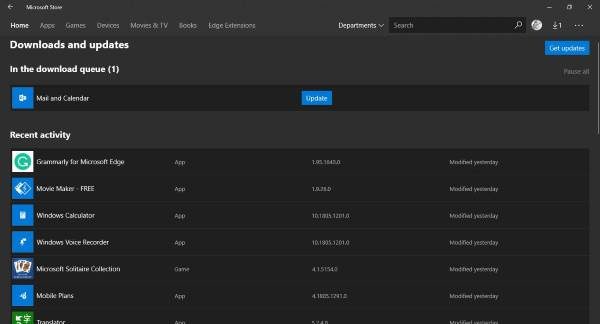
Sometimes a complex problem just requires a simple update to fix it, and that could be the case here. You see, if other apps or services can send print data to your printer, then the Outlook app is at fault.
To check for an update to Microsoft Store apps, launch the Microsoft Store, search for Outlook (new), and click the “Update” button if there’s one.
2] Update Printer driver
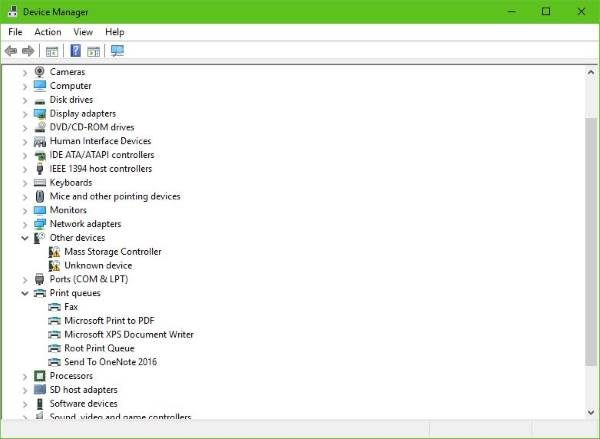
If the above workarounds don’t resolve your issue, we recommend updating your printer’s driver.
Hit the Windows Key + S, type Device Manager, launch it from the search query page, then look for Printer devices. Expand it, find your printer, right-click and select Update Driver software. Return to the mail app and attempt to print a document again.
3] Reset the Outlook app
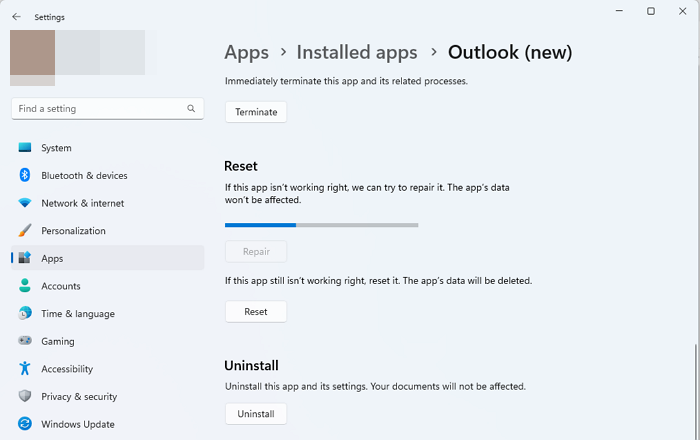
Press Win + I to open Settings. Go to Apps > Installed apps. Type ‘outlook’ in the search bar on top. Outlook will appear in the search results. Click the three dots next to the app, then select Advanced options.
Scroll down to the Reset section. Click Repair first. This will attempt to fix the app without deleting any data.
If repairing doesn’t fix the issue, click Reset. You’ll see a prompt warning that app data will be deleted. Click Reset again to confirm. Then, restart your PC and try launching the New Outlook app again.
Note: Resetting will remove your configured accounts, app settings, and locally cached data, such as .OST files. However, your emails stored on the server will remain safe. Any manually added .PST files won’t be deleted but may need to be re-added after the reset.
4] Re-install the Outlook app
Open Windows Settings and uninstall the Outlook (new) app. Having done that, go to the Microsoft Store, search for Outlook (new) and then install it afresh.
5] Use third-party apps or Outlook on the web
Nothing works? No problem. You can use a third-party mail app, connect your Outlook account and take advantage of any printing features available. Alternatively, visit outlook.com, sign in with your account information, and print the task from your web browser.
I hope these solutions have worked for you.
Can’t print with Windows Mail app?
If you cannot print with the Windows Outlook app, the aforementioned solutions will help you troubleshoot the issue. No matter whether you use Windows 11 or Windows 10, you can go through the same set of solutions to get rid of this problem. For example, you can check for updates, reinstall the app using PowerShell, update the printer driver, and reset the app.
How do I print from the Microsoft Mail app?
To print from the Microsoft Mail app or Outlook app, you need to open the app first. Then, choose the email you want to print and click it on the left side of the screen. Following that, click the three-dotted icon and select the Print option. Next, set the print settings and start printing.
