
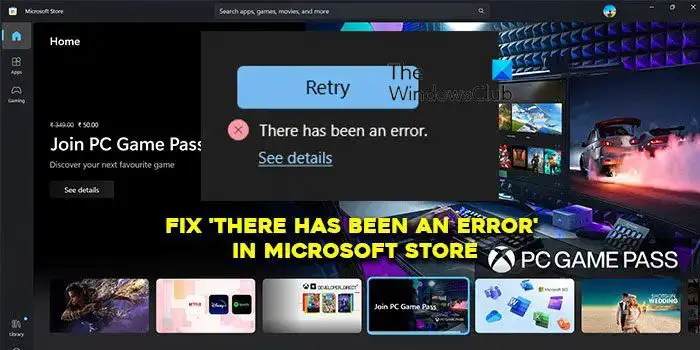
Microsoft Store is an app store on Windows PC. We can download software programs without any fear of malware as they are monitored before installation. Apps we download through app stores can also be updated easily. You can install all kinds of software with a few clicks. However, some users are seeing “There has been an error” on Microsoft Store while trying to install apps on their PC. In this guide, we show you different ways to fix it.
Fix There has been an error in Microsoft Store
If you see “Retry, There has been an error” in the Microsoft Store, you can follow the below methods to fix it.
- Check your internet connection
- Restart Microsoft Store
- Set the correct date and time
- Run Windows Store Apps troubleshooter
- Check for updates on Microsoft Store
- Sign out and Sign in to your Microsoft account
- Repair or Reset Microsoft Store
Let’s get into the details of each method and resolve the error.
1] Check your internet connection
Microsoft Store uses the internet to install apps. Without the internet, you cannot even browse apps on the Store. Make sure your internet is working fine. Run a speed test using the online tools and see if your internet connection is working fine. If there is any issue with the internet, fix them to get rid of the error.
Read: Fix Network & Internet connection problems in Windows
2] Restart Microsoft Store
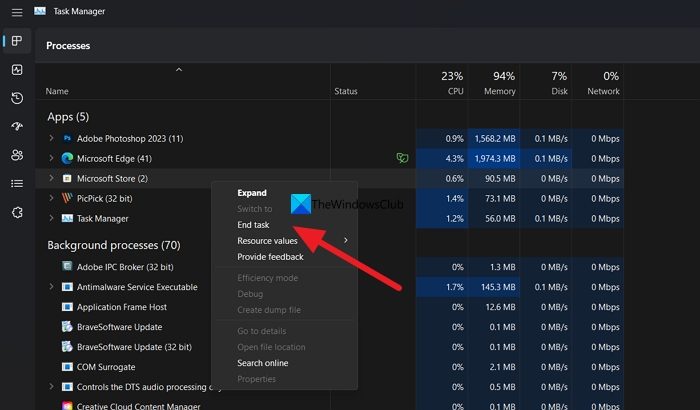
Restarting Microsoft Store can help you fix the error in most cases.
Open Task Manager on your PC and right-click Microsoft Store. Then select End task to close it completely, Reopen the Microsoft Store, and see if the error persists.
3] Set the correct date and time
If you recently changed the time zone or date and time settings on your computer, itis best to revert that change. At times, Microsoft Store doesn’t recognize the new time zone and, as a result, displays such an error. Therefore, follow this guide to change the date and time on Windows 11.
4] Run Windows Store Apps troubleshooter
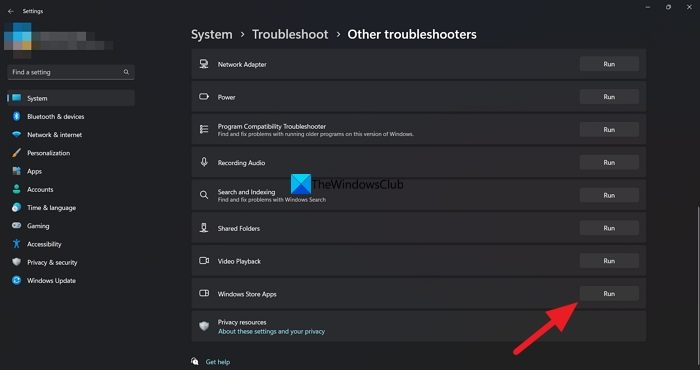
The other way to fix the error on Microsoft Store is to run Windows Store Apps troubleshooter. Whether it is due to an unstable internet connection or corrupt or missing files, you can get rid of the problem with the help of Windows Store Apps Troubleshooter.
To run Windows Store Apps Troubleshooter on Windows 11, do the following:
- Open Windows Settings.
- Go to System > Troubleshoot > Other troubleshooters.
- Find the Windows Store Apps troubleshooter.
- Click the Run button.
Then, it scans your system and shows the exact reason along with some solutions.
5] Check for updates on Microsoft Store
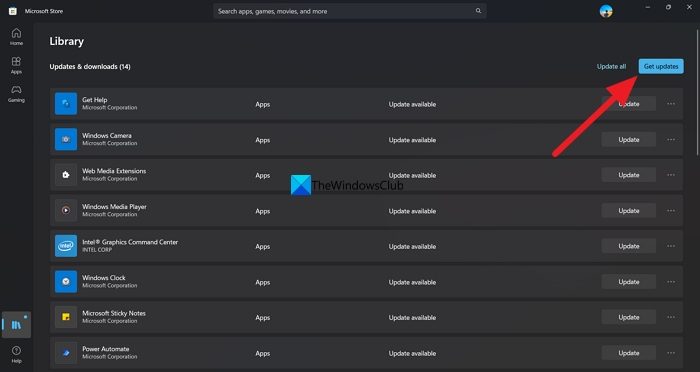
The other way to fix the error is by checking and updating the Microsoft Store. You can do it in the Microsoft Store itself. Just click on the Library icon and then, click on Get updates to check and install them.
6] Sign out and Sign in to your Microsoft account
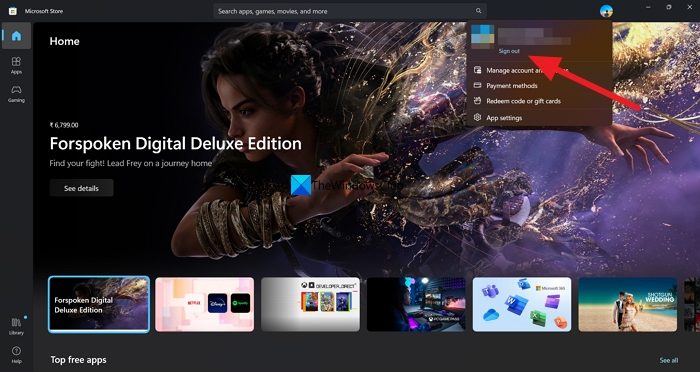
Sometimes signing out and signing in to the Microsoft Store with your Microsoft account fixes most problems. You can try this when you see “There has been an error” on the Store app.
To sign out and sign in to Microsoft Store,
- Click on the Profile picture at the top of the Microsoft Store
- Select Sign out
- Restart the app. Then, click on the Profile icon.
- Select the account and enter the PIN to sign in.
7] Repair or Reset Microsoft Store
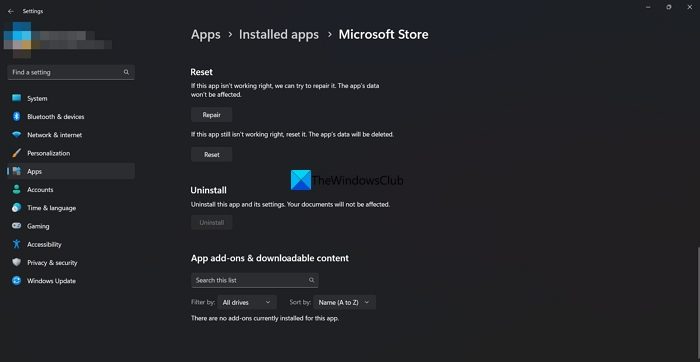
If this problem appears because of corrupt system files, you can get rid of them by resetting or repairing the Microsoft Store app. To repair and reset Microsoft Store, follow these steps:
- Press Win+I to open Windows Settings.
- Go to Apps > Apps & features.
- Find Microsoft Store > click the three-dotted icon > select Advanced options.
- Click the Repair button.
- Check if it resolves the issue.
- If not, click the Reset button twice.
These are the different ways you can use to fix the “There has been an error” message on Microsoft Store.
How do I fix Microsoft Store error?
Microsoft Store errors can be fixed easily by running Windows Store Apps troubleshooter, updating the store to the latest version, setting the correct date and time if you had changed it, or repairing the Microsoft Store app using the Settings app.
How do I fix Microsoft Store not opening?
If Microsoft Store is not opening, check the status of Microsoft Store Install Service, reset the Microsoft Store and delete its cache, run the Windows Store Apps troubleshooter or re-register the Microsoft Store app.
Related read: Fix Microsoft Store Error Code 0x803fb107.
