
If Microsoft Outlook isn’t connecting to the mail server on your Windows 11/10 computer, this post may help. Microsoft Outlook is one of the best information managers, and it lets you send and receive emails. However, after updating the system to the latest version, many users are struggling to connect Outlook to the server. Due to this issue, users are unable to send, receive, refresh, or even download any new email. If you are encountering the same problem, continue with this troubleshooting guide to resolve it.
Outlook not connecting to Server on Windows PC
Here’s what you can do if Microsoft Outlook is not connecting to the server on Windows 11/10.
- Restart Outlook
- Check the Internet
- Recheck your Credentials
- Check the Outlook Status
- Use SSL Encrypted Connection
- Repair the Outlook Account
- Rebuild Outlook Data File
- Turn Off Extensions
- Update Outlook
Now, let’s check out all the solutions in detail.
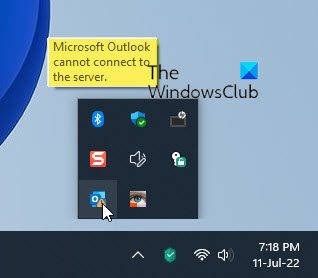
Microsoft Outlook cannot connect to the server
1] Restart Outlook
The very first thing you can try is restarting Outlook. Sometimes, there can be a temporary glitch that prevents Outlook from connecting to the server. In such a case, the best thing to try is restarting Outlook. You can even reconnect with the internet and open Outlook. Now check whether the problem is fixed.
2] Check the Internet
A weak internet connection can be another reason you are facing the problem. In such a case, you can’t do anything other than wait until your internet is back. You can reboot your router if you are using it as your internet source. You can even contact your ISP if the problem continues for a long time.
Fix: Outlook connectivity issues on Windows 11
3] Recheck your Credentials
Another reason that can trigger the issue is the wrong account credentials. Sometimes you might have entered the wrong username or password and wondered why Outlook isn’t connecting to the server. The situation mainly arises when you are logging in for the first time. So, make sure you have entered the correct credentials. To do so, follow the below steps.
- Launch Outlook on your system.
- Click on the File option present on the top left corner of the screen.
- Click on the dropdown icon present with the Account Settings.
- Choose Account Settings from the list of options.
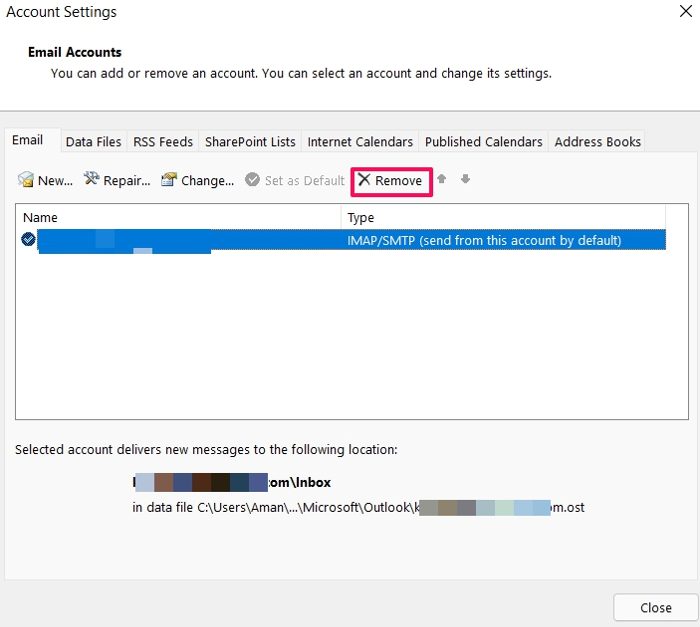
- Tap on your email account and choose the Remove option.
That’s it. You have finally removed the existing account from Outlook. Now go to File again and choose the Add account option. Make sure to enter the correct ID password this time.
Read: Outlook connected accounts Update failed and Sync issues
4] Check the Outlook Status

The next thing you should check is whether Outlook is online or not. If Outlook is offline, there’s no way by which you can connect it with Microsoft servers. You can check the Outlook server status by following the below steps.
- Open Outlook on your system.
- Click on Send/ Receive tab present on the top section.
- Click on the Work Offline option.
Now, Outlook will connect with the Microsoft servers. Check if the problem is fixed or not.
5] Use SSL Encrypted Connection
You need to be connected with the SSL encrypted connection in order to connect with the Microsoft Exchange server. To do so, follow the below steps.
- Launch Outlook.
- Click on the File option present at the top left corner.
- Tap on the dropdown icon present next to Account Settings.
- Click on Server Settings.
- Change the encryption method to SSL/TLS.
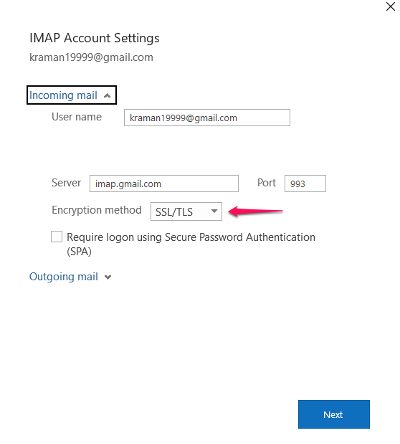
- Click on Next > Done.
That’s it. Check if the problem is fixed or not.
6] Repair the Outlook Account
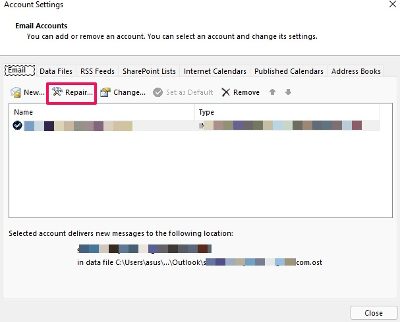
The best part about Microsoft Outlook is that it features an option that allows you to easily repair different email providers in the app. So, if you are facing a server problem, you will have to go to the repair process to fix the problem. To do so, follow the below steps.
- Launch the Outlook app on your system.
- Click on the File option present at the top left corner.
- Tap on the dropdown icon present under the Account Settings option.
- Choose Account Settings from the list of options.
- In the following window, select your Gmail account.
- Tap on the Repair option.
Once done, restart your system. Open Outlook, and check whether the problem is fixed or not.
7] Rebuild Outlook Data File
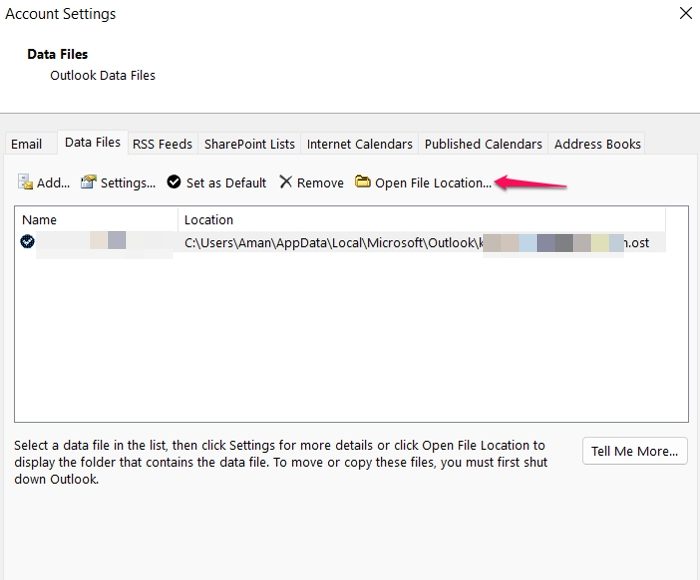
You can rebuild the Outlook data file to fix the server connection issue. By default, all the data in Outlook is saved in an external file. However, if it gets corrupted, you will have issues connecting to the server. As a solution, you will need to rebuild the Outlook data file.
- Launch Outlook > Account Settings > Data Files.
- Click on the email account that is not able to connect to the server.
- Choose the Open File Location option.
- Now, rename the outlook data file associated with the problematic mail address.
That’s it. Now open Outlook and wait until it rebuilds the data file. Once done, check if the server problem is fixed or not.
Read: Email in Outlook not syncing
8] Turn Off Extensions
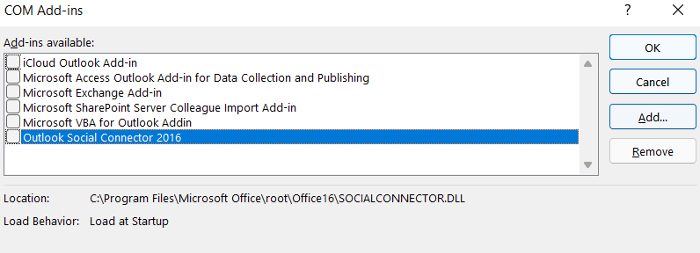
Outlook allows you to install different extensions on the platform. However, these extensions can also be the reason you are unable to connect to the server. You will have to turn off the extensions to fix the problem.
To do so, follow the below steps-
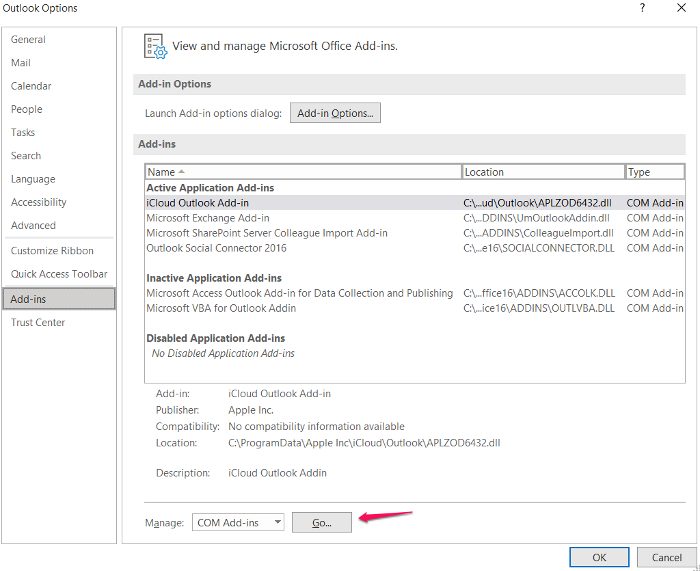
- Open Outlook > File > Options.
- Click on Add-ins.
- Tap on the Go option, and uncheck all the installed extensions.
- Click on OK to save the settings.
Launch Outlook and check if the problem persists.
9] Update Outlook
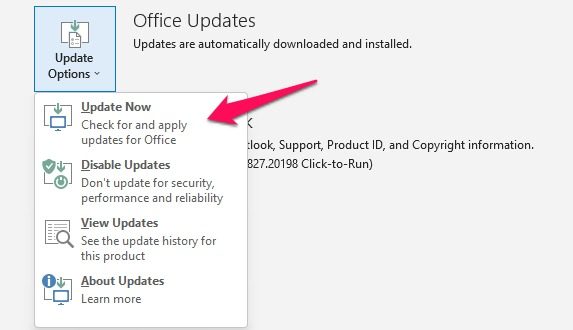
Sometimes an outdated app can be the reason behind different issues including the one you are currently facing. Update Outlook by following the below steps.
- Launch Outlook > File.
- Click on the Office Account option present on the left panel of the screen.
- Tap on the dropdown arrow present under Update options.
- Choose the Update Now option.
Now Microsoft will look for any available update. If found, it will automatically update Outlook.
Read: Outlook disconnected from server.
Outlook cannot login to Mail Server
If Outlook cannot log in to Mail Server, check your server settings:
- For Gmail: IMAP (port 993, SSL), SMTP (port 465 or 587, SSL/TLS).
- For Outlook.com/Office 365: IMAP (port 993, SSL), SMTP (port 587, TLS).
- For other providers, confirm their exact settings.
You should also update the authentication method. If your provider requires OAuth or app-specific passwords, generate one in your account security settings.
Why Outlook is not connecting to server on Windows?
There are multiple reasons why Outlook is unable to connect with a server on Windows. Anything can cause a server problem, including a weak internet connection, offline mode, third-party addons, corrupted data files, misconfigured encryption connections, and outdated apps. Troubleshooting this issue is very easy.
How do I reconnect Outlook to server?
Reconnecting Outlook to the server is very easy. Just tap on the Send/Receive tab, then click on Work Offline.
How do I fix a disconnected server in Outlook?
There are multiple ways to fix disconnected servers in Outlook. You can re-enable the work offline mode, restart Outlook, rebuild the data files, and repair Microsoft Office. If none of the solutions worked, you can recreate your profile.
Read Next: Outlook couldn’t start last time; Do you want to start in safe mode?
