
If you see GfxUI.exe This application could not be started or GfxUI has stopped working error, then this post will help you fix the issue. Some users are seeing this error message when they open the computer or when they try to launch Graphics Properties. Both of these are GfxUI application errors.
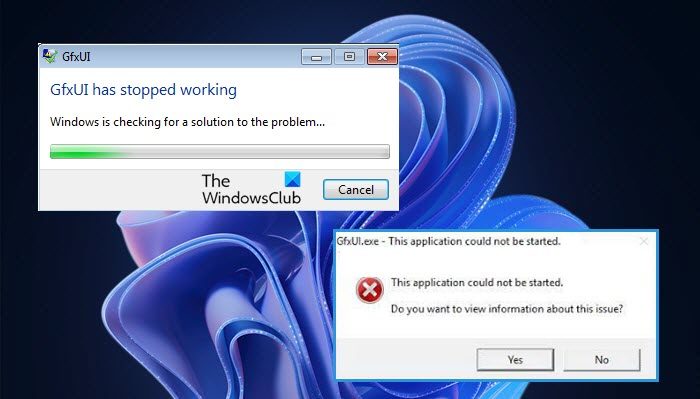
GfxUI is a part of Intel Onboard High Definition Video by Intel Corporation. The extension exe in the file GfxUI.exe indicates that it is an executable file. GfxUI is one of the drivers on a Windows computer responsible for controlling the Windows GUI for Intel’s onboard HD graphics adapter.
Why does Gfxui.exe crash?
On the topic of what can trigger this error, the first potential victim is .NET Framework. Which, in itself, is not a victim, but if it’s broken or disabled, chances are you will see that GfxUI will not work on your computer.
Also, one should check the graphics drivers. They cannot be outdated; if they are, then, due to compatibility issues, Intel Graphics drivers will malfunction and you can see either of the two mentioned errors.
We must also keep in mind that a third-party program can interfere with the operation of Intel Graphics and, as a result, cause the error. Hereinafter, we will cover all potential solutions you can try to fix the problem.
How do I fix GfxUI has stopped working?
To fix the GfxUI application error, check the solutions mentioned later. As explained earlier, GfxUI is a process of Intel GPU. So, only Intel users will face the error message in question. It is triggered on a computer with both dedicated and integrated Graphics. However, this doesn’t mean that those with just integrated graphics will be deprived of this process.
Now, to fix the issue, we recommend starting with the first solution and working your way down, as this will save you a lot of time. So, let us hop into it.
Fix GfxUI application error on Windows 11/10
If you are experiencing the GfxUI application error then check out these solutions to resolve the problem.
- Reinstall .NET Framework
- Update Visual C++ Redistribute
- Update Graphics Driver
- Reinstall Graphics Driver
- Troubleshoot in Clean Boot
Let us talk about them in detail.
1] Reinstall .NET Framework
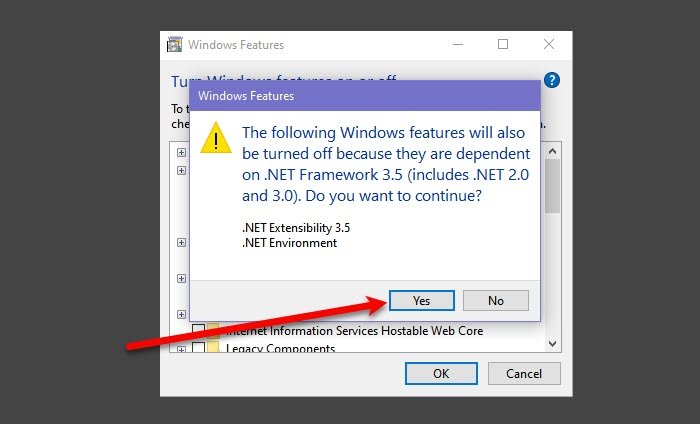
We should start with the first reason, which was, corrupted or missing .NET Framework. The best way to fix the corrupted file is to reinstall the feature. Follow the given steps to do the same.
- Open Control Panel.
- Set View by to Large icons
- Go to Program & Features.
- Click Turn Windows features on or off.
- Unselect .NET Framework 3.5 (includes .NET 2.0 and 3.0) if it’s selected, and select it, if it’s not.
- Then click Ok.
If you disabled the feature, then restart your computer, and turn it back on. Now, check if the issue is resolved.
Do check: Microsoft .NET Framework Repair Tool will fix problems & issues
2] Update Visual C++ Redistributable
You should also update the Visual C++ Redsitribulate. Because if it’s outdated, it can trigger compatibility issues and as a result cause problems for you. Go ahead and update Visual C++ Redsitribulate, then you can check if the issue is resolved or not.
Related: Application exe has stopped working
3] Update Graphics Driver
Since we’re here talking about issues with Intel Graphics, the chances are an outdated driver is causing the problem. Therefore, you should follow any of the prescribed methods and update your Graphics Driver.
- Update your Operating System to update the driver
- Download a free driver update software to do the job.
- Open Device Manager and update your driver.
After updating the driver, try opening the Intel Graphics properties app. Hopefully, it will launch without error messages.
Related: Fix GfxUI.exe High CPU usage.
4] Reinstall Graphics Driver
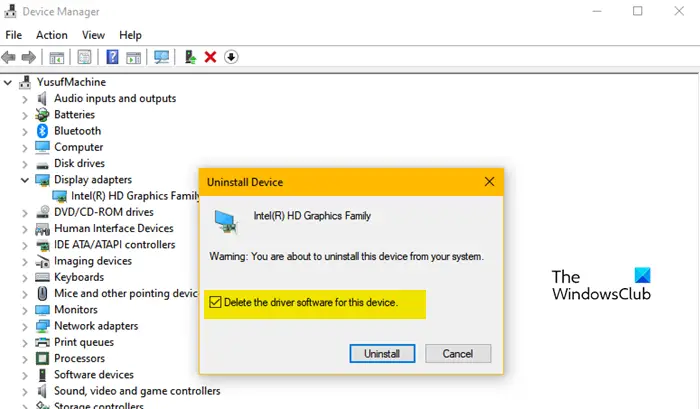
If updating is to no avail, then maybe your Graphics Driver is corrupted. In that case, there is only one way to fix the issue: reinstall those drivers. Follow the given steps to do the same.
Note: Your computer will go blank for a second or two, so, do not panic.
- Open Device Manager.
- Then, expand Display Adapters, right-click on your Intel driver, and select Uninstall device.
- Tick Delete the driver software for this device and click Uninstall.
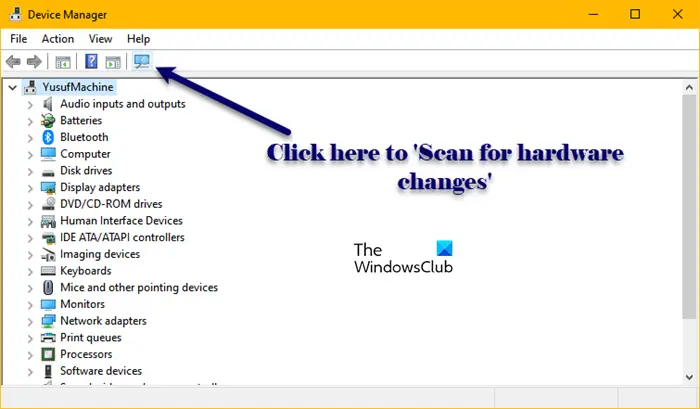
Now, you need to do two things: first, right-click on Display Adapters and click Scan for hardware changes or just click on the button to install Microsoft’s generic display driver.
However, we don’t want that, that’s why, out next step is to go to Intel.com and download the latest version of Intel Graphics Driver, then install it on your computer. Finally, restart your system and hopefully, the issue will be resolved.
5] Troubleshoot in Clean Boot
Finally, if nothing works, then our last resort is to troubleshoot in Clean Boot. This way, we will know if there is an application that’s interfering with our Intel Graphics, and then we can decide what to do about it.
This post will help you Troubleshoot Intel Graphics Drivers problems.
Hopefully, you can resolve the issue with our solutions.
Also check: Intel Graphics Control Panel not opening.
