
Intel Graphics Command Center, earlier called Intel Graphics Control Panel, plays a key role in improving overall graphics infrastructure performance. However, when you download the Intel Graphics Command Center from the Microsoft Store and launch it from its location, the application may fail to launch. If you face this issue, this post may help you.
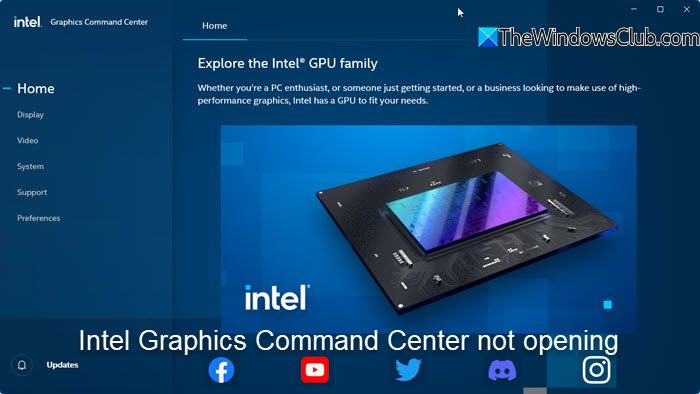
Intel Graphics Command Center not opening in Windows 11/10
Before proceeding to the solution, let’s determine why this error occurs in the first place. It is believed that the device manufacturer sometimes pushes and installs DC drivers through the Windows Update service. As a result, the DC driver overwrites any DCH driver, installed earlier. Mind you, the Intel Graphics Command Center application downloaded from the Microsoft Store is still not removed.
This results in two instances of the Intel Graphics Command Center attempting to run on the system simultaneously, causing neither to open. Do the following and see if that helps you:
Windows 11
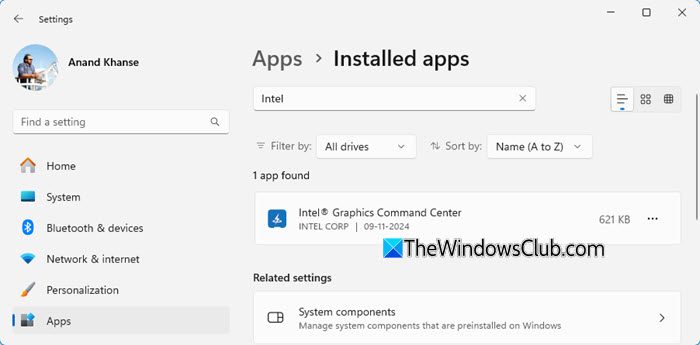
- Open Windows Settings.
- Choose Apps.
- Locate Intel Graphics Command Center and Intel Graphics Driver.
- Uninstall the two.
- Restart the computer.
- Go to Device Manager.
- Click Display Adapters.
- Right-click the Intel HD Graphics Adapter and click Update Driver.
Windows 10
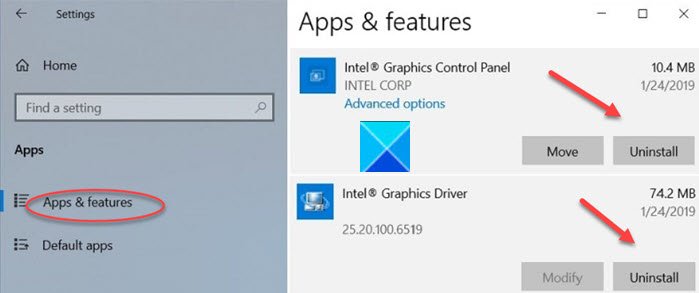
Click the Start button, located at the bottom, and choose the Settings option.
Click the Apps tile to go to the Apps and Features section.
Locate the entries for Intel Graphics Command Center or Intel Graphics Control Panel, and Intel Graphics Driver.
Uninstall the drivers and Restart the PC.
Update driver
In Windows 11 or Windows 10, open the Device Manager > Display Adapters.
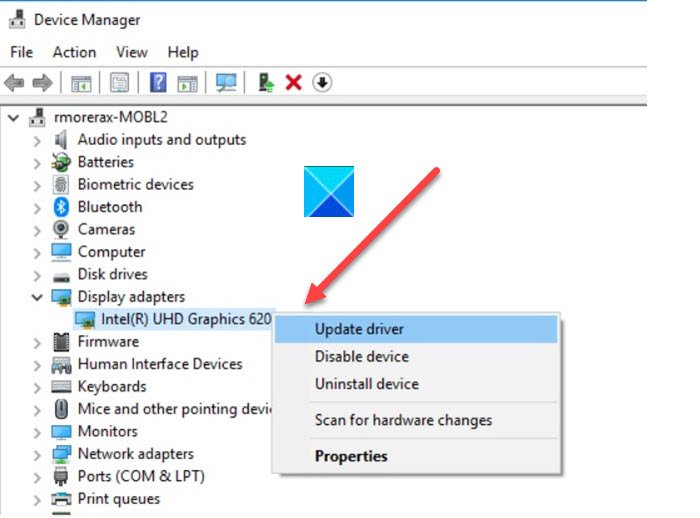
Here, right-click the Intel HD Graphics Adapter and choose the Update Driver option.
Next, click Search automatically for the updated driver software link.
Wait for a few seconds as Windows Update will automatically search for, download, and install the latest graphics driver validated for your computer.
Alternatively, when the same error is followed by a message that says GfxUI.exe is missing, you can follow a different course of action to resolve the issue.
Right-click the Intel Graphics Command Center shortcut and choose ‘Open file location.’ When directed to a new page, locate the shortcut file, right-click it again, and choose the ‘Open file location’ option one more time. You should be directed to a new folder like:
C:\WINDOWS\system32
Here, you should find a file called GfxUIEx.exe is highlighted. That’s the control panel you’re trying to open. Simply double-click the file to Intel Graphics Control Panel in Windows 11/10.
This should resolve the issue permanently.
Intel Graphics Command Center Service failed to start
If the Intel Graphics Command Center Service has failed to start, take the following steps:
- Open Windows Settings > Apps > Intel Graphics Command Center > Advanced Options, then click Repair or Reset.
- Update the Graphics Driver by downloading the latest from Intel’s site.
- Uninstall it from Windows Settings and then reinstall via the Microsoft Store.
- Ensure that your system meets Intel’s system requirements.
Intel Graphics Control Panel Missing or Disappeared
If the Intel Graphics Control Panel is missing after installing the new DCH graphics driver and cannot be launched using the context menu option or the tray icon, then you should know that it has now been replaced by the Intel Graphics Command Center for systems with 6th-generation Intel processors or newer. The Intel Graphics Command Center has the latest features and capabilities and will continue to be the user interface for future improvements.
Where to download Intel Graphics Control Panel or Intel Graphics Command Center?
You can download Intel Graphics Control Panel, now called, Intel Graphics Command Center from the Microsoft Store.
Related: Intel Graphics Settings keep crashing
Intel Graphics Settings context menu item or tray icon missing
The Intel Graphics Settings context menu item or the system tray icon are no longer available when using Windows DCH Graphics drivers. The Intel Graphics Control Panel can be opened from the Windows Start menu or using the shortcut CTRL+ALT+F12.
