
When it comes to PCs, Intel still takes the lead, meaning Graphics issues like others will happen. While Windows offers a built-in troubleshooter, Intel also offers a page that helps you troubleshoot Intel Graphics Driver problems, like Intel Graphics Settings crash issues.
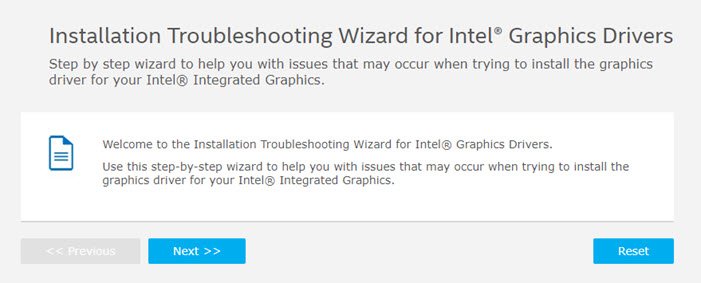
Troubleshoot Intel Graphics Drivers problems on Windows 11
These are the common errors you may see:
- Graphics driver installation fails with error: Your computer does not meet the minimum requirements for installing the software.
- Graphics driver installation fails with error: A customized computer manufacturer driver is installed on your computer.
- Intel Driver & Support Assistant (Intel DSA) is recommending an update for Intel Graphics but it fails to install the suggested driver.
Your computer does not meet the minimum requirements for installing the software
You should use Intel® Driver & Support Assistant to automatically download and install the latest Graphics driver for your computer. See if this helps.
If not, delete the Intel DSA temporary files from the folder C:/ProgramData/Intel/DSA. You may also need to clear out browser cookies and cache to ensure DSA can detect the graphics driver correctly. Now rerun Intel DSA.
Read: Intel Graphics Control Panel not opening.
A customized computer manufacturer driver is installed on your computer
Use the Intel Driver & Support Assistant to automatically download and install the latest Graphics driver for your computer. If you don’t want to do this, you should update the generic graphics driver that is installed.
If there is still an error, then follow this:
If the driver you are trying to install isn’t compatible with the Intel Graphics Controller on your computer, make sure you have properly identified your Intel Graphics Controller, and then search the Intel Download Center ONLY for drivers designed specifically for your Graphics Controller.
If the driver you are trying to install is incompatible with your Operating System (OS) or its version/build, you will need to contact the company to resolve it.
Related:
Intel Driver & Support Assistant is recommending an update
If this is the case, and it’s failing to install the suggested driver, then you need to delete the files and folder from C:/ProgramData/Intel/DSA. The files could be hidden, so make sure to unhide them. Having done this, update Intel DSA and then see.
For more, visit Intel.com.
Read next:
- Intel Driver & Support Assistant will help you download, install, and update Intel Drivers.
- Intel Driver and Support Assistant is not working.
How do I fix a corrupted GPU driver?
The easiest way to fix any driver is to reinstall it. At times, GPU drivers can become corrupted, but if you download and install the compatible driver directly from the OEM website, the issue should be resolved. However, the first step is to restart the Windows PC and check whether the issue persists. This can sometimes resolve the issue on its own. You can always restore to a working state using the System Restore feature if nothing else works.
What are the signs of a failing graphics card?
Several signs may indicate a failing graphics card. These can include visual artifacts in your computer’s display, driver crashes, freezes or hangs, and screen flickering. Other signs include incorrect colors or textures in games or applications and slow or choppy performance in games or other graphics-intensive programs. If you are experiencing any of these issues, your graphics card may be failing and may need to be replaced.
